MCP server · Security
ChronoVerify MCP server
by beeswaxpat
Check when a photo was really taken and whether its details have been changed.
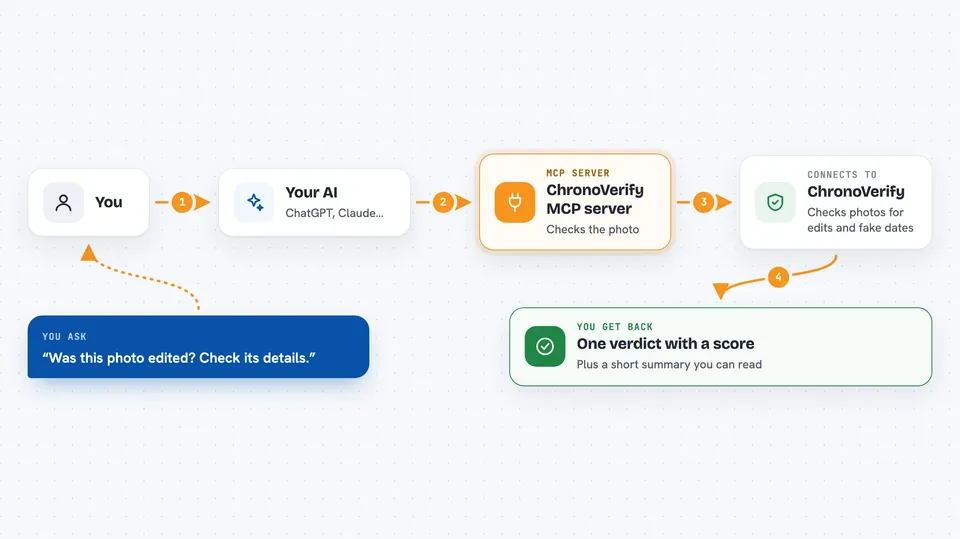
ChronoVerify is a service that checks a photo's capture time and where it came from. This MCP server connects that service to your AI assistant, so you can ask about a picture in plain words instead of using a website. It is handy if you handle photos as evidence, in claims, in news, or in any job where you need to know a picture is what it claims to be.
What is an MCP server? The 30-second version
On its own, your AI can only chat. An MCP server is a small helper program that gives your AI a new skill or a connection to another service. This one connects your AI to ChronoVerify, so when you ask about a photo, the AI can send it off to be checked and bring the answer back. You do not install anything complicated; you add a short block of settings to your AI app once.
What this MCP server does
You point your AI at a photo, either by web address, by a file on your computer, or as pasted image data. The AI passes it to this helper, which sends it to ChronoVerify. ChronoVerify looks at the photo's built-in details, checks for content credentials, and runs pixel checks for signs of editing. It then gives back one overall verdict with a confidence score, plus a written summary you can read.
 Click to zoom
What you can do with it
- Check when a photo was taken according to its own details
- See whether the photo's details contradict each other
- Look for C2PA Content Credentials and who signed them
- Get a single verdict with a confidence score from 0 to 100
- Get a shareable link to the verdict you can cite
- Generate a signed PDF report for your records
Try asking your AI
- “Verify the provenance of /Users/me/Downloads/photo.jpg”
- “When was the photo at this URL taken, and has it been edited? https://example.com/photo.jpg”
- “Validate the C2PA Content Credentials on this image and tell me the signer.”
- “Generate a signed provenance report for ./evidence/claim-001.jpg and save it to ./reports/”
What it gives back to you
You get a short written summary in the chat, plus a structured result the AI can read. That result includes the verdict, a confidence number, the capture time and device, whether location data is present, and details about content credentials and file integrity. If you asked for a link, you also get a shareable address for the verdict. The signed report option writes a PDF file and tells you where it was saved.
Before you start
What you need
- An MCP-compatible AI app such as Claude Desktop, Cursor, Cline, or VS Code
- Node.js installed on your computer so the npx command can run
- An API key from ChronoVerify for signed reports and unlimited use (the first 100 checks each month are included; without a key you get a free, rate-limited check)
Good to know
The results are investigative clues to help a person review, not proof, so do not treat a verdict as a final answer on its own.
Install it with your AI
Add ChronoVerify MCP server to your AI, no technical skills needed
You don't install anything by hand. You copy one prompt, paste it into an AI that can work on your computer, and it checks, installs and connects the server for you, asking you when it needs something.
Sign in to get the install prompt
Members get a ready-made prompt that lets the Claude desktop app check ChronoVerify MCP server, install it and connect it for them, step by step. You don't need any technical skills: you copy, paste and answer a few questions. Your connected AI can also find and install any of the 4,361 MCP servers here for you.
Who it's for
People who deal with photos as evidence or content, such as claims handlers, journalists, legal teams, and anyone who needs to check a picture's story.