MCP server · Developer tools
SSH MCP server
by blakerouse
Lets your AI connect to your Linux and Windows servers and run commands on one or many of them at once.

This is a small helper that lets your AI talk to your remote servers over SSH. You add your servers once, then you can just ask your AI to run a command, check disk space, or see what operating system a machine is running. It is handy for anyone who looks after a few servers and would rather type a sentence than remember server names and addresses.
What is an MCP server? The 30-second version
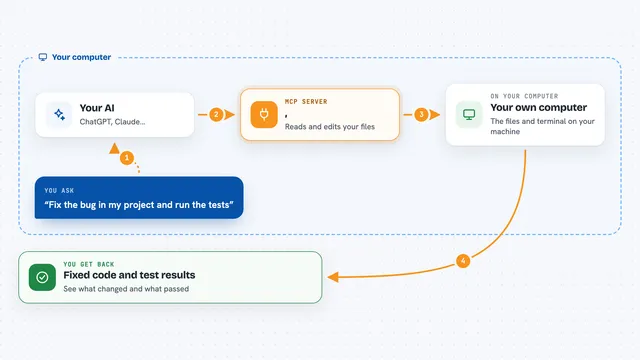
On its own, your AI can only chat. An MCP server is a small helper program that gives your AI a new skill or a connection to something else. This one gives your AI a connection to your remote servers over SSH, the same way you would connect from a terminal. Once it is running, your AI can log in to those servers and run commands for you when you ask.
What this MCP server does
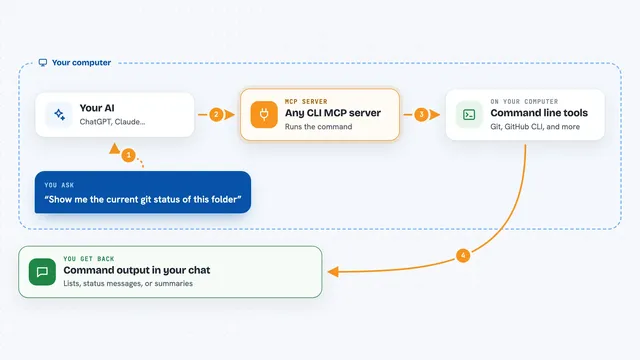
You tell your AI which servers you have, and it saves them in groups like production or staging. When you ask it to run something, the AI passes that request to this helper, and the helper opens an SSH connection to the server and runs the command. If the command finishes quickly, you get the output right in the chat. If it takes longer than 30 seconds, it keeps running in the background and you get a command ID so you can check on it later.
 Click to zoom
What you can do with it
- Add Linux and Windows servers to groups you name yourself
- Run a command on one server or on every server in a group at once
- Check disk space, uptime, or service status across several machines
- Let long commands run in the background and check on them later
- Cancel a background command that is still running
- See which operating system each server is running
- Remove a server from your list when you no longer need it
Try asking your AI
- “Add host named web01 to production group connecting with user@10.0.1.5:2222”
- “Show me all groups”
- “Run uptime on production group”
- “Check disk space on staging group”
- “Show me the status of the last command”
What it gives back to you
You get the output of the commands back in the chat, grouped by server so you can see which machine said what. For long jobs you get a command ID and a status you can ask about later. For host management you get simple lists of your groups and servers, or a confirmation that something was added or removed.
Before you start
What you need
- The Claude desktop app (or another app that supports MCP servers)
- Go installed on your computer so you can build the program
- Your server addresses, and either a password, an SSH key file, or an SSH agent set up
Good to know
Your AI can run real commands on your servers, including ones that change or delete things, so check what it is about to run before you say yes.
Install it with your AI
Add SSH MCP server to your AI, no technical skills needed
You don't install anything by hand. You copy one prompt, paste it into an AI that can work on your computer, and it checks, installs and connects the server for you, asking you when it needs something.
Sign in to get the install prompt
Members get a ready-made prompt that lets the Claude desktop app check SSH MCP server, install it and connect it for them, step by step. You don't need any technical skills: you copy, paste and answer a few questions. Your connected AI can also find and install any of the 4,609 MCP servers here for you.
Who it's for
People who look after a handful of Linux or Windows servers, like sysadmins, developers, and small IT teams.