MCP server · Developer tools
Portkey Admin MCP server
by CodesWhat
Lets your AI manage your Portkey prompts, keys, configs, guardrails, and analytics for you.
This is a helper that connects your AI assistant to Portkey, the service many teams use to manage their AI prompts and API keys. Once it is set up, you can ask your AI in plain words to look things up or make changes in Portkey instead of clicking around the dashboard. It is handy if you already use Portkey at work and want to get things done faster.
What is an MCP server? The 30-second version
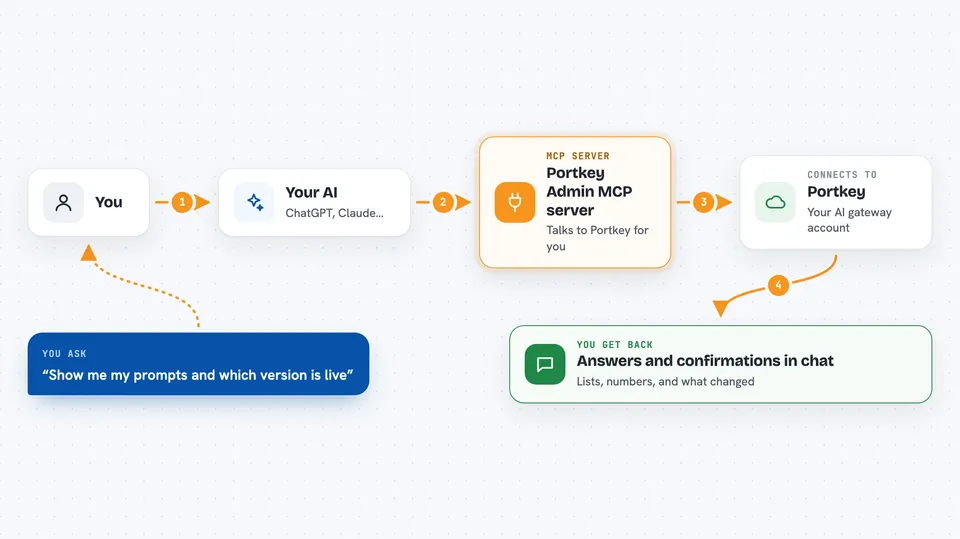
On its own, your AI can only chat. It cannot see your Portkey account or change anything there. An MCP server is a small helper program that gives your AI a new skill: here, a connection to Portkey. When you ask your AI something about Portkey, it passes the request to this helper, the helper talks to Portkey for you, and the answer comes back into your chat.
What this MCP server does
You ask your AI a question or give it a task about Portkey. The AI picks the right action from this helper, like listing your prompts or checking your costs. The helper sends that request to Portkey using your Portkey API key. Portkey replies, and the helper hands the result back to your AI. Your AI then explains it to you in the chat, or confirms the change it made.
 Click to zoom
What you can do with it
- List and search your prompts and their versions
- Create or update a prompt and move it to production
- Check your cost, token, latency, and error numbers
- Create, rotate, or manage API keys
- Review and adjust guardrail settings
- Look up users, workspaces, and invites
- Read your audit logs and recent requests
Try asking your AI
- “Show me all my prompts and which version is live in production”
- “What did we spend on AI calls last week, broken down by model?”
- “Create a new API key for the staging workspace and tell me its name”
- “Which guardrails are turned on right now, and what do they block?”
What it gives back to you
You get answers in your chat: lists of prompts, keys, users, or workspaces, plus numbers and summaries for costs, tokens, latency, and errors. When you ask it to make a change, it tells you what it did, like the name of a key it created or a prompt version it promoted. Some results come back as tables or short reports you can read right away. It does not hand you files unless the tool you used is set up to export logs.
Before you start
What you need
- A Portkey account
- A Portkey API key from your dashboard, with the right permissions turned on
- Node.js 18 or newer on your computer (the helper runs through npx)
- An AI app that supports MCP servers, like Claude Code, Cursor, Windsurf, or VS Code
Good to know
This helper can change and delete things in your Portkey account, like keys and prompts, so check with your AI before you let it make changes, and give it an API key with only the permissions you actually need.
Install it with your AI
Add Portkey Admin MCP server to your AI, no technical skills needed
You don't install anything by hand. You copy one prompt, paste it into an AI that can work on your computer, and it checks, installs and connects the server for you, asking you when it needs something.
Sign in to get the install prompt
Members get a ready-made prompt that lets the Claude desktop app check Portkey Admin MCP server, install it and connect it for them, step by step. You don't need any technical skills: you copy, paste and answer a few questions. Your connected AI can also find and install any of the 4,609 MCP servers here for you.
Who it's for
Teams and admins who already use Portkey and want to manage prompts, keys, limits, and analytics without clicking through the dashboard.