MCP server · Productivity
Yandex Workspace MCP server
Lets your AI search and read your Yandex Disk files and Yandex Wiki pages, with strict safety limits.
This is a helper that connects your AI assistant to your Yandex Disk and Yandex Wiki. Once it is set up, you can ask your AI to find files, read pages, or look things up across both places at once. It is made for people who keep work documents in Yandex and want their AI to help without giving it free rein.
What is an MCP server? The 30-second version
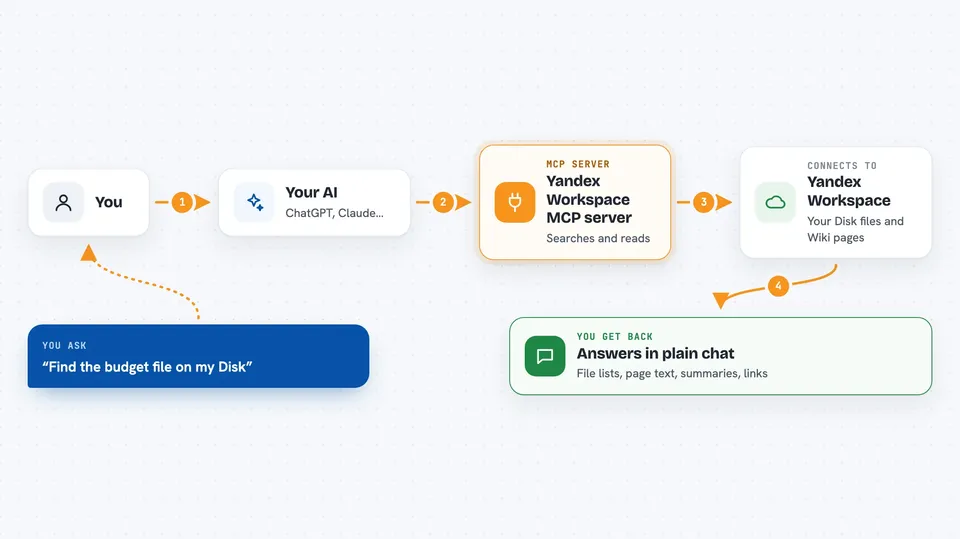
On its own, your AI can only chat. It cannot see your files or your wiki. An MCP server is a small helper program that gives your AI one new skill or one new connection, and this one connects it to Yandex Disk and Yandex Wiki. So when you ask a question, your AI can actually go look in your Yandex workspace and bring back an answer.
What this MCP server does
You ask your AI something like 'find the budget file on my Disk' or 'what does our onboarding wiki page say'. Your AI passes that request to this helper. The helper talks to Yandex Disk or Yandex Wiki using your own login, then hands the result back to your AI. Your AI then explains it to you in the chat. By default it can only read, not change anything, and it only looks inside the folders you allow.
 Click to zoom
What you can do with it
- Search your Yandex Disk and Yandex Wiki at the same time
- Read a specific file or wiki page and summarize it
- List recent files or browse a folder
- Check how much space is left on your Disk
- Get a shareable link for a file
- Read and add comments on wiki pages (if write is turned on)
- Upload a file or create a page (only if you turn write on)
Try asking your AI
- “Find any files on my Disk with 'contract' in the name”
- “What does the team onboarding page in our Wiki say?”
- “Show me my most recently changed files on Yandex Disk”
- “Search both Disk and Wiki for anything about the Q3 launch”
What it gives back to you
You get answers in plain chat: a list of matching files with names and dates, the text of a wiki page, a summary, or a link you can click. If it changed something, like adding a comment, it tells you what it did. If one of the two services could not be reached, it says so instead of pretending everything worked.
Before you start
What you need
- A Yandex account with access to the Disk and Wiki you want to use
- A Yandex OAuth token (a kind of password you generate on the Yandex OAuth site)
- Your Yandex organization ID if you use Yandex Wiki at work
- Python and the uv tool installed on your computer
Good to know
If you turn on write or delete, the AI can change or remove your real files and pages, so keep the default read-only setting and the folder limits until you trust it.
Install it with your AI
Add Yandex Workspace MCP server to your AI, no technical skills needed
You don't install anything by hand. You copy one prompt, paste it into an AI that can work on your computer, and it checks, installs and connects the server for you, asking you when it needs something.
Sign in to get the install prompt
Members get a ready-made prompt that lets the Claude desktop app check Yandex Workspace MCP server, install it and connect it for them, step by step. You don't need any technical skills: you copy, paste and answer a few questions. Your connected AI can also find and install any of the 4,361 MCP servers here for you.
Who it's for
People who keep their work files and team documentation in Yandex Disk and Yandex Wiki and want their AI to read and search them.