MCP server · Developer tools
OpenShift MCP server
by dockndevai
Lets your AI look at your OpenShift cluster: projects, pods, logs, and safe changes when you allow them.

This is a small helper that connects your AI assistant to an OpenShift or Kubernetes cluster. It starts in a read-only mode, so your AI can look around without changing anything. It is handy if you work with clusters and want quick answers about pods, logs, or deployments without clicking through the web console.
What is an MCP server? The 30-second version
On its own, your AI can only chat with you. An MCP server is a small helper program that gives your AI a new skill or a connection to an app or service. This one connects your AI to your OpenShift cluster, so it can look things up there and, if you allow it, make changes for you when you ask. You stay in control because it starts in a safe, read-only mode.
What this MCP server does
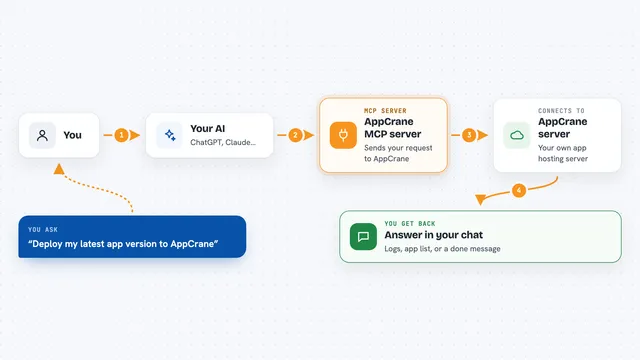
You ask your AI a question about your cluster, like what is running or why a pod is failing. Your AI uses this helper to talk to your OpenShift cluster using a login token. The helper fetches the answer, such as a list of projects, pod logs, or recent events. It shows you the result right in the chat. If you turn on higher modes, it can also scale workloads, restart deployments, or apply changes, but only after you approve.
 Click to zoom
What you can do with it
- Check which projects and namespaces you can see
- List pods, deployments, routes, services, and other resources
- Read the logs from a pod's container
- See recent events in a namespace
- Scale a deployment up or down (read-write mode)
- Restart a deployment (read-write mode)
- Apply or delete resources with extra safeguards and your confirmation
Try asking your AI
- “What projects do I have access to?”
- “Show me the logs for the pod my-app-123 in the my-project namespace”
- “Are there any recent events in the my-project namespace?”
- “Scale the my-app deployment to 3 replicas”
What it gives back to you
It gives you back lists, logs, event summaries, or details about a resource, shown as text in the chat. When it makes a change, it tells you what it did. Secret values are hidden from all output. If a change needs your approval, it pauses and asks you first.
Before you start
What you need
- Your cluster's API URL (the address you see in the console login command)
- A login token from the OpenShift web console, or your cluster username and password
- Node.js 18 or newer (so npx works)
Good to know
It can change or delete things in your cluster if you raise the mode and turn on the extra flags, so keep it in read-only mode unless you really need more.
Install it with your AI
Add OpenShift MCP server to your AI, no technical skills needed
You don't install anything by hand. You copy one prompt, paste it into an AI that can work on your computer, and it checks, installs and connects the server for you, asking you when it needs something.
Sign in to get the install prompt
Members get a ready-made prompt that lets the Claude desktop app check OpenShift MCP server, install it and connect it for them, step by step. You don't need any technical skills: you copy, paste and answer a few questions. Your connected AI can also find and install any of the 4,609 MCP servers here for you.
Who it's for
People who work with OpenShift or Kubernetes clusters, like developers, operators, and support engineers, who want quick answers or safe operations through their AI assistant.