MCP server · Developer tools
Kubernetes MCP server (Open WebUI)
by elevy99927
Ask your AI about your Kubernetes cluster in plain words, and it runs the kubectl and helm commands for you.

This is a helper that connects the Open WebUI chat app to a Kubernetes cluster. Kubernetes is the system many companies use to run their software in containers, and it is normally managed with typed commands. With this set up, you can just ask questions in the chat instead, and the AI does the typing for you.
What is an MCP server? The 30-second version
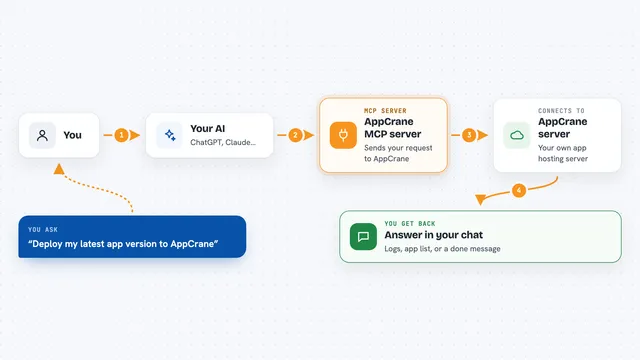
On its own, your AI can only chat. An MCP server is a small helper program that gives your AI a new skill or a connection to another system. This one connects your AI to a Kubernetes cluster, so it can look things up there or make changes when you ask. You talk in the chat, and the helper quietly carries your request over to the cluster.
What this MCP server does
You type a question in the Open WebUI chat, like asking which pods are running. The AI picks the right tool from this server, for example one that lists resources. The helper then runs the matching kubectl or helm command against your cluster. The result comes back and the AI shows it to you in the chat as a readable answer. It works for both looking things up and making changes, such as creating a namespace or installing software with Helm.
 Click to zoom
What you can do with it
- List pods, services, and deployments in any namespace
- Describe a resource to see its details and status
- Apply a manifest to create or update resources
- Create a new namespace
- Install software into your cluster with Helm
- Read the logs from a pod
Try asking your AI
- “What pods are running in the kube-system namespace?”
- “Show me all services in the default namespace”
- “List all deployments across all namespaces”
- “Create a new namespace called production”
- “Install Jenkins using Helm in the jenkins namespace”
What it gives back to you
You get answers in the chat, usually as a list or a short summary of what is in your cluster. For commands that change things, the AI tells you what it did, like confirming a namespace was created. Logs and descriptions come back as text you can read right there. You do not have to open a terminal or copy output around.
Before you start
What you need
- Docker installed on your machine
- A Kubernetes cluster (the setup script can create a small local one for you)
- The Open WebUI chat app running (the setup script starts it for you)
- A kubeconfig file, which is the access key to your cluster
Good to know
This server can change your cluster, including creating and updating resources, so be careful with requests that modify or remove things.
Install it with your AI
Add Kubernetes MCP server (Open WebUI) to your AI, no technical skills needed
You don't install anything by hand. You copy one prompt, paste it into an AI that can work on your computer, and it checks, installs and connects the server for you, asking you when it needs something.
Sign in to get the install prompt
Members get a ready-made prompt that lets the Claude desktop app check Kubernetes MCP server (Open WebUI), install it and connect it for them, step by step. You don't need any technical skills: you copy, paste and answer a few questions. Your connected AI can also find and install any of the 4,609 MCP servers here for you.
Who it's for
Developers, DevOps engineers, and IT staff who already work with Kubernetes and want to check or change things by chatting instead of typing commands.