MCP server · Developer tools
Azure Data Lake Storage MCP server
by erikhoward
Lets your AI list, read, upload and manage files in your Azure Data Lake Storage account for you.

This is a small helper that connects your AI assistant to Azure Data Lake Storage, which is Microsoft's cloud storage for large amounts of files. Once it is set up, you can ask your AI in plain words to look at your files, upload one, or tidy up folders, instead of clicking around a web portal. It is handy for anyone who keeps data in Azure and wants to work with it by just asking.
What is an MCP server? The 30-second version
On its own, your AI can only chat. It cannot see or touch anything outside the conversation. An MCP server is a little helper program you install on your computer that gives your AI one new skill. This particular helper connects your AI to your Azure Data Lake Storage account, so when you ask about your files, the AI can actually go and look, or make the change you asked for.
What this MCP server does
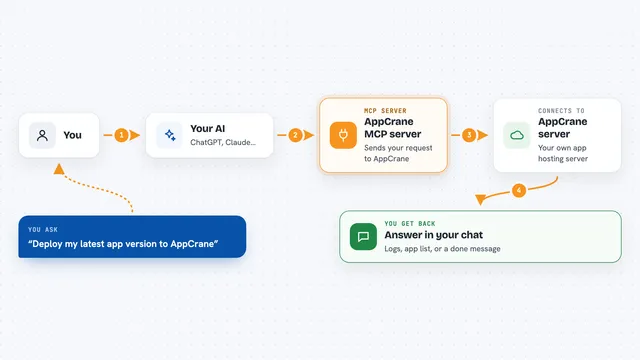
You ask your AI something about your Azure storage, like what files are in a folder. Your AI passes that request to this helper program running on your machine. The helper signs in to your Azure storage account and does the actual work, such as listing files or reading one. Then it sends the result back to your AI, which explains it to you in the chat. If you asked it to change something, like upload or rename a file, the helper makes that change in your storage account.
 Click to zoom
What you can do with it
- List all the storage containers in your account
- Create or delete a container
- Upload a file from your computer to Azure storage
- Download a file from Azure storage to your computer
- Check whether a file or folder exists
- Rename or move a file or folder
- Read and change the labels (metadata) attached to a file
Try asking your AI
- “List all the containers in my Azure storage account”
- “What files are inside the sales-data folder?”
- “Upload the report.pdf from my Downloads folder to the reports container”
- “Download the latest file from the logs folder and save it to my desktop”
What it gives back to you
You get answers in plain chat text, like a list of container names or file paths, or a short summary of what is inside a folder. When you ask for file details, you get things like the file size, when it was last changed, and any labels stored with it. If you asked it to upload or download, it tells you whether it worked and where the file ended up. For changes like renaming or deleting, it confirms what it did.
Before you start
What you need
- An Azure storage account with Data Lake Storage enabled
- Python 3.13 or newer installed on your computer
- The uv tool installed (a small program that installs Python packages)
- Your Azure storage account name, and either an account key or a signed-in Azure command line (az login)
Good to know
It can create, rename and delete files and containers in your Azure storage, so keep READ_ONLY_MODE turned on until you are comfortable, and be careful with delete requests.
Install it with your AI
Add Azure Data Lake Storage MCP server to your AI, no technical skills needed
You don't install anything by hand. You copy one prompt, paste it into an AI that can work on your computer, and it checks, installs and connects the server for you, asking you when it needs something.
Sign in to get the install prompt
Members get a ready-made prompt that lets the Claude desktop app check Azure Data Lake Storage MCP server, install it and connect it for them, step by step. You don't need any technical skills: you copy, paste and answer a few questions. Your connected AI can also find and install any of the 4,609 MCP servers here for you.
Who it's for
People who already keep data in Azure Data Lake Storage and want to browse or manage it by asking their AI instead of using the Azure web portal.