
MCP server · Browser automation
Chrome Bridge MCP server
by frsorrentino
Let your AI work inside the Chrome you are already signed into, and hand tricky steps back to you.
Chrome Bridge is a helper that lets your AI assistant borrow a tab in the Chrome browser you already use, with your logins and extensions in place. It opens pages, reads them, clicks and fills forms for you, and when something needs a real person, like a login code or a CAPTCHA, it shows you a banner and waits. It is handy if you test websites, check pages, or do repetitive work in a browser all day.
What is an MCP server? The 30-second version
On its own, your AI can only chat with you. An MCP server is a small helper program that gives your AI a new skill or a connection to an app. This one connects your AI to your own Chrome browser, so it can open pages, look at what is on them, and do things there when you ask. You stay in control: the AI works in a tab it opened, and your own tabs are left alone.
What this MCP server does
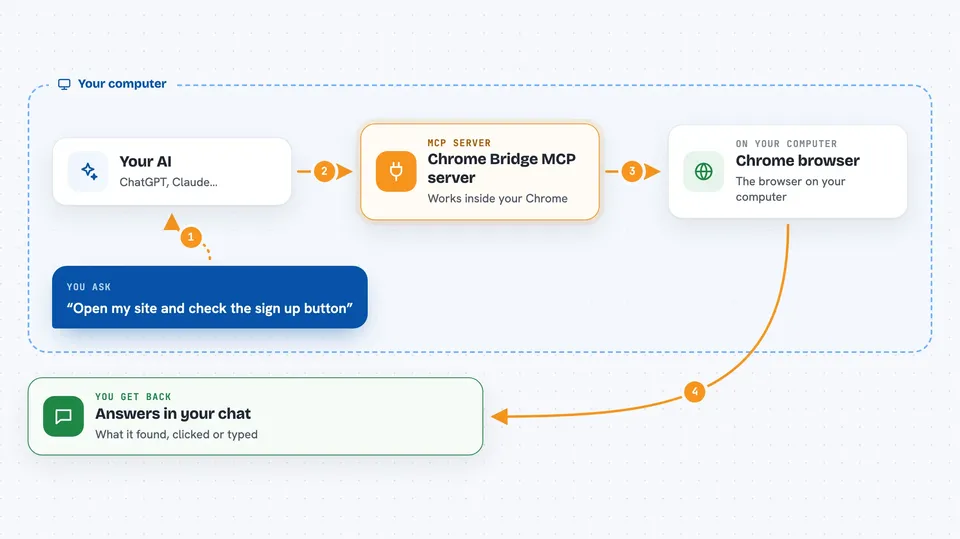
You ask your AI something like open this page and check it. The AI calls this helper, which talks to a small Chrome extension running in your browser. The extension does the actual work: opening the page, reading the text, clicking a button, filling a form, taking a screenshot. The result comes back to your AI, and your AI tells you what it found or what it changed. If a step needs you, like a login code, a banner appears in the page and the AI waits for you to finish.
 Click to zoom
What you can do with it
- Open a web page and read what is on it
- Click buttons and fill in forms for you
- Take screenshots and compare them to spot visual changes
- Run accessibility, SEO, security and link checks on a page
- Read the browser console and network activity to debug problems
- Save and reuse a session so you can replay the same steps later
- Ask you to handle a login, a code or a choice, then continue
Try asking your AI
- “Open localhost:3000, run an accessibility audit and find the Sign Up button”
- “Fill in the contact form on this page with my test details and submit it”
- “Check the checkout page with a test card and tell me if anything breaks”
- “Take a screenshot of the homepage now and compare it with yesterday's”
What it gives back to you
You get answers in the chat: what the page says, which elements were found, what the AI clicked or typed, and short summaries of audits. Screenshots and reports can be saved as files on your computer. If the AI changed something, like filling a form, it tells you what it did. When it needs you, a banner shows up in the page and the chat waits for your reply.
Before you start
What you need
- Node.js 18 or newer on your computer
- Chrome version 135 or newer
- The Chrome Bridge extension loaded in Chrome
- Claude Code, or another tool that can run a local MCP server
Good to know
This helper works inside your real, logged-in browser, so only use it on pages you trust, and be careful on sites that hold money or private data because a tricky page could try to make the AI do things you did not ask for.
Install it with your AI
Add Chrome Bridge MCP server to your AI, no technical skills needed
You don't install anything by hand. You copy one prompt, paste it into an AI that can work on your computer, and it checks, installs and connects the server for you, asking you when it needs something.
Sign in to get the install prompt
Members get a ready-made prompt that lets the Claude desktop app check Chrome Bridge MCP server, install it and connect it for them, step by step. You don't need any technical skills: you copy, paste and answer a few questions. Your connected AI can also find and install any of the 4,609 MCP servers here for you.
Who it's for
People who test or check websites, like QA testers, web developers, and anyone who does repetitive work in a browser.


