
MCP server · Developer tools · official
Nahook MCP server
by getnahook · official
Lets your AI check, retry, and send webhooks in Nahook without leaving the chat.
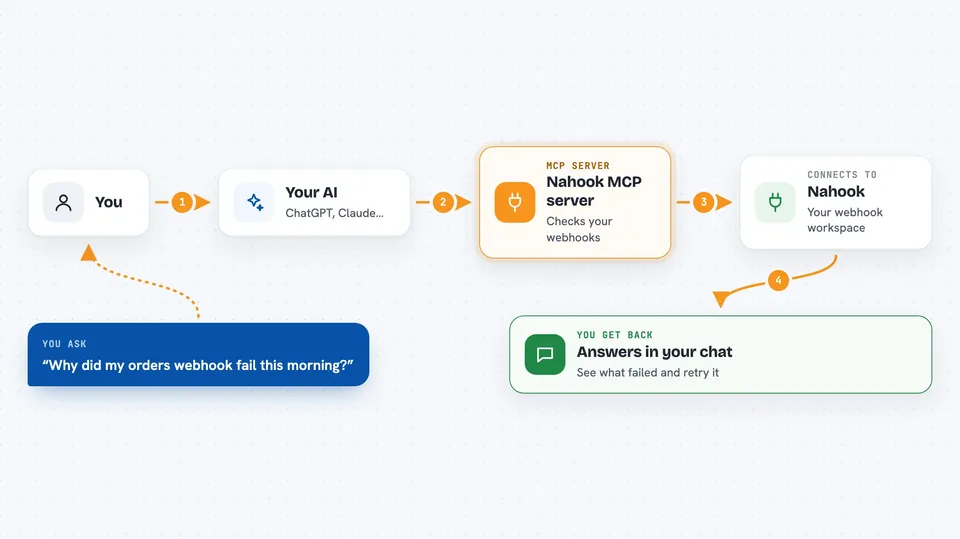
This is the official helper that connects your AI assistant to Nahook, a service for sending and receiving webhooks. Once it is set up, you can ask your AI things like which webhook deliveries failed today, or tell it to retry one. It is handy if you work with webhooks and want to stop clicking around dashboards.
What is an MCP server? The 30-second version
On its own, your AI can only chat. An MCP server is a small helper program that gives your AI a new skill or a connection to an app. This one connects your AI to Nahook, so it can look up your endpoints and deliveries, and send or retry webhooks for you. You just ask in plain words, and the helper does the clicking behind the scenes.
What this MCP server does
You ask your AI a question or give it a task about your webhooks. The AI uses this helper, which talks to Nahook on your behalf. Nahook returns the details, like a list of endpoints, a delivery record, or the original webhook body. The AI then shows you the answer in the chat, or performs the action you asked for, such as retrying a failed delivery. You never have to leave the conversation.
 Click to zoom
What you can do with it
- List every webhook endpoint in your workspace
- Look up a specific delivery and see its original payload
- Retry a failed or dead-lettered delivery
- Trigger an event and fan it out to all subscribers
- Send a webhook directly to one endpoint
- Create, pause, resume, or update an endpoint
- Check which environment and workspace you are connected to
Try asking your AI
- “Show me the last 10 deliveries for my orders endpoint”
- “Why did the delivery del_abc123 fail? Show me the attempts and the payload”
- “Retry the failed delivery from this morning”
- “Trigger a user.created event with this data”
What it gives back to you
You get answers in the chat: lists of endpoints or deliveries, details of a single delivery, attempt logs, and the original webhook body if you ask for it. When you ask it to do something, like retry a delivery or send a webhook, it tells you whether it worked. It never shows your signing secrets or auth tokens.
Before you start
What you need
- A Nahook account
- The nahook CLI installed on your computer
- You logged in once with nahook login
- An ingestion key (nhk_...) if you want to send or trigger webhooks
Good to know
It can change your endpoints and send webhooks, so keep the approval prompts turned on in your AI client and check before you say yes.
Install it with your AI
Add Nahook MCP server to your AI, no technical skills needed
You don't install anything by hand. You copy one prompt, paste it into an AI that can work on your computer, and it checks, installs and connects the server for you, asking you when it needs something.
Sign in to get the install prompt
Members get a ready-made prompt that lets the Claude desktop app check Nahook MCP server, install it and connect it for them, step by step. You don't need any technical skills: you copy, paste and answer a few questions. Your connected AI can also find and install any of the 4,609 MCP servers here for you.
Who it's for
Developers and technical folks who work with webhooks and want to debug or manage them from their AI chat.



