MCP server · Generative art
Kavel MCP server
by hanshs474
Let your AI pick a Kavel photo or video effect and write a ready-to-use prompt for it.
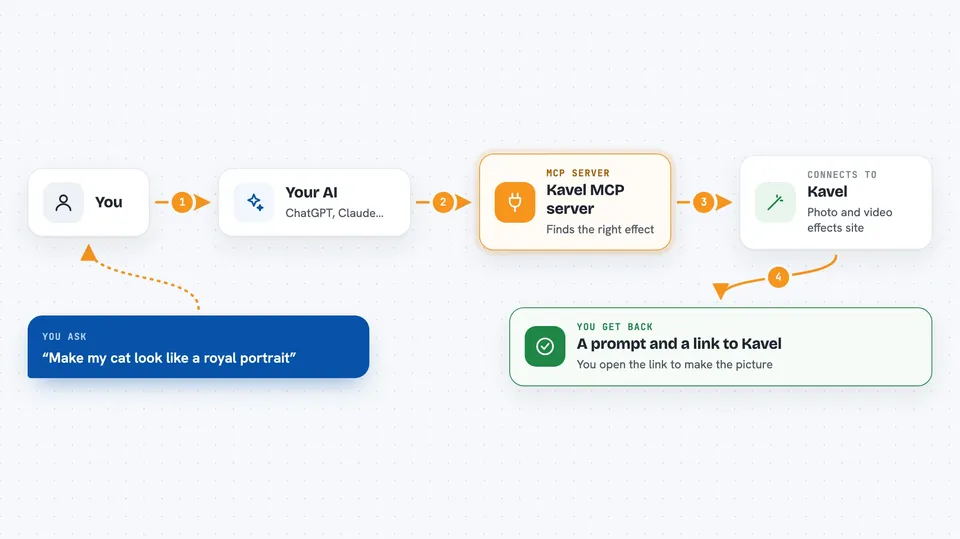
This is a small helper that connects your AI assistant to Kavel, a website full of AI photo and video effects like hairstyle changes, pet portraits, figurines, and dance videos. Instead of guessing what to type on Kavel, you describe what you want and the helper finds the right generator and writes the prompt for you. It is handy if you like playing with AI pictures but never know which tool to open or what words to use.
What is an MCP server? The 30-second version
On its own, your AI can only chat. An MCP server is a small helper program that gives your AI a new skill or a connection to an app, and here it connects your AI to Kavel. Once it is set up, your AI can look through Kavel's generators, build a prompt tuned to the effect you want, and hand you the link to generate it. You do not need to install anything on Kavel's side or create an account for the helper itself.
What this MCP server does
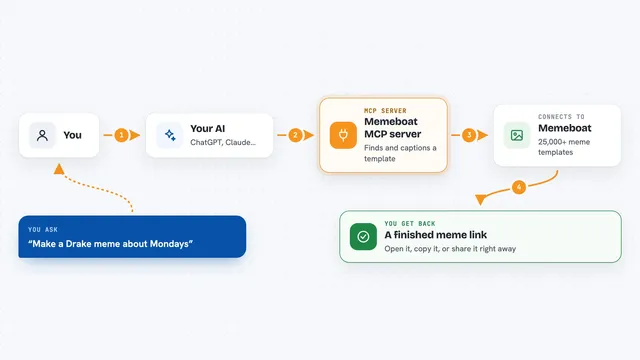
You tell your AI what you want, in your own words, like making your dog look like a king. The AI uses this helper to search Kavel's list of generators and find the ones that fit. Then it writes a prompt recipe for that effect, filled in with your details. Finally it gives you the direct link to the right Kavel page, already set to the correct mode, so you just open it and generate. The helper also tells you which image or video models Kavel runs and what each is good at.
 Click to zoom
What you can do with it
- Find the right Kavel generator for a look you have in mind
- Get a prompt written for a specific effect, with your details filled in
- Open the matching Kavel page with one link
- Compare Kavel's image and video models and what each does best
- Browse Kavel's effects by goal, like a royal pet portrait or a 90s yearbook photo
Try asking your AI
- “I want my cat to look like a royal portrait, which Kavel tool should I use?”
- “Write me a prompt for a 90s yearbook photo of me”
- “Give me the link to Kavel's dance video generator”
- “What image models does Kavel have and which one is best for restoring an old photo?”
What it gives back to you
You get answers in the chat: a short list of matching Kavel generators, a written prompt you can copy, and a direct link to the right page on kavel.ai. It also returns plain explanations of Kavel's models when you ask. Nothing is generated inside the chat itself, the actual picture or video is made on Kavel's website.
Before you start
What you need
- An MCP client like Claude Desktop, Claude Code, Cursor, or Cline
- Node.js installed on your computer so npx can run
Good to know
This helper only picks tools and writes prompts, the actual generating happens on Kavel's website, so check Kavel's own terms and credits before you use it.
Install it with your AI
Add Kavel MCP server to your AI, no technical skills needed
You don't install anything by hand. You copy one prompt, paste it into an AI that can work on your computer, and it checks, installs and connects the server for you, asking you when it needs something.
Sign in to get the install prompt
Members get a ready-made prompt that lets the Claude desktop app check Kavel MCP server, install it and connect it for them, step by step. You don't need any technical skills: you copy, paste and answer a few questions. Your connected AI can also find and install any of the 4,361 MCP servers here for you.
Who it's for
Anyone who enjoys AI photos and videos and wants help choosing the right effect and wording without digging through menus.