MCP server · Generative art · official
RunComfy MCP server
by runcomfy-com · official
Lets your AI run ComfyUI workflows, use hosted AI models, and train LoRAs on RunComfy for you.

This is a helper that connects your AI assistant to RunComfy, a cloud service for running image and video AI models. Once it is connected, you can ask your AI in plain words to generate a video, run one of your ComfyUI workflows, or train a custom style, and it will do the work on RunComfy for you. It is handy if you already use RunComfy or want to try AI image and video tools without learning a new website.
What is an MCP server? The 30-second version
On its own, your AI can only chat. An MCP server is a small helper program that gives your AI a new skill or a connection to an app or service. This one connects your AI to RunComfy, so it can look up your deployments, run models, and start training jobs when you ask. You stay in the chat, and the helper does the clicking on RunComfy behind the scenes.
What this MCP server does
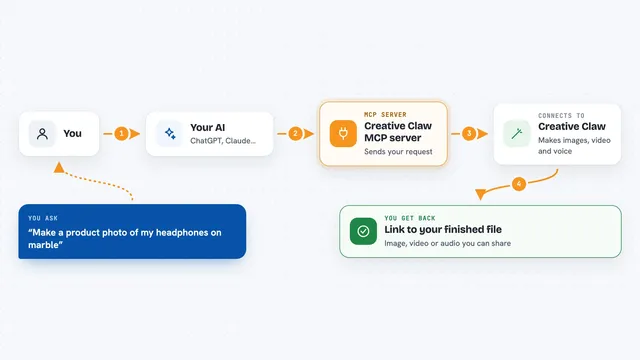
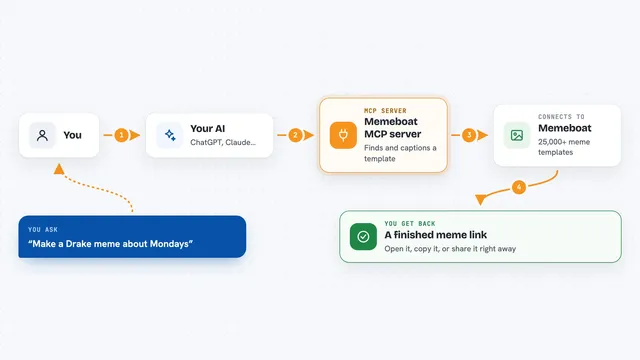
You ask your AI something like make me a short video from this picture. The AI uses this helper to look through RunComfy's catalog of hosted models and pick one that fits. The helper sends the request to RunComfy, which runs the model on its servers. Then it brings the result back, so you see the finished file or a link in your chat. You can also manage your own ComfyUI deployments and training jobs the same way.
 Click to zoom
What you can do with it
- List and manage your ComfyUI deployments on RunComfy
- Run hosted AI models for images and videos on demand
- Browse the model catalog by keyword or capability
- Create datasets and upload images with captions
- Start, pause, and check LoRA training jobs
- Check your RunComfy account balance
- Cancel running requests or training jobs
Try asking your AI
- “Make me a short video from this image using a good model on RunComfy”
- “Show me my current ComfyUI deployments and their status”
- “What image-to-video models are available right now?”
- “Start training a LoRA on the dataset I uploaded yesterday”
What it gives back to you
You get answers in the chat: lists of models or deployments, status updates on running jobs, and links or files when a generation finishes. For training jobs, it reports progress and gives you the checkpoint files at the end. Balance checks come back as a simple dollar figure. Everything shows up as text or links right in your conversation.
Before you start
What you need
- A RunComfy account
- A RunComfy API token from your Profile page (a kind of password for apps)
- An AI assistant that supports MCP, like Claude, Cursor, or Windsurf
Good to know
It can spend money from your RunComfy balance and start or delete deployments and training jobs, so check costs before running big jobs.
Install it with your AI
Add RunComfy MCP server to your AI, no technical skills needed
You don't install anything by hand. You copy one prompt, paste it into an AI that can work on your computer, and it checks, installs and connects the server for you, asking you when it needs something.
Sign in to get the install prompt
Members get a ready-made prompt that lets the Claude desktop app check RunComfy MCP server, install it and connect it for them, step by step. You don't need any technical skills: you copy, paste and answer a few questions. Your connected AI can also find and install any of the 4,361 MCP servers here for you.
Who it's for
People who already use RunComfy or want to try AI image and video generation without leaving their chat, including designers, content creators, and hobbyists.