MCP server · Developer tools
Hostodo MCP server
by hostodo
Lets your AI check and manage your Hostodo VPS servers, from power controls to support tickets.

This is a helper that connects your AI assistant to your Hostodo account, so you can manage your virtual private servers (VPS) by just asking. It is handy if you rent servers from Hostodo and would rather type a request than click around a control panel. You still need a Hostodo account and a special access token to use it.
What is an MCP server? The 30-second version
On its own, your AI can only chat with you. An MCP server is a small helper program that gives your AI a new skill or a connection to an app or service. This one connects your AI to Hostodo, the company that hosts your servers. Once connected, your AI can look up your servers and do things on them when you ask.
What this MCP server does
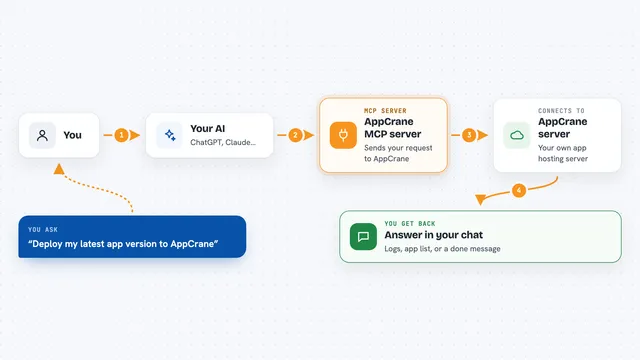
You ask your AI something about your Hostodo servers, like what you have or how one is doing. Your AI sends that request to this helper. The helper talks to Hostodo's system using your access token and checks that the server really belongs to you. Then it brings the answer back, or carries out the action you asked for, and shows you the result in the chat.
 Click to zoom
What you can do with it
- List all your Hostodo servers and what each one can do
- Read details about a specific server, like its setup and status
- Start, stop, reboot, or reset a server
- Rename a server or reinstall it with a new operating system
- Check server metrics, bandwidth use, and health
- List and pay your invoices, and check your balance
- Open, reply to, or close support tickets
Try asking your AI
- “List all my Hostodo servers and show which ones are running”
- “Reboot my web server”
- “Show me my latest invoice and my account balance”
- “Open a support ticket saying my server keeps going offline”
What it gives back to you
You get answers in plain chat: a list of your servers, details about one server, numbers like bandwidth use, or a short note that an action was done. For support tickets or invoices, you see the ticket or invoice details. When you ask for a change, like a reboot, the AI tells you it was carried out.
Before you start
What you need
- A Hostodo account with at least one server
- A Hostodo MCP developer token from the Hostodo Console (a kind of password for apps, which you create yourself)
- An AI app that supports MCP servers, like Claude Code or Claude Desktop
Good to know
This helper can change or wipe your servers and pay invoices, so only give it the access it needs and double-check before you confirm anything destructive.
Install it with your AI
Add Hostodo MCP server to your AI, no technical skills needed
You don't install anything by hand. You copy one prompt, paste it into an AI that can work on your computer, and it checks, installs and connects the server for you, asking you when it needs something.
Sign in to get the install prompt
Members get a ready-made prompt that lets the Claude desktop app check Hostodo MCP server, install it and connect it for them, step by step. You don't need any technical skills: you copy, paste and answer a few questions. Your connected AI can also find and install any of the 4,609 MCP servers here for you.
Who it's for
Hostodo customers who manage their own servers and want to do everyday tasks by chatting instead of clicking through a control panel.