MCP server · Productivity · official
Label Studio MCP server
by HumanSignal · official
Let your AI create and manage Label Studio projects, tasks, and predictions for you.

This is a small helper that connects your AI assistant to Label Studio, the tool people use to label data for AI projects. Once it is set up, you can ask your AI in plain words to create a project, add tasks, or check how much labeling is done. It is handy for anyone who runs labeling work but does not want to click through every screen by hand.
What is an MCP server? The 30-second version
On its own, your AI can only chat with you. An MCP server is a small helper program that gives your AI a new skill or a connection to another app. This one connects your AI to your own Label Studio instance, so the AI can look things up there or make changes for you when you ask. You stay in the chat, and the helper does the talking to Label Studio behind the scenes.
What this MCP server does
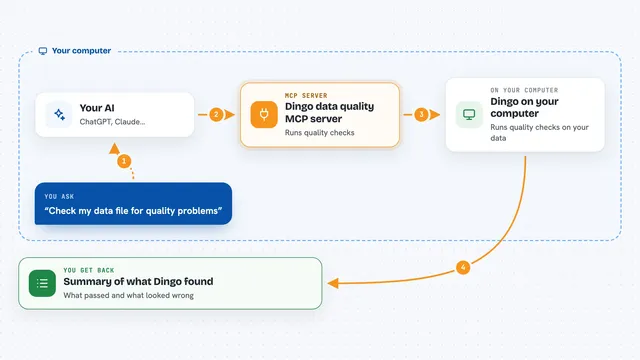
You type a request in your AI chat, like asking it to create a project or count labeled tasks. The AI passes that request to this helper program. The helper then talks to your Label Studio instance using your account and API key. Label Studio does the work, and the helper sends the result back to the AI, which explains it to you in the chat. For example, it can create a project, import a file of tasks, or add a model prediction to a task.
 Click to zoom
What you can do with it
- List your Label Studio projects with their IDs and task counts
- Create a new project with a title and a labeling setup
- Update the labeling setup of an existing project
- Import tasks into a project from a JSON file
- List task IDs inside a project
- Read the data and annotations for a specific task
- Add a model prediction to a specific task
Try asking your AI
- “List my Label Studio projects and how many tasks each one has”
- “Create a new project called RAG review with a comment box in the labeling setup”
- “Import the tasks from my tasks.json file into project 12”
- “Show me the annotations for task 5 in project 12”
What it gives back to you
You get answers in your chat: lists of projects with their IDs and task counts, details about a project, task IDs, the data behind a task, and any annotations already there. When it creates or imports something, it tells you what happened and often gives you a link to the project. Predictions and project changes show up as short confirmations.
Before you start
What you need
- A running Label Studio instance you can reach
- An API key from your Label Studio account settings
- The URL of your Label Studio instance, like http://localhost:8080
- An MCP client such as the Claude desktop app or Cursor
Good to know
It can create and change things in your Label Studio account, like new projects, updated labeling setups, imported tasks, and predictions, so check what it did before you rely on it.
Install it with your AI
Add Label Studio MCP server to your AI, no technical skills needed
You don't install anything by hand. You copy one prompt, paste it into an AI that can work on your computer, and it checks, installs and connects the server for you, asking you when it needs something.
Sign in to get the install prompt
Members get a ready-made prompt that lets the Claude desktop app check Label Studio MCP server, install it and connect it for them, step by step. You don't need any technical skills: you copy, paste and answer a few questions. Your connected AI can also find and install any of the 4,361 MCP servers here for you.
Who it's for
Data teams, annotation managers, and machine learning folks who run labeling work in Label Studio and want to do it faster from a chat.