MCP server · Productivity
ICTFax MCP server
Let your AI check your ICTFax faxes and, if you allow it, send a fax for you.
This is a small helper that connects your AI assistant to ICTFax, a free fax server you can run yourself. Once it is set up, you can ask your AI things like which faxes went out today or whether a particular fax arrived. It is handy if your office still sends and receives faxes and you want to check them without logging into the fax system each time.
What is an MCP server? The 30-second version
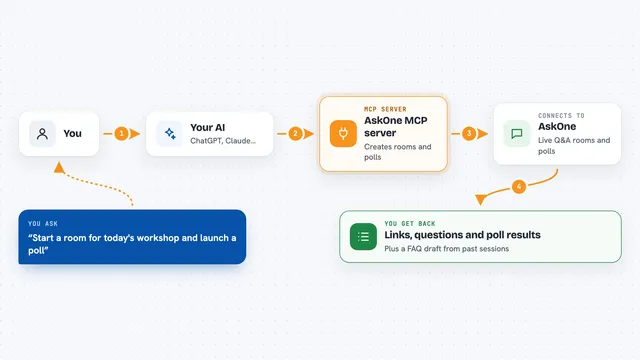
On its own, your AI can only chat with you. An MCP server is a small helper program that gives your AI a new skill or a connection to another app. This helper connects your AI to your ICTFax server, so it can look up your faxes and report back. You stay in the chat, and the helper does the talking to ICTFax behind the scenes.
What this MCP server does
You ask your AI a question about your faxes, like which ones were sent this week. The AI passes that request to this helper program running on your computer. The helper logs in to your ICTFax server and asks it for the list of fax transmissions. ICTFax sends back the details, such as the contact, the direction and the status. Your AI then turns that into a plain answer in the chat. If you turn on the write option, the helper can also upload a document and send a fax to a real number.
What you can do with it
- List your recent fax transmissions with their status
- Check whether a single fax was sent, received or failed
- See who a fax was sent to or came from
- Look up how many pages a fax had
- Upload a PDF as a fax document (only if you turn writes on)
- Send a fax to a phone number (only if you turn writes on)
Try asking your AI
- “List my last ten fax transmissions and their status”
- “Did the fax to the number ending in 4321 go through?”
- “Show me any faxes that failed today”
- “How many pages was the fax I sent this morning?”
What it gives back to you
You get answers in plain chat text. For a list, your AI shows each fax with its id, contact, direction and status. For a single fax, it tells you the current status and page count. If you send a fax, it confirms that the document was uploaded and the fax was sent.
Before you start
What you need
- An ICTFax server you can reach, with its web address (usually ending in /api)
- The email and password of your ICTFax account
- Node.js 18 or newer on your computer
- The Claude desktop app or another AI tool that supports MCP servers
Good to know
Sending a fax dials a real phone number and can cost money, so the upload and send tools are turned off unless you switch them on yourself.
Install it with your AI
Add ICTFax MCP server to your AI, no technical skills needed
You don't install anything by hand. You copy one prompt, paste it into an AI that can work on your computer, and it checks, installs and connects the server for you, asking you when it needs something.
Sign in to get the install prompt
Members get a ready-made prompt that lets the Claude desktop app check ICTFax MCP server, install it and connect it for them, step by step. You don't need any technical skills: you copy, paste and answer a few questions. Your connected AI can also find and install any of the 4,609 MCP servers here for you.
Who it's for
Office workers and small teams who still use fax and want to check or send faxes from their AI chat instead of the fax web page.