MCP server · Text to speech
Speech.sh MCP server
by j3k0
Let your AI read answers out loud and say a short summary when it finishes a task.
Speech.sh is a small helper that lets your AI speak out loud. When your assistant finishes a job, it can say a quick summary instead of you having to read the whole thing. It is handy if you like to hear results while you do something else, or if reading long replies on screen is tiring.
What is an MCP server? The 30-second version
On its own, your AI can only chat with you in text. An MCP server is a small helper program that gives your AI a new skill or a connection to another service. This one connects your AI to a text-to-speech service called Groq, so the AI can turn words into sound and play them on your computer. You just ask, and the helper does the talking.
What this MCP server does
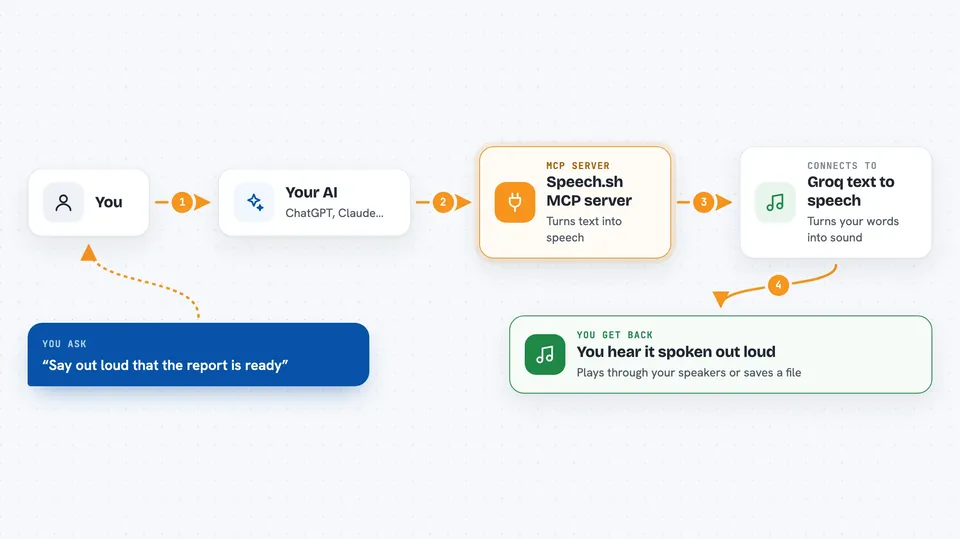
You ask your AI to say something out loud, or you tell it to speak a summary when it is done. The AI passes the text to this helper. The helper sends that text to the Groq text-to-speech service, which sends back an audio file. The helper then plays that audio through a player on your computer, like ffplay, mplayer, or VLC. You hear the words, and the AI carries on with whatever else you asked.
 Click to zoom
What you can do with it
- Hear a short spoken summary when your AI finishes a long task
- Ask your AI to read a paragraph or a reply out loud
- Pick a voice you like from a few options
- Slow down or speed up the speech
- Get spoken updates while you work on something else
- Save the spoken audio to a file instead of playing it
Try asking your AI
- “Say out loud that the report is ready.”
- “Read me the last answer you gave, please.”
- “When you finish summarising these notes, speak a two sentence summary.”
- “Say good morning in a slow voice.”
What it gives back to you
You get sound. Your computer plays the spoken version of the text through your speakers or headphones. If you asked for a file, you get an audio file saved on your computer. In the chat itself, your AI usually just confirms that it spoke the text.
Before you start
What you need
- A Groq API key (a kind of password for apps; Groq gives you one for free when you sign up)
- An audio player on your computer, like ffplay, mplayer, or VLC
- For the Python version: Python 3.10 or newer and the uv tool
- For the shell version: curl and jq
Good to know
It sends the text you ask it to speak to the Groq service, so do not have it read out anything private or secret.
Install it with your AI
Add Speech.sh MCP server to your AI, no technical skills needed
You don't install anything by hand. You copy one prompt, paste it into an AI that can work on your computer, and it checks, installs and connects the server for you, asking you when it needs something.
Sign in to get the install prompt
Members get a ready-made prompt that lets the Claude desktop app check Speech.sh MCP server, install it and connect it for them, step by step. You don't need any technical skills: you copy, paste and answer a few questions. Your connected AI can also find and install any of the 4,361 MCP servers here for you.
Who it's for
Anyone who likes to hear results instead of reading them, and people who want spoken updates while their AI works on long tasks.