MCP server · Customer communication · official
LINE Bot MCP server
by line · official
Let your AI send LINE messages and manage your LINE Official Account for you.
This is a helper made by LINE that connects your AI assistant to your LINE Official Account. Once it is set up, you can ask your AI to send messages, look up follower info, or manage your rich menus, and it will do it in LINE for you. It is handy if you run a LINE Official Account for a shop, a team, or a community and want to save clicks.
What is an MCP server? The 30-second version
On its own, your AI can only chat with you. An MCP server is a small helper program that gives your AI a new skill or a connection to an app or service. This one connects your AI to your LINE Official Account, so the AI can look things up there or do things there when you ask. You stay in the chat, and the helper does the work in LINE behind the scenes.
What this MCP server does
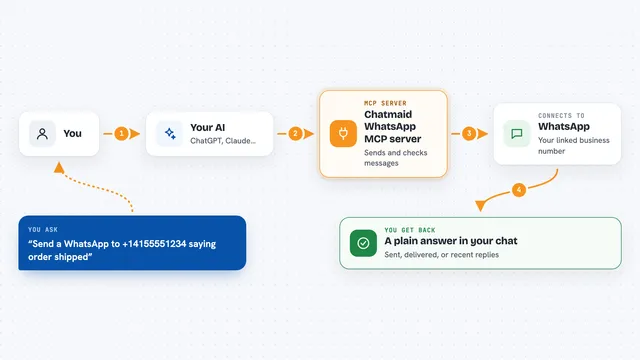
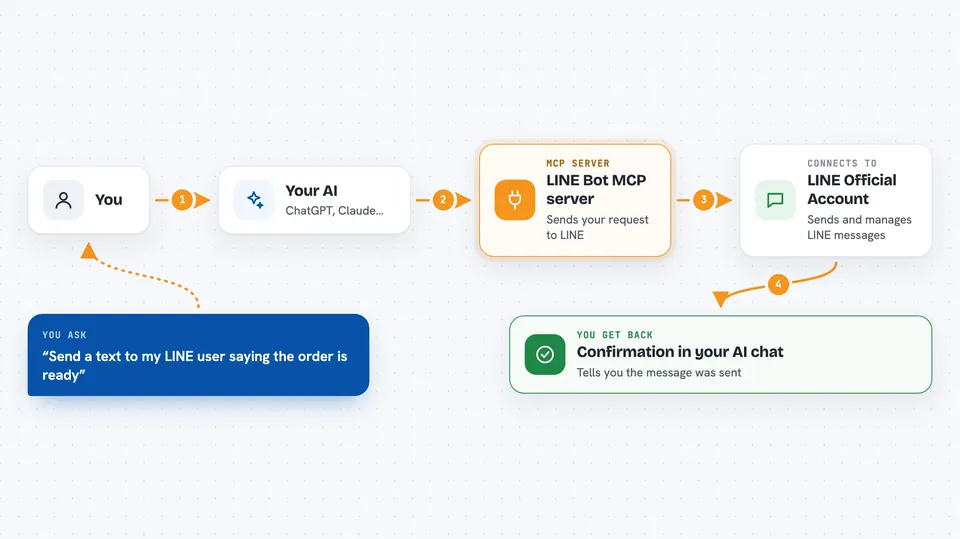
You type a request in your AI chat, like asking it to send a message to a follower. The AI passes that request to this helper program. The helper then talks to the LINE Messaging API, which is the official doorway LINE provides for apps to send and receive messages. LINE carries out the action, and the helper sends the result back to your AI, which tells you what happened in plain words.
 Click to zoom
What you can do with it
- Send a text message to a specific LINE user
- Send a nicely designed flex message to a user or to all followers
- Broadcast a text or flex message to everyone who follows your account
- Look up a user's display name, picture, status message, and language
- Check your monthly message quota and how much you have used
- List, create, set, or delete rich menus for your account
- Get the list of user IDs of your followers and group chat details
Try asking your AI
- “Send a text message to my default LINE user saying the order is ready”
- “Broadcast a short announcement to all my LINE followers about tomorrow's holiday”
- “How many messages have I used this month on my LINE Official Account?”
- “Show me the profile of this LINE user and tell me their display name”
What it gives back to you
You get answers in your AI chat, like a confirmation that a message was sent, a user's profile details, or a number showing your remaining message quota. For rich menus, you get back a list of your menus or a note that one was created, set as default, or deleted. Everything is shown as plain text in the conversation, so you do not need to read any technical output.
Before you start
What you need
- A LINE Official Account (free to create)
- The Messaging API turned on for that account
- A Channel Access Token from the LINE developer site (a kind of password your account gives you)
- The user ID of the person you want to message by default (optional, but useful)
Good to know
This helper can send real messages to real people and can delete or change your rich menus, so check your request before you hit send.
Install it with your AI
Add LINE Bot MCP server to your AI, no technical skills needed
You don't install anything by hand. You copy one prompt, paste it into an AI that can work on your computer, and it checks, installs and connects the server for you, asking you when it needs something.
Sign in to get the install prompt
Members get a ready-made prompt that lets the Claude desktop app check LINE Bot MCP server, install it and connect it for them, step by step. You don't need any technical skills: you copy, paste and answer a few questions. Your connected AI can also find and install any of the 4,361 MCP servers here for you.
Who it's for
Small business owners, community managers, and support teams who run a LINE Official Account and want to handle messages and menus without clicking through the LINE tools.