MCP server · Text to speech
VoiceMode MCP server
by mbailey
Talk to your AI out loud and hear it answer back, using your computer's microphone and speakers.

VoiceMode lets you have a spoken conversation with Claude Code instead of typing. You talk into your microphone, and the AI answers you out loud. It is handy when your hands or eyes are busy, like walking to a meeting or cooking while you work.
What is an MCP server? The 30-second version
On its own, your AI can only chat by reading and writing text. An MCP server is a small helper program that gives your AI a new skill or a connection to something else. This one connects your AI to your microphone and speakers, so it can hear what you say and speak its answers back. Once it is set up, you just talk, and the AI replies out loud.
What this MCP server does
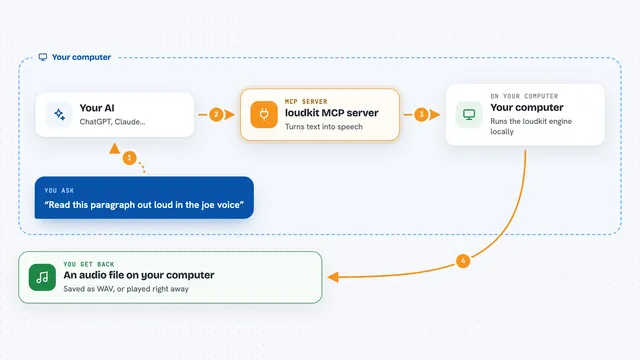
You speak into your microphone, and VoiceMode turns your speech into text your AI can read. Your AI thinks about it and writes a reply, and VoiceMode turns that reply into spoken words you hear through your speakers. It can detect when you stop talking, so it knows when your turn is over. It can run fully on your own computer for privacy, or use online services if you prefer. The result feels like a back-and-forth conversation rather than typing and reading.
 Click to zoom
What you can do with it
- Have a spoken back-and-forth conversation with your AI
- Turn your speech into text so the AI understands you
- Read the AI's answers out loud through your speakers
- Stop recording automatically when you finish speaking
- Run speech recognition and voice output locally on your machine
- Use online voice services instead if you prefer
- Save audio files for troubleshooting when you turn that option on
Try asking your AI
- “Let's have a voice conversation about my project plan”
- “Start listening and tell me what you think of this idea”
- “Read your last answer out loud to me”
- “Switch to a local voice so nothing leaves my computer”
What it gives back to you
You get spoken answers played through your speakers, plus the same text in the chat so you can read it later. When you speak, your words appear as text so you can check what was heard. If you turn on audio saving, it also writes audio files to a folder on your computer. Mostly, though, it just feels like talking and listening.
Before you start
What you need
- A computer with a working microphone and speakers
- Python 3.10 to 3.14
- The uv package manager (the installer can add it for you)
- An OpenAI API key only if you want to use online voice services instead of local ones
Good to know
If you use online voice services, your spoken audio is sent to that provider, so use the local options if you want to keep everything on your own computer.
Install it with your AI
Add VoiceMode MCP server to your AI, no technical skills needed
You don't install anything by hand. You copy one prompt, paste it into an AI that can work on your computer, and it checks, installs and connects the server for you, asking you when it needs something.
Sign in to get the install prompt
Members get a ready-made prompt that lets the Claude desktop app check VoiceMode MCP server, install it and connect it for them, step by step. You don't need any technical skills: you copy, paste and answer a few questions. Your connected AI can also find and install any of the 4,361 MCP servers here for you.
Who it's for
People who use Claude Code and want to talk instead of type, especially while walking, cooking, or resting their eyes.