MCP server · Text to speech
Daisys MCP server
by daisys-ai
Turn your written text into spoken audio with Daisys voices, right from your AI chat.

This is a small helper that connects your AI assistant to Daisys, a service that turns written text into spoken audio. Once it is set up, you can ask your AI to read your text out loud in a voice, and the audio file is saved on your computer. It is handy if you make voiceovers, listen to drafts, or want audio versions of your writing.
What is an MCP server? The 30-second version
On its own, your AI can only chat with you in text. An MCP server is a small helper program that gives your AI a new skill or a connection to another service. This one connects your AI to Daisys, so when you ask for spoken audio, the AI can actually create it for you. You do not need to understand how it works under the hood; you just add it once and then talk to your AI like normal.
What this MCP server does
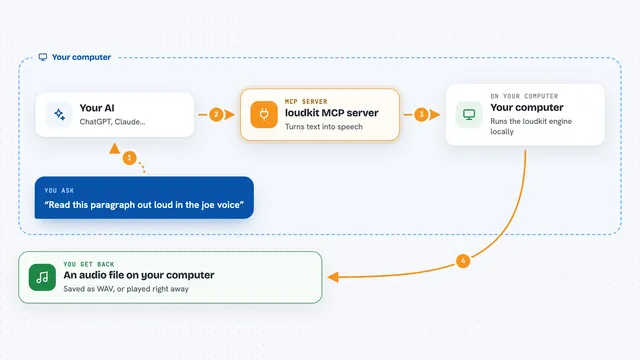
You type a request in your AI chat, like asking it to read a paragraph out loud. The AI passes that request to this helper. The helper talks to the Daisys platform using your Daisys account, and Daisys turns your text into speech. The audio file comes back and is saved to a folder you chose on your computer. You can then play it or keep it.
 Click to zoom
What you can do with it
- Turn any text into spoken audio
- Choose a voice for the audio
- Save the audio file to a folder on your computer
- Play the generated audio
- Create voiceovers for videos or presentations
- Make audio versions of articles or notes
Try asking your AI
- “Read this paragraph out loud and save it as an audio file”
- “Turn my meeting notes into speech using a friendly voice”
- “Create an audio file of this script for my video”
- “Generate spoken audio for this blog post and play it back”
What it gives back to you
You get back an audio file saved on your computer, plus a short message in the chat telling you where it was saved. If you ask it to play the audio, it will play it for you. The chat also confirms what was created, so you know it worked.
Before you start
What you need
- A Daisys account (free to create on their website)
- Your Daisys email and password
- A folder path where you want audio files saved
- The Claude desktop app or another MCP-compatible app
Good to know
This is a beta version and may not be fully stable, and using the Daisys platform may use up your account credits.
Install it with your AI
Add Daisys MCP server to your AI, no technical skills needed
You don't install anything by hand. You copy one prompt, paste it into an AI that can work on your computer, and it checks, installs and connects the server for you, asking you when it needs something.
Sign in to get the install prompt
Members get a ready-made prompt that lets the Claude desktop app check Daisys MCP server, install it and connect it for them, step by step. You don't need any technical skills: you copy, paste and answer a few questions. Your connected AI can also find and install any of the 4,361 MCP servers here for you.
Who it's for
Anyone who wants to turn written text into spoken audio, like content creators, teachers, or office workers making voiceovers.