MCP server · Text to speech
Brainiall Speech AI MCP server
by fasuizu-br
Check pronunciation, turn speech into text, and turn text into spoken audio, all from your chat.
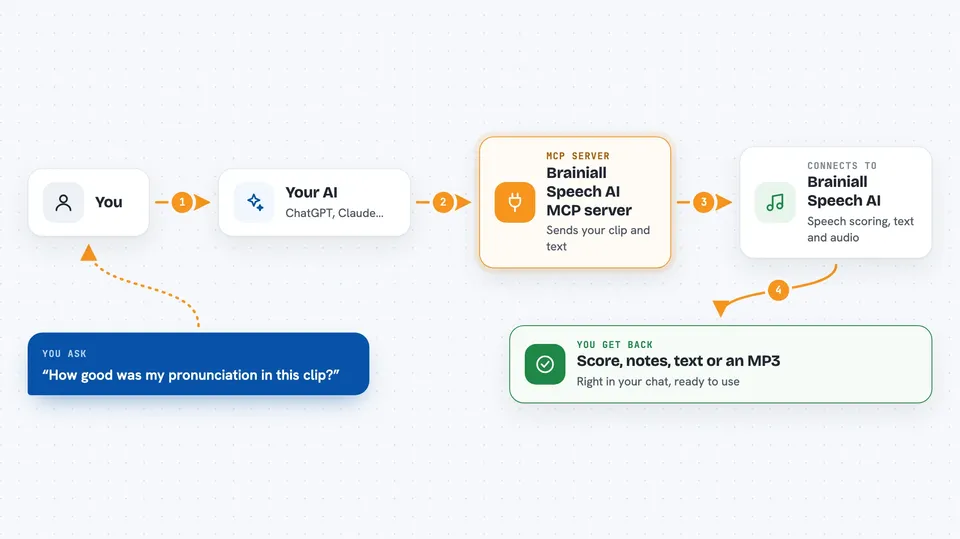
This is a small helper that connects your AI assistant to Brainiall, a service that works with speech. Once it is set up, you can ask your AI to check how well someone pronounced a sentence, write down what was said in an audio clip, or read your text out loud in a chosen voice. It is handy for teachers, language learners, and anyone who deals with audio at work.
What is an MCP server? The 30-second version
On its own, your AI can only chat with you in text. An MCP server is a small helper program that gives your AI a new skill or a connection to another service. This one connects your AI to Brainiall's speech tools, so when you ask about an audio file or a pronunciation, the AI can actually send it to Brainiall and bring back the result. You do not need to understand how it works under the hood; you just talk to your AI like usual.
What this MCP server does
You ask your AI something like 'check my pronunciation of this sentence' and attach an audio clip. The AI passes your request to this helper, which sends the audio and text to Brainiall's speech service. Brainiall listens, compares, and sends back a score with notes on each word and even each sound. For transcription, the helper sends your audio and gets back written text, with the language detected for you. For text-to-speech, it sends your words and gets back an MP3 file you can play or save.
 Click to zoom
What you can do with it
- Score how clearly someone pronounced a sentence, from 0 to 100
- See which words or sounds were mispronounced
- Turn an audio recording into written text
- Detect which language is being spoken in a clip
- Convert your written text into spoken audio as an MP3
- List the available voices you can choose from
- Pick a voice and speed for the spoken audio
Try asking your AI
- “Here is a recording of me reading this sentence. How good was my pronunciation?”
- “Please transcribe this audio file and tell me what language it is in.”
- “Read this paragraph out loud in a friendly voice and save it as an MP3.”
- “What voices are available for text-to-speech?”
What it gives back to you
You get answers right in the chat. For pronunciation, you see a score and a breakdown by word and sound, so you know what to practice. For transcription, you get the written text and the detected language. For text-to-speech, you get an audio file (MP3) that you can play or download.
Before you start
What you need
- A Brainiall API key (free from app.brainiall.com; it is like a password that lets the helper talk to Brainiall)
- Python with the fastmcp and httpx packages installed, or Docker if you prefer
- An MCP client like Claude Desktop or Cursor to connect the helper to your AI
Good to know
Your audio and text are sent to Brainiall's service, so avoid sharing private or sensitive recordings unless you are comfortable with that.
Install it with your AI
Add Brainiall Speech AI MCP server to your AI, no technical skills needed
You don't install anything by hand. You copy one prompt, paste it into an AI that can work on your computer, and it checks, installs and connects the server for you, asking you when it needs something.
Sign in to get the install prompt
Members get a ready-made prompt that lets the Claude desktop app check Brainiall Speech AI MCP server, install it and connect it for them, step by step. You don't need any technical skills: you copy, paste and answer a few questions. Your connected AI can also find and install any of the 4,361 MCP servers here for you.
Who it's for
Language teachers, students practicing pronunciation, and anyone who needs quick speech-to-text or text-to-speech without leaving their chat.