MCP server · Text to speech
Kokoro Text to Speech MCP server
by mberg
Turn text into spoken MP3 files with your AI, saved on your computer or uploaded to your cloud storage.
This is a small helper that lets your AI turn written text into an audio file. You give it some words, and it makes an MP3 you can listen to. It is handy if you want voice versions of scripts, notes, or articles without recording them yourself.
What is an MCP server? The 30-second version
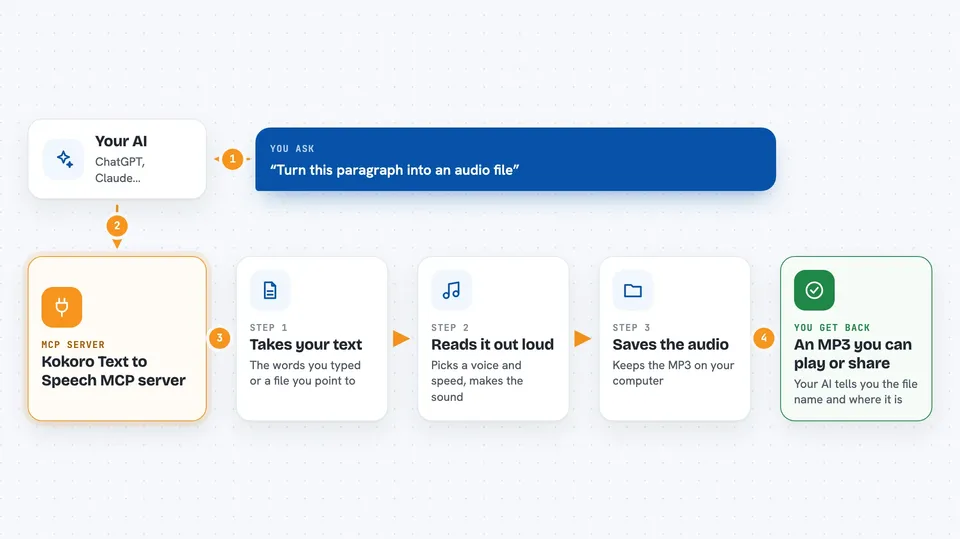
On its own, your AI can only chat with you in text. An MCP server is a little helper program that gives your AI a new skill or a connection to another tool. This one connects your AI to a text to speech system called Kokoro, which runs on your own computer. So when you ask for audio, your AI hands the text to this helper, and the helper creates the sound file for you.
What this MCP server does
You type a request like make an audio file of this paragraph. Your AI passes the text to this helper program running on your machine. The helper uses the Kokoro speech models to turn the words into sound, then saves it as an MP3 file. If you have set it up, it can also send that MP3 to your cloud storage bucket. You end up with an audio file you can play or share.
 Click to zoom
What you can do with it
- Turn any text into an MP3 audio file
- Pick a voice and speaking speed
- Save the MP3 to a folder on your computer
- Upload the MP3 to your cloud storage bucket
- Read text from a file instead of typing it out
- Automatically clean up old MP3 files after a set number of days
Try asking your AI
- “Turn this paragraph into an audio file with the default voice”
- “Make an MP3 of my meeting notes and save it locally”
- “Create a slower reading of this script using a female voice”
- “Generate audio for this text and upload it to my cloud storage”
What it gives back to you
You get an MP3 file saved on your computer, and if you turned on cloud upload, a copy in your storage bucket too. In the chat, your AI usually tells you the file name and where it was saved. You can then open and play the file like any other audio.
Before you start
What you need
- A computer that can run Python and the helper program
- The Kokoro speech model files downloaded to the same folder
- ffmpeg installed (a free tool that converts audio formats)
- Cloud storage details only if you want uploads (an access key and secret, like a username and password for your storage)
Good to know
If you turn on cloud uploads, your audio files leave your computer and go to your storage account, so check your settings before using it with private text.
Install it with your AI
Add Kokoro Text to Speech MCP server to your AI, no technical skills needed
You don't install anything by hand. You copy one prompt, paste it into an AI that can work on your computer, and it checks, installs and connects the server for you, asking you when it needs something.
Sign in to get the install prompt
Members get a ready-made prompt that lets the Claude desktop app check Kokoro Text to Speech MCP server, install it and connect it for them, step by step. You don't need any technical skills: you copy, paste and answer a few questions. Your connected AI can also find and install any of the 4,361 MCP servers here for you.
Who it's for
People who want quick voice recordings of text, like writers, teachers, or anyone making audio versions of notes and scripts.