MCP server · Speech to text
Transcribe MCP server
Turn audio and video files into text, and read or manage your existing transcriptions, right from your AI chat.

This is a small helper that connects your AI assistant to your Transcribe.com account. Once it is set up, you can ask your AI to turn a recording into text, or to look up and tidy up transcripts you already have. It is handy for anyone who deals with meeting recordings, interviews, voice memos, or videos and wants the words without doing the typing.
What is an MCP server? The 30-second version
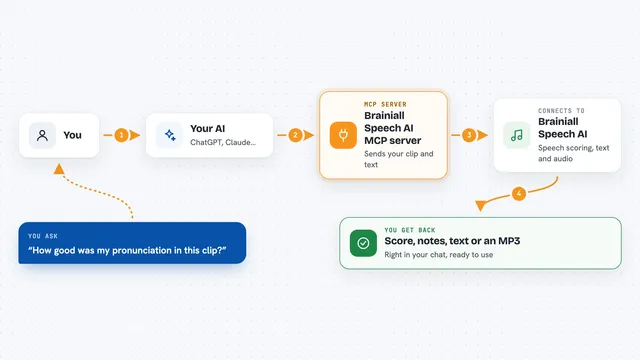
On its own, your AI can only chat with you. An MCP server is a small helper program that gives your AI a new skill or a connection to an app or service. This one connects your AI to Transcribe.com, so it can send your audio or video off to be turned into text and bring the words back to you. You just ask in normal language, and the helper does the back and forth with Transcribe behind the scenes.
What this MCP server does
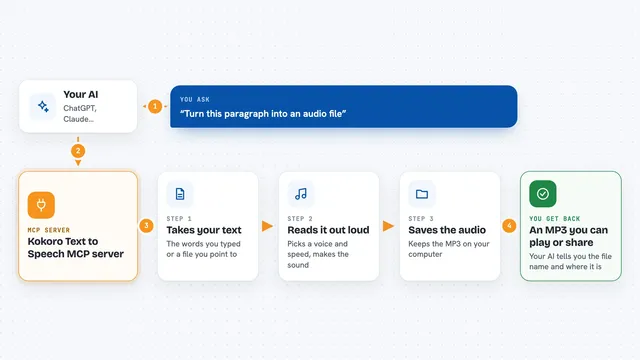
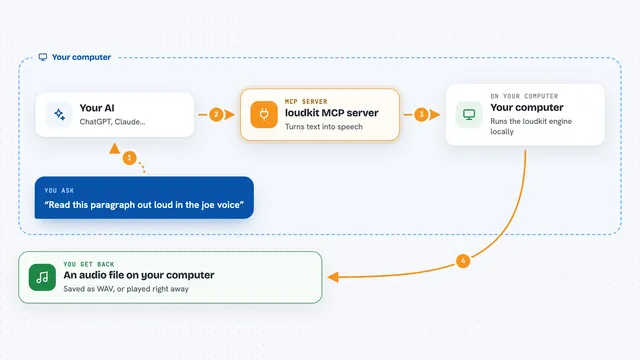
You ask your AI something like "transcribe this recording" and point it at a file or a link. The AI passes that along to this helper, which sends it to your Transcribe.com account to be turned into text. When the text is ready, the helper brings it back and your AI shows it to you in the chat. You can also ask it to list your finished transcripts, search them, check your remaining credits, or rename and delete ones you no longer need.
 Click to zoom
What you can do with it
- Turn an audio or video file into text
- Transcribe a recording from a web link
- List and search your finished transcriptions
- Read the full text of a transcript you already have
- Rename a transcription in your account
- Delete a transcription you no longer need
- Check how many credits are left on your account
Try asking your AI
- “Transcribe the file meeting-notes.m4a and give me the text”
- “Show me my recent transcriptions from this week”
- “Find the transcript where someone mentioned the budget”
- “Rename that last transcription to Client call March”
What it gives back to you
You get the words back as text you can read, copy, or ask follow-up questions about. When you ask for a list, you get the names and details of your transcripts so you can pick one. If you rename or delete something, it tells you the change was made. If you check your balance, it gives you a simple number.
Before you start
What you need
- A Transcribe.com account (you sign in to get your private integration URL)
- Your private MCP integration URL, copied from the Automation popup on the Transcribe site
- Node.js installed on your computer (for the manual setup route)
- The Claude desktop app (for the one-click bundle install)
Good to know
Transcribing uses your paid time credits, and the update tool can rename or delete transcriptions in your account, so check before you confirm a delete.
Install it with your AI
Add Transcribe MCP server to your AI, no technical skills needed
You don't install anything by hand. You copy one prompt, paste it into an AI that can work on your computer, and it checks, installs and connects the server for you, asking you when it needs something.
Sign in to get the install prompt
Members get a ready-made prompt that lets the Claude desktop app check Transcribe MCP server, install it and connect it for them, step by step. You don't need any technical skills: you copy, paste and answer a few questions. Your connected AI can also find and install any of the 4,361 MCP servers here for you.
Who it's for
Anyone who works with recordings, like journalists, researchers, students, assistants, and people who take a lot of voice memos or meeting notes.