MCP server · Analytics
Google Search Console MCP server
by ni-c
Lets your AI read your Google Search Console data and set up a property for you.
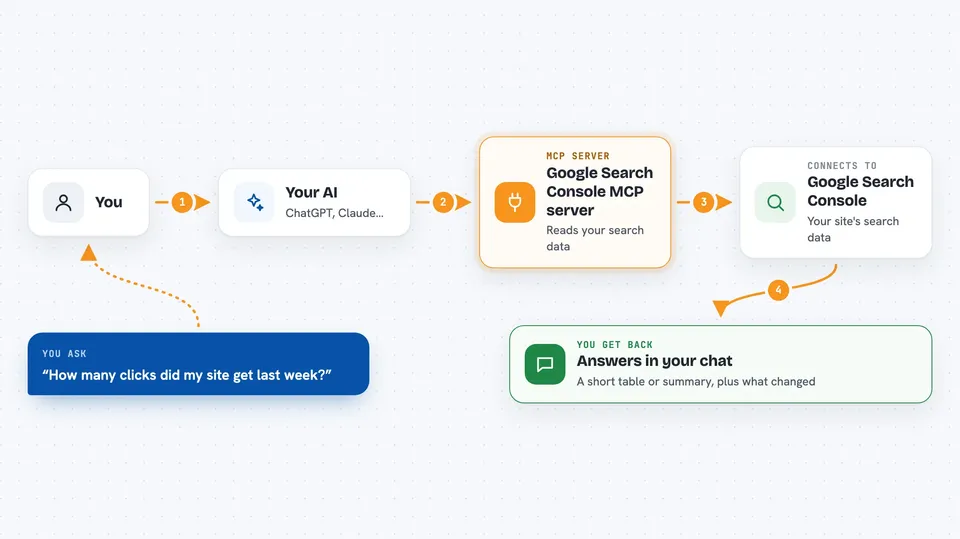
This is a helper that connects your AI assistant to Google Search Console, the free Google service that shows how your site appears in Google search. It is handy if you look after a website and want to check your search numbers or get a new site set up without clicking through menus yourself. You ask your AI in normal words, and it does the looking and the setting up for you.
What is an MCP server? The 30-second version
On its own, your AI can only chat with you. An MCP server is a small helper program that gives your AI a new skill or a connection to another service. This one connects your AI to Google Search Console, so it can look up your site's search data or set things up there when you ask. You do not need to understand how it works inside. You just talk to your AI like always.
What this MCP server does
You ask your AI something about your website and Google search. Your AI passes the request to this helper program. The helper talks to Google Search Console on your behalf, using a Google credential you set up once. Google sends the answer back, and the helper hands it to your AI, which explains it to you in the chat. For things that change your account, like adding or removing a property, the helper asks you to confirm first.
 Click to zoom
What you can do with it
- List all the websites your Google account can see in Search Console
- Check whether a site is fully set up, and get the exact DNS record or meta tag you still need to place
- Submit a sitemap or refresh one you already sent
- Ask what Google thinks of a single page, including whether it is indexed
- Pull the Performance report: clicks, impressions, click-through rate and average position
- Add or remove a property from your Search Console account
- Prove ownership of a site so Google starts showing its data
Try asking your AI
- “How many clicks did my site get in the last 7 days?”
- “Which pages got the most impressions last month?”
- “Is my homepage indexed by Google right now?”
- “Submit my sitemap again and tell me if there were any errors”
What it gives back to you
You get answers written in the chat, often as a small table or a short summary. For search numbers you see clicks, impressions, click-through rate and average position, plus a note that rare queries are left out so the rows may not add up to the total. For setup questions you get a clear list of which steps are done and which are missing. When it changes something, it tells you what it changed.
Before you start
What you need
- A Google account with access to Google Search Console
- A Google credential for the server: a service account key, an OAuth2 refresh token, or application default credentials
- The Search Console API enabled in a Google Cloud project (and the Site Verification or Indexing API if you use those parts)
- Node.js 22 or newer if you run it yourself, or the ready-made container image
Good to know
Some tools can change or delete things in your Search Console account, like removing a property and its history, so read the confirmation before you approve it.
Install it with your AI
Add Google Search Console MCP server to your AI, no technical skills needed
You don't install anything by hand. You copy one prompt, paste it into an AI that can work on your computer, and it checks, installs and connects the server for you, asking you when it needs something.
Sign in to get the install prompt
Members get a ready-made prompt that lets the Claude desktop app check Google Search Console MCP server, install it and connect it for them, step by step. You don't need any technical skills: you copy, paste and answer a few questions. Your connected AI can also find and install any of the 4,609 MCP servers here for you.
Who it's for
Website owners, marketers, SEO specialists and small teams who want to check or set up their Google Search Console data without clicking through the interface.