MCP server · Meetings
ChatterBox MCP server
by OverQuotaAI
Send a ChatterBox bot to your Zoom or Google Meet call and get the transcript, recording, and a summary.

This is a small helper that lets your AI send a ChatterBox bot into an online meeting for you. The bot joins the call, records it, and writes down what was said. It is handy if you often sit in meetings and then have to write up notes afterwards.
What is an MCP server? The 30-second version
On its own, your AI can only chat with you. An MCP server is a small helper program that gives your AI one new skill or a connection to another service. This one connects your AI to ChatterBox, a service that sends recording bots into online meetings. Once it is set up, you can just ask your AI to send a bot to a meeting, and it will pass that request along to ChatterBox for you.
What this MCP server does
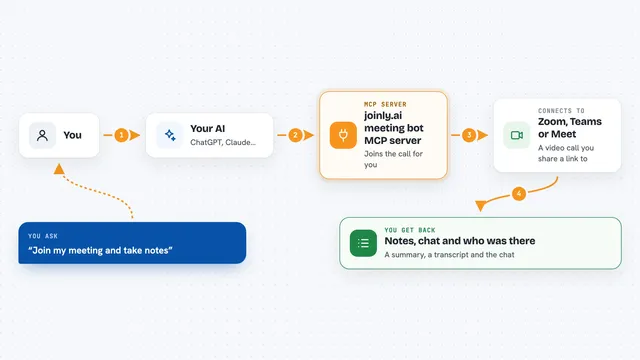
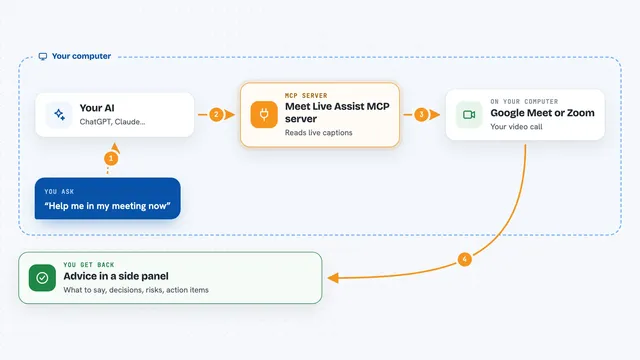
You tell your AI which meeting to join and what to call the bot. Your AI passes that to this helper, and the helper asks ChatterBox to send a bot into the call. The bot sits in the meeting, records the audio, and writes down the transcript. Later you can ask your AI for the meeting info, and it will pull the transcript and recording back from ChatterBox. You can also hand it a transcript and ask for a short summary.
 Click to zoom
What you can do with it
- Send a bot into a Zoom, Google Meet, or Microsoft Teams call
- Get the transcript of a meeting after it ends
- Get the audio recording of a meeting
- Ask for a short summary of a long transcript
- Give the bot a name so people in the call know it is there
- Look up details of a past meeting session
Try asking your AI
- “Send a ChatterBox bot called Note Taker to my Zoom meeting 123 456 7890”
- “Join this Google Meet and record it: meet link abc-defg-hij”
- “Get me the transcript and recording for session abc123”
- “Summarize this meeting transcript for me in a few bullet points”
What it gives back to you
You get back the meeting transcript as text, a link or file for the recording, and a short summary if you asked for one. The transcript shows up in the chat so you can read it or copy it into a document. The summary comes back as a few short paragraphs or bullet points.
Before you start
What you need
- A ChatterBox account (you register on their website to get your API endpoint and key for free)
- An API key and endpoint from ChatterBox, saved in a small settings file
- Node.js 16 or newer if you install it yourself
- The Claude desktop app or another AI app that supports MCP servers
Good to know
The bot records meetings, so make sure everyone in the call knows and agrees before you send it in.
Install it with your AI
Add ChatterBox MCP server to your AI, no technical skills needed
You don't install anything by hand. You copy one prompt, paste it into an AI that can work on your computer, and it checks, installs and connects the server for you, asking you when it needs something.
Sign in to get the install prompt
Members get a ready-made prompt that lets the Claude desktop app check ChatterBox MCP server, install it and connect it for them, step by step. You don't need any technical skills: you copy, paste and answer a few questions. Your connected AI can also find and install any of the 4,609 MCP servers here for you.
Who it's for
People who sit in a lot of online meetings and need notes afterwards, like project managers, assistants, sales teams, and anyone who writes up calls.