MCP server · Meetings
joinly.ai meeting bot MCP server
by joinly-ai
Let an AI helper join your Zoom, Teams or Google Meet call to take notes, speak and chat.

joinly.ai is a helper that sends a small AI bot into your online meetings. It can listen to what people say, write things in the meeting chat, and even speak out loud when you ask it to. It is handy if you want live notes or a helper in calls without doing the typing yourself.
What is an MCP server? The 30-second version
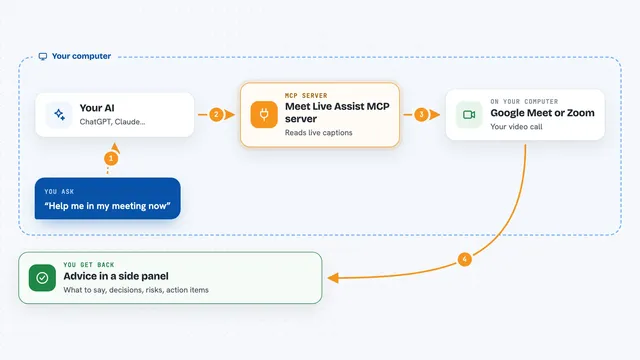
On its own, your AI can only chat with you in a text box. An MCP server is a small helper program that gives your AI a new skill or a connection to another app. This one connects your AI to video meetings like Zoom, Teams and Google Meet, so the AI can join the call and take part. You stay in charge: the AI only does things when you ask.
What this MCP server does
You give your AI a meeting link and tell it to join. The AI uses this helper, and the helper opens the meeting in a browser as a participant. While the call runs, it listens and keeps a live transcript, and it can read the chat and the list of people in the room. When you ask, it can speak a message out loud or post something in the chat. You can also ask it to leave when the meeting is done.
 Click to zoom
What you can do with it
- Join a Zoom, Teams or Google Meet call with a link
- Get a live transcript of what is being said
- Read the meeting chat history
- See who is in the meeting
- Speak a message out loud in the call
- Post a message in the meeting chat
- Take a picture of the current screen share
- Leave the meeting when you are done
Try asking your AI
- “Join this meeting link and take notes for me: https://meet.google.com/abc-defg-hij”
- “What has been said in the meeting so far? Give me a short summary.”
- “Post in the meeting chat that I will be two minutes late.”
- “Who is in the call right now?”
What it gives back to you
You get answers back in your chat with the AI. That can be a transcript with timestamps and who said what, a list of participants, the chat messages, or a short summary. If you ask for a snapshot, you get an image from the meeting. It also tells you when it has joined, spoken, posted or left.
Before you start
What you need
- Docker installed on your computer (for the quickstart way)
- An API key from an AI provider such as OpenAI, Anthropic or a local Ollama setup
- A meeting link for Zoom, Google Meet or Teams
Good to know
The bot can speak and post in your meeting on your behalf, and it records a transcript, so only use it in calls where everyone is okay with that.
Install it with your AI
Add joinly.ai meeting bot MCP server to your AI, no technical skills needed
You don't install anything by hand. You copy one prompt, paste it into an AI that can work on your computer, and it checks, installs and connects the server for you, asking you when it needs something.
Sign in to get the install prompt
Members get a ready-made prompt that lets the Claude desktop app check joinly.ai meeting bot MCP server, install it and connect it for them, step by step. You don't need any technical skills: you copy, paste and answer a few questions. Your connected AI can also find and install any of the 4,361 MCP servers here for you.
Who it's for
People who spend a lot of time in online meetings and want live notes or a helper in the call, like team leads, project managers, sales people and note takers.