MCP server · Design tools
Maya MCP server
Let your AI assistant control Autodesk Maya and build 3D scenes for you by chatting.

This is a small helper program that connects your AI assistant to Autodesk Maya, the 3D modeling software. Once it is set up, you can ask your AI in plain words to make a cube, add a light, or build a whole little city scene, and it will do it inside Maya. It is handy for 3D artists, students, and anyone who uses Maya and wants to skip some clicking.
What is an MCP server? The 30-second version
On its own, your AI assistant can only chat. An MCP server is a small helper program that gives your AI a new skill or a connection to another app. This one connects your AI to Autodesk Maya, so the AI can look at your scene and make changes there when you ask. You keep using your normal chat window, and the helper quietly passes your requests to Maya.
What this MCP server does
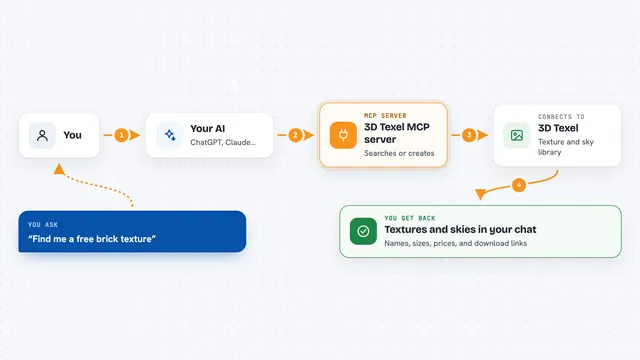
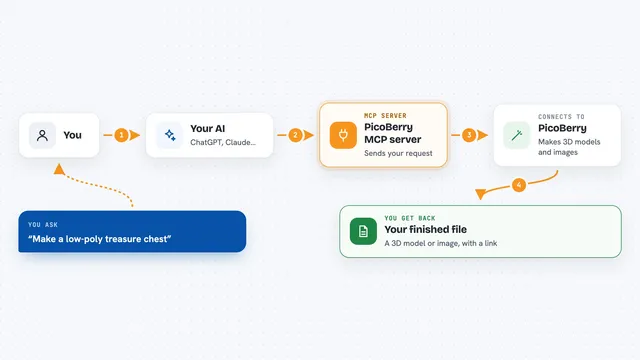
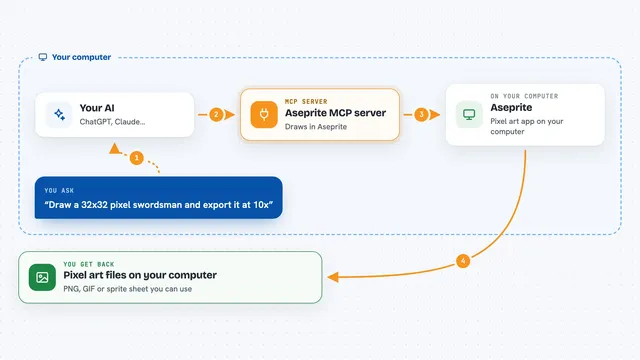
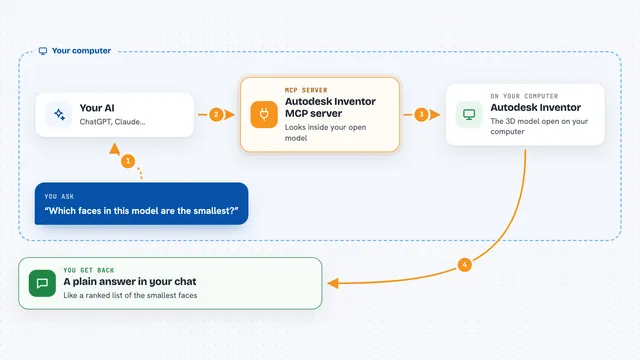
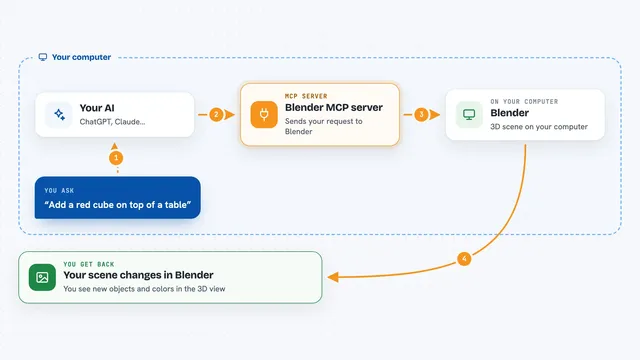
You type a request in your AI chat, like asking it to add a sphere or list the lights in your scene. The AI sends that request to this Maya MCP server running on your computer. The server then talks to Maya and asks it to do the work. Maya does it, and the result comes back through the server to your chat, so you see what happened. It works with Maya 2023 and 2025, and the project is still early, so the set of things it can do is small but growing.
 Click to zoom
What you can do with it
- Create basic shapes like cubes, spheres, cones, and cylinders in your scene
- Add cameras and lights such as spot lights, point lights, and directional lights
- List objects in your scene and filter them by type, like cameras or materials
- Read and change attributes on an object, such as its position or size
- Create and assign materials like wood, marble, chrome, or glass
- Build simple full scenes such as a city, forest, living room, office, or park
- Save, open, or start a new Maya scene
Try asking your AI
- “Add a sphere and a point light to my scene”
- “List all the cameras in my scene”
- “Create a small city scene with a few buildings”
- “Give the cube a chrome material”
What it gives back to you
You get answers in your chat, like a list of the objects in your scene or a short note saying an object was created. When it changes something, it tells you what it did, for example that a sphere was added or a material was assigned. If something goes wrong, you see an error message instead. You can also just look at Maya, since the changes show up right there.
Before you start
What you need
- Autodesk Maya installed on your computer (tested with Maya 2023 and 2025)
- Python 3.10 or newer
- An MCP client such as the Claude desktop app
- The MayaMCP project files downloaded from GitHub
Good to know
It can change, save, or replace things in your Maya scene, so save your work before letting the AI make big changes.
Install it with your AI
Add Maya MCP server to your AI, no technical skills needed
You don't install anything by hand. You copy one prompt, paste it into an AI that can work on your computer, and it checks, installs and connects the server for you, asking you when it needs something.
Sign in to get the install prompt
Members get a ready-made prompt that lets the Claude desktop app check Maya MCP server, install it and connect it for them, step by step. You don't need any technical skills: you copy, paste and answer a few questions. Your connected AI can also find and install any of the 4,361 MCP servers here for you.
Who it's for
3D artists, animators, and students who already use Autodesk Maya and want to try controlling it with an AI chat.