
MCP server · Developer tools
Pipepie MCP server
by pipepie
Lets your AI inspect webhooks, replay requests, and manage tunnels for your local apps.
Pipepie is a tool that creates a public web address for something running on your own computer, like a small website or an app you are building. It also records the webhooks and requests that come in so you can look at them later. The MCP server part lets your AI assistant work with all of that for you, in plain chat.
What is an MCP server? The 30-second version
On its own, your AI can only chat. An MCP server is a small helper program that gives your AI a new skill or a connection to another tool. This one connects your AI to Pipepie, which manages tunnels and webhook traffic on your machine. Once it is set up, your AI can look at your tunnels and requests, and do things like replay a webhook, just because you asked.
What this MCP server does
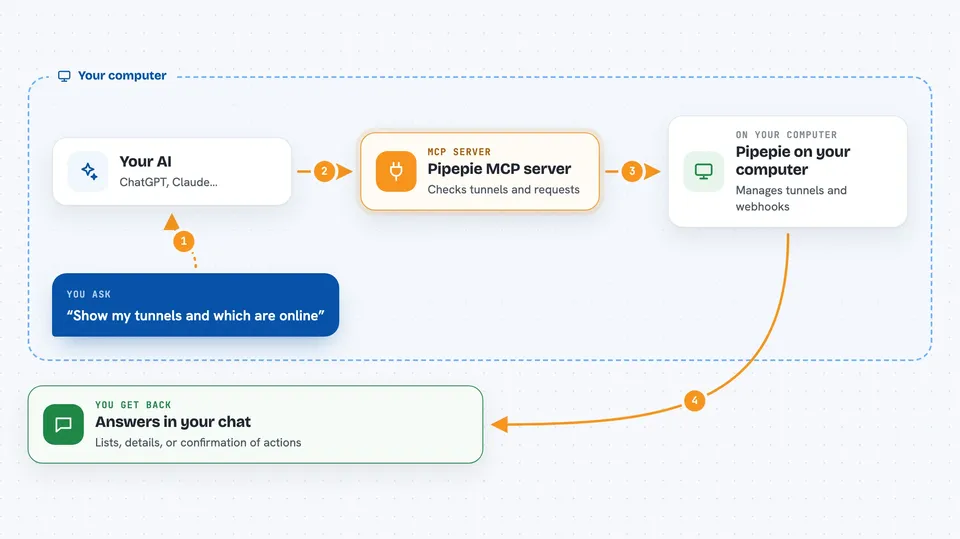
You ask your AI something about your tunnels or the requests coming into them. The AI uses this helper to talk to Pipepie on your computer. Pipepie checks its records of tunnels and incoming webhooks, or makes a change like starting or stopping a tunnel. Then the AI tells you what it found or what it did, right in the chat. You never have to open a separate dashboard or type commands yourself.
 Click to zoom
What you can do with it
- See all your tunnels and whether they are online
- Start a tunnel from a local port to a public web address
- Stop a tunnel that is running
- List recent webhook requests for a tunnel
- Look at the full details of one request, including headers and body
- Re-send a webhook that was captured earlier
- View step-by-step timelines of AI pipeline traces
Try asking your AI
- “Show me all my tunnels and which ones are online”
- “What webhooks came in for my-app in the last hour”
- “Inspect request abc123 and show me the headers and body”
- “Replay the last webhook that failed”
- “Show me the timeline for the image-gen pipeline trace”
What it gives back to you
You get answers in the chat: lists of tunnels with their status, recent requests with timestamps, or the full details of one request. For pipeline traces, it shows a step-by-step timeline so you can see where things slowed down or broke. If you asked it to start, stop, or replay something, it tells you that the action was done.
Before you start
What you need
- Pipepie installed on your computer (the pie command)
- A Pipepie server set up somewhere, or access to one (the README shows a one-time setup wizard)
- Your server connection saved with pie login
- An AI tool that supports MCP, like Claude Desktop, Claude Code, or Cursor
Good to know
It can start, stop, and delete tunnels, and replay webhooks, so ask your AI to confirm before doing anything that changes or removes your setup.
Install it with your AI
Add Pipepie MCP server to your AI, no technical skills needed
You don't install anything by hand. You copy one prompt, paste it into an AI that can work on your computer, and it checks, installs and connects the server for you, asking you when it needs something.
Sign in to get the install prompt
Members get a ready-made prompt that lets the Claude desktop app check Pipepie MCP server, install it and connect it for them, step by step. You don't need any technical skills: you copy, paste and answer a few questions. Your connected AI can also find and install any of the 4,609 MCP servers here for you.
Who it's for
Developers and technical folks who work with webhooks, local apps, or AI pipelines and want to check or control them from their AI chat.



