MCP server · Privacy
PrivacyFence MCP server
by privacyfence
Let your AI reach Gmail, Drive, Slack and more, with your approval on anything sensitive.
PrivacyFence sits between your AI assistant and the apps you use at work, like Gmail, Google Drive, Slack, Salesforce and Jira. When your AI wants to read something private or change something, you get a card asking you to approve it first. It is handy if you want AI help with your work tools but do not want to hand over the keys to everything.
What is an MCP server? The 30-second version
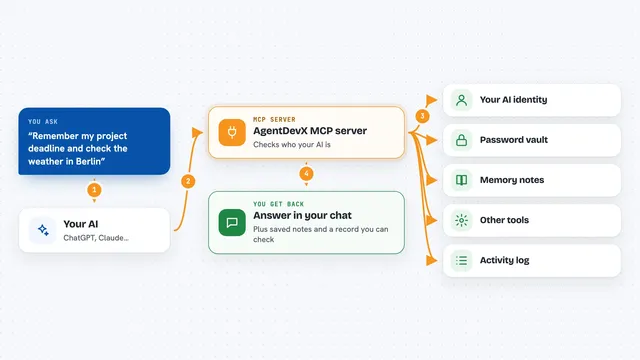
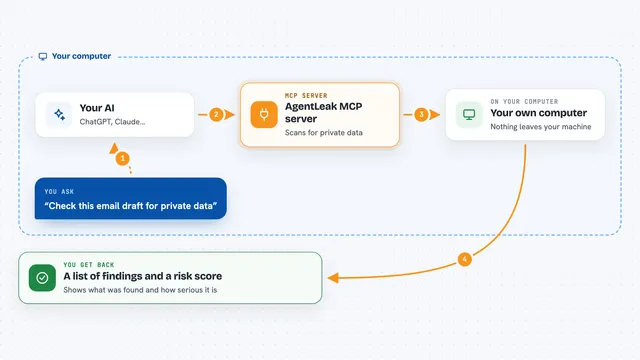
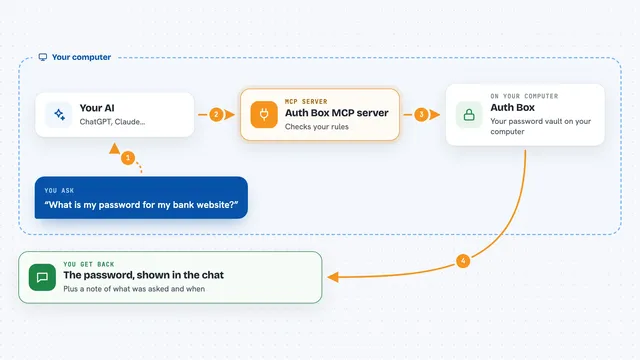
On its own, your AI can only chat with you. An MCP server is a small helper program that gives your AI a new skill or a connection to an app. This one connects your AI to your work apps, but with a fence around it: the AI asks, PrivacyFence decides, and you approve what matters. Your app passwords stay with PrivacyFence, not with the AI.
What this MCP server does
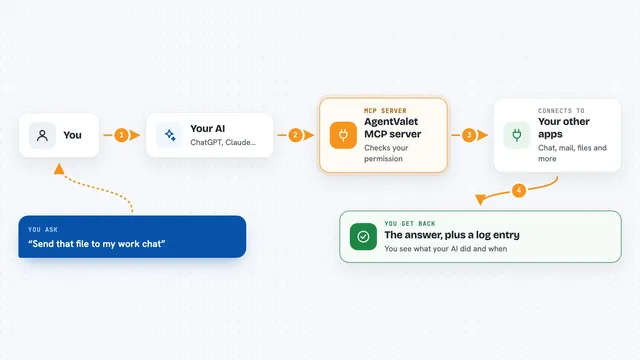
You ask your assistant something like "find the latest email from the finance team". The assistant sends that request to PrivacyFence instead of going straight to Gmail. PrivacyFence checks its rules and, if the request is sensitive or changes something, shows you a card with the actual content and who is asking. You approve or deny it. If it is routine and matches a rule you set, it goes through on its own, and everything is written to an audit log.
What you can do with it
- Search and read your Gmail messages, threads and attachments
- Create drafts, labels and filters in Gmail without sending email
- Search, read and write files in Google Drive, Docs and Sheets
- Read and update your Google Calendar events
- Read Slack channels and DMs, and send messages
- Read Salesforce records and run reports
- Read, create and update Jira and Confluence items
What it gives back to you
You get answers in the chat, like a summary of an email, a list of files, or a calendar view. When something needs approval, you get a card showing the actual content or the change, and you click approve or deny. After you approve, the result comes back to the AI and it answers you. Every request, approved or denied, is written to an audit log you can look at later.
Before you start
What you need
- A computer running macOS 13+, Windows 10+, or Ubuntu 24.04 / Debian 13+
- The PrivacyFence installer from privacyfence.eu/download
- A passkey (a fingerprint, face or security key) to protect approvals
- Accounts with the services you want to connect, like Gmail or Slack
Good to know
It can read private messages and files and can change things in your apps, so read each approval card before you click approve.
Install it with your AI
Add PrivacyFence MCP server to your AI, no technical skills needed
You don't install anything by hand. You copy one prompt, paste it into an AI that can work on your computer, and it checks, installs and connects the server for you, asking you when it needs something.
Sign in to get the install prompt
Members get a ready-made prompt that lets the Claude desktop app check PrivacyFence MCP server, install it and connect it for them, step by step. You don't need any technical skills: you copy, paste and answer a few questions. Your connected AI can also find and install any of the 4,610 MCP servers here for you.
Who it's for
Office workers and teams who want AI help with email, files, chat and business apps but need to keep control over what the AI can see and do.