MCP server · Health and learning
Image Label MCP server
Let your AI list and upload images, tidy up annotations, and export COCO or YOLO training data in Image Label.
This is a helper that connects your AI assistant to Image Label, a free tool for marking up images like microscope slides and tissue samples. Once it is set up, you can ask your AI to handle your images and labels for you instead of clicking through the website. It is handy for anyone preparing pictures for a machine learning project.
What is an MCP server? The 30-second version
On its own, your AI can only chat. An MCP server is a small helper program that gives your AI a new skill or a connection to an app or service. This one connects your AI to Image Label, so it can look up your images and annotations or make changes there when you ask. You do not need to understand how it works under the hood, you just talk to your AI like usual.
What this MCP server does
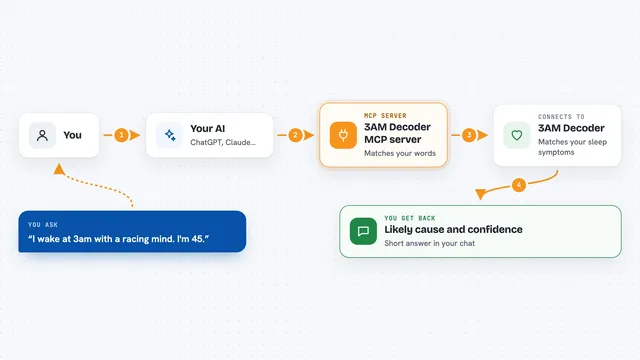
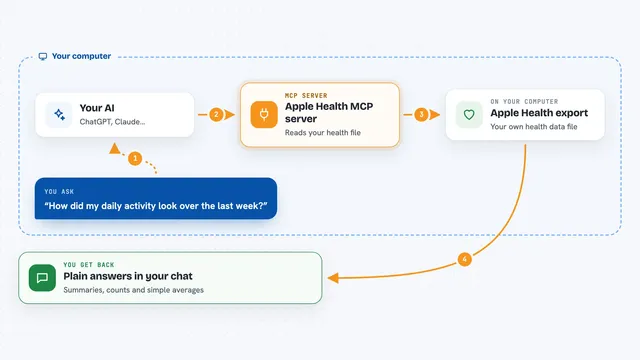
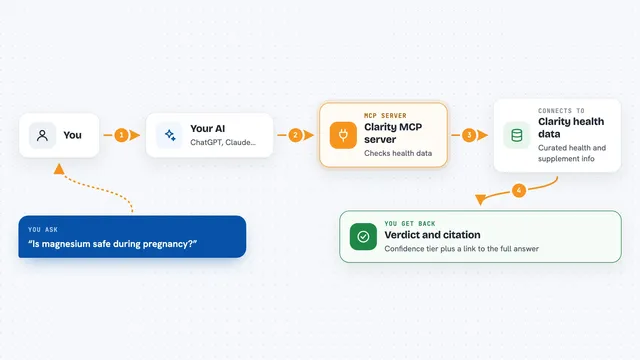
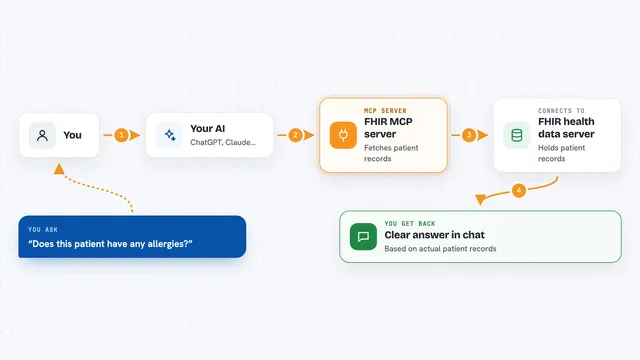
You ask your AI something like which images you have or to upload a picture. The AI passes that request to this helper program. The helper then talks to your Image Label account over the internet. It fetches the images, annotations or export file you asked for, or saves the change you requested. Then it hands the result back to your AI, which explains it to you in the chat.
What you can do with it
- List your images with how many annotations each one has
- Upload a local image file to your account
- Add pins, polygons, circles, rectangles or arrows to an image
- Replace or remove annotations you no longer want
- Edit an image's name, category or description
- Export annotations as COCO JSON or YOLO for training
Try asking your AI
- “List all my images in the histopathology category”
- “Upload the file slide_042.png and put it in the microscopy category”
- “Remove the annotations I added by mistake on image 17”
- “Export the annotations for image 12 as YOLO”
What it gives back to you
You get back plain answers in the chat: a list of images with their annotation counts, the details and annotations of one image, or a confirmation that something was uploaded or changed. When you export, you get the COCO or YOLO data, the same output the website gives you. Everything is shown as text you can read or copy.
Before you start
What you need
- An Image Label account (you can request one on their site)
- Your Image Label username and password
- The Claude desktop app, or another AI tool that supports MCP servers
- The uv tool installed on your computer (the setup guide walks you through it)
Good to know
It can change or remove annotations on your saved images, so check before you ask it to replace or delete anything.
Install it with your AI
Add Image Label MCP server to your AI, no technical skills needed
You don't install anything by hand. You copy one prompt, paste it into an AI that can work on your computer, and it checks, installs and connects the server for you, asking you when it needs something.
Sign in to get the install prompt
Members get a ready-made prompt that lets the Claude desktop app check Image Label MCP server, install it and connect it for them, step by step. You don't need any technical skills: you copy, paste and answer a few questions. Your connected AI can also find and install any of the 4,361 MCP servers here for you.
Who it's for
Researchers, lab staff and students working with microscopy or histopathology images who want to prepare training data with less manual clicking.