
MCP server · Browser automation
Zen Browser MCP server
by sh6drack
Let your AI open tabs, click, fill forms, and take screenshots in your Zen Browser.
This is a small helper that connects your AI assistant to the Zen Browser on your own computer. Once it is set up, you can ask your AI to visit a page, click a button, fill in a form, or grab a screenshot, and it will actually do it in your open Zen window. It is handy for anyone who repeats the same clicks and typing in a browser all day.
What is an MCP server? The 30-second version
On its own, your AI can only chat with you. An MCP server is a small helper program that gives your AI a new skill or a connection to an app, and here it connects your AI to Zen Browser on your machine. So when you ask your AI to do something in Zen, it passes the request to this helper, and the helper talks to your browser for you. You stay in charge: nothing happens until you ask.
What this MCP server does
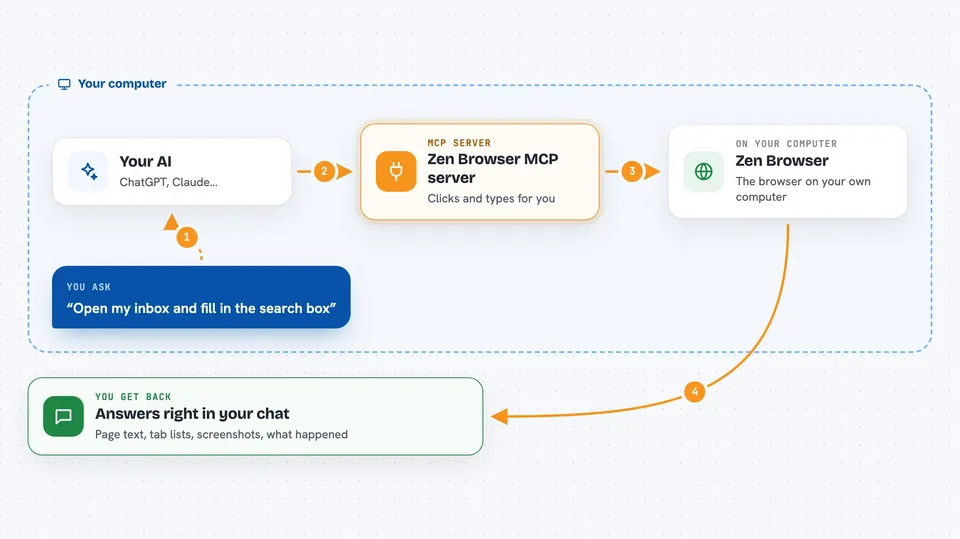
You ask your AI something like "open my inbox and fill in the search box". The AI sends that request to this helper program running quietly on your computer. The helper talks to Zen Browser over a WebSocket, which is just a live two-way connection. Zen does the actual clicking, typing, or scrolling, and the helper sends the result back to your AI. Your AI then tells you what happened, in plain words, right in the chat.
 Click to zoom
What you can do with it
- Open a web page in Zen by giving the AI a link
- List your open tabs and switch between them
- Click buttons, links, and menu items on a page
- Fill in text boxes, dropdowns, checkboxes, and radio buttons
- Read the text of a page and tell you what it says
- Take a screenshot of what is on screen
- Press keys like Enter, Tab, or Ctrl+A for you
- Run a small piece of JavaScript in the page when you need something custom
Try asking your AI
- “Open my Zen browser and go to the company dashboard page”
- “Fill in the contact form on this page with my name and email, then submit it”
- “Take a screenshot of the current tab and tell me what is on it”
- “List all my open tabs and switch to the one with the invoice”
- “Scroll down to the pricing section and read it back to me”
What it gives back to you
You get answers in the chat: page titles and text, lists of open tabs, lists of form fields with their labels, and short descriptions of what was clicked or typed. Screenshots come back as images you can look at. If something fails, the AI tells you what went wrong and often what to try next.
Before you start
What you need
- Zen Browser installed on your computer
- Node.js version 20 or newer
- Zen started with remote debugging turned on (the README shows the exact command)
- An MCP client such as Claude Code or Cursor
Good to know
This helper can click, type, and submit things in your real browser, so avoid pointing it at accounts or pages where a wrong click could cause trouble.
Install it with your AI
Add Zen Browser MCP server to your AI, no technical skills needed
You don't install anything by hand. You copy one prompt, paste it into an AI that can work on your computer, and it checks, installs and connects the server for you, asking you when it needs something.
Sign in to get the install prompt
Members get a ready-made prompt that lets the Claude desktop app check Zen Browser MCP server, install it and connect it for them, step by step. You don't need any technical skills: you copy, paste and answer a few questions. Your connected AI can also find and install any of the 4,361 MCP servers here for you.
Who it's for
People who spend a lot of time clicking and typing in the same web pages, like testers, support staff, and anyone doing repetitive browser work.


