MCP server · Productivity
NetBox MCP server
by simonpainter
Let your AI look up sites, device locations and groups inside your company's NetBox inventory.
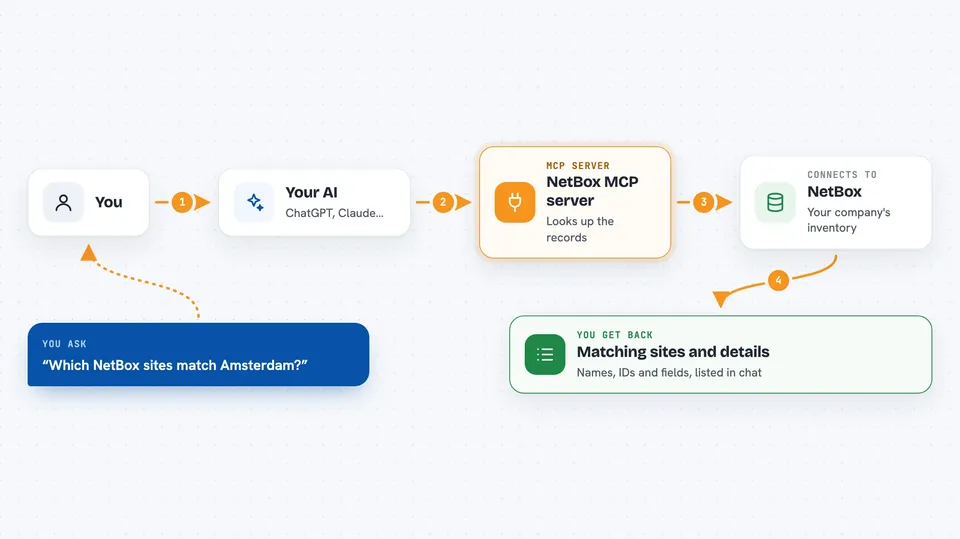
This is a small connector between your AI assistant and NetBox, the system many IT teams use to keep track of network gear, racks and data center sites. Once someone sets it up for you, you can just ask questions in normal words instead of clicking around NetBox yourself. It is meant mainly for network engineers and admins who already know they have a NetBox somewhere at work.
What is an MCP server? The 30-second version
On its own, your AI can only talk to you based on what it was trained on. An MCP server is a little helper program that sits next to your AI and hands it a specific ability. In this case the helper knows how to reach into NetBox through its official access point and pull out records such as sites and equipment details. You never touch any code: whoever installed it points it at your NetBox address once, then you simply ask your questions in the chat.
What this MCP server does
When you ask something like "which sites do we have?", your AI sends that question to this helper behind the scenes. The helper turns it into a proper query against your NetBox installation and waits for the answer. Then it brings the matching records straight back into your conversation. For now it covers searching and looking up sites and site groups, plus getting the full detail record for one particular item. More kinds of items can be added later because the same pattern repeats for each thing NetBox stores.
 Click to zoom
What you can do with it
- Search all sites stored in NetBox by part of a name
- Get the full details of one site, including its ID and attributes
- Look up site groups used to organise regions or business units
- Fetch the details of a single group by its number
- Check spelling and naming across your inventory while chatting
- Ask quick clarifying questions during meetings without logging into NetBox
Try asking your AI
- “Which NetBox sites match Amsterdam?”
- “Show me everything recorded for our Frankfurt DC site.”
- “What site groups exist right now?”
- “Give me the details of site group id 42.”
What it gives back to you
Your AI replies in plain text with whatever matched, usually names together with IDs and some fields from the underlying record. When several entries come back you often see them listed one after another, ready to skim. Nothing gets changed in NetBox itself since this setup only asks for information. Think of it as asking a very patient colleague to read values off the screen for you.
Before you start
What you need
- Someone able to run a Python script on a computer or internal machine
- Address of your organisation's NetBox web page
- A NetBox access token created for read-only purposes
- Permission within your team to let outsiders view those records
Good to know
Everything shown comes directly from real corporate documentation, so treat printed tokens carefully and avoid pasting sensitive output anywhere outside trusted channels.
Install it with your AI
Add NetBox MCP server to your AI, no technical skills needed
You don't install anything by hand. You copy one prompt, paste it into an AI that can work on your computer, and it checks, installs and connects the server for you, asking you when it needs something.
Sign in to get the install prompt
Members get a ready-made prompt that lets the Claude desktop app check NetBox MCP server, install it and connect it for them, step by step. You don't need any technical skills: you copy, paste and answer a few questions. Your connected AI can also find and install any of the 4,361 MCP servers here for you.
Who it's for
Network engineers, infrastructure administrators and anyone whose job involves checking asset inventories in NetBox throughout the day.