MCP server · Customer communication
Capsule CRM MCP server
by soil-dev
Connect your AI to Capsule CRM so it can look up contacts, deals, projects and tasks for you.

This is a helper that connects your AI assistant to your Capsule CRM account. Once it is set up, you can just ask questions in plain English about your contacts, opportunities, projects and tasks, and the AI goes and finds the answers for you. It is handy for anyone who lives in Capsule all day and would rather type a question than click through screens.
What is an MCP server? The 30-second version
On its own, your AI can only chat with you. It cannot see your Capsule CRM. An MCP server is a small helper program that gives your AI a new skill, in this case the ability to talk to Capsule CRM. You install it once, and from then on your AI can look things up in Capsule and even make changes there when you ask it to.
What this MCP server does
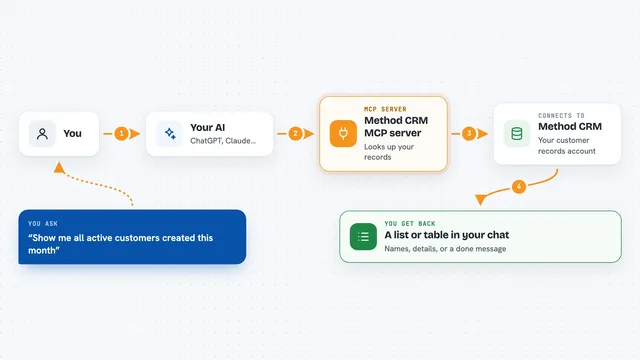
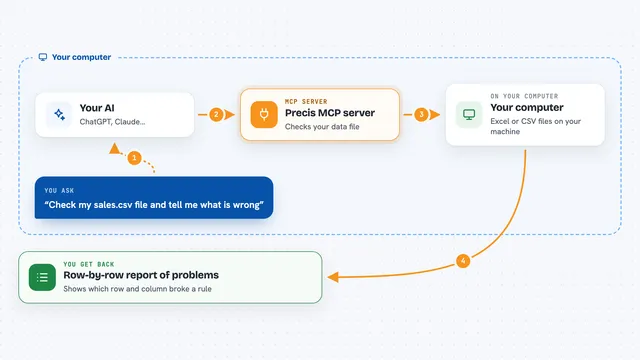
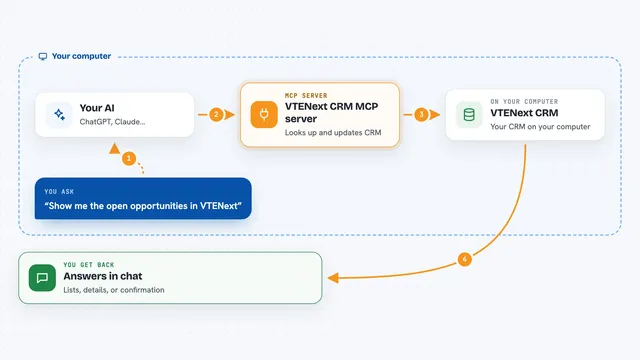
You ask your AI a question in normal words, like who you last spoke to at a certain company. The AI passes that request to this helper. The helper talks to Capsule CRM using your account and a special access token. Capsule sends back the records, and the AI turns them into a clear answer for you. If you ask it to create or update something, the helper does that too, but only after checking with you first.
 Click to zoom
What you can do with it
- Look up a contact or organisation by name
- List the opportunities or projects linked to a person or company
- Show recent activity and notes on a record
- Create a new task or note on a contact
- Update details on an existing contact or deal
- Run a saved filter you set up in Capsule
- Check which records were recently deleted
Try asking your AI
- “Who did I last speak to at Acme Corp?”
- “Show me all open opportunities worth more than 10,000”
- “Add a note to Sarah's contact saying we spoke about renewal”
- “List the projects linked to this organisation”
What it gives back to you
You get back plain answers in the chat: names, dates, amounts, statuses, and short summaries of records. If you asked for a list, the AI shows it as a tidy list or table. If you asked it to change something, it tells you what it changed. File attachments can come back as a download link or file.
Before you start
What you need
- A Capsule CRM account
- A Capsule API token (you generate it in Capsule under My Preferences, then API Authentication Tokens; pick the Read scope to start)
- The Claude desktop app or Claude Code, if you want to run it on your own computer
- Node.js installed, so the npx command can run
Good to know
It can create, change and delete records in your Capsule CRM, so start with the read-only setting and a read-only token until you trust it.
Install it with your AI
Add Capsule CRM MCP server to your AI, no technical skills needed
You don't install anything by hand. You copy one prompt, paste it into an AI that can work on your computer, and it checks, installs and connects the server for you, asking you when it needs something.
Sign in to get the install prompt
Members get a ready-made prompt that lets the Claude desktop app check Capsule CRM MCP server, install it and connect it for them, step by step. You don't need any technical skills: you copy, paste and answer a few questions. Your connected AI can also find and install any of the 4,361 MCP servers here for you.
Who it's for
Sales, account management and operations people who use Capsule CRM every day and want quick answers without clicking around.