MCP server · Music
Apple Music MCP server
by suleyman416
Lets your AI play, organize, and analyze Apple Music on your Mac by just asking in plain words.
This is a helper that connects your AI assistant to the Apple Music app on your Mac. Once it is set up, you can ask your AI to play a song, fix a playlist, or tell you what you listened to last month, and it will actually do it. It is handy if you use Apple Music a lot and want to skip all the clicking around.
What is an MCP server? The 30-second version
On its own, your AI can only chat with you. An MCP server is a small helper program that gives your AI a new skill or a connection to an app. This one connects your AI to Apple Music on your Mac, so when you ask for something like playing a song or checking your listening history, the AI can actually carry it out in the Music app for you.
What this MCP server does
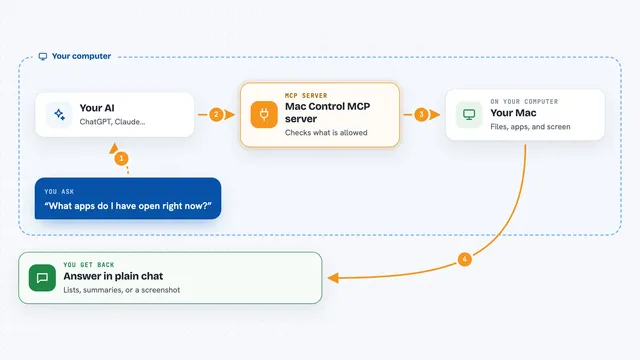
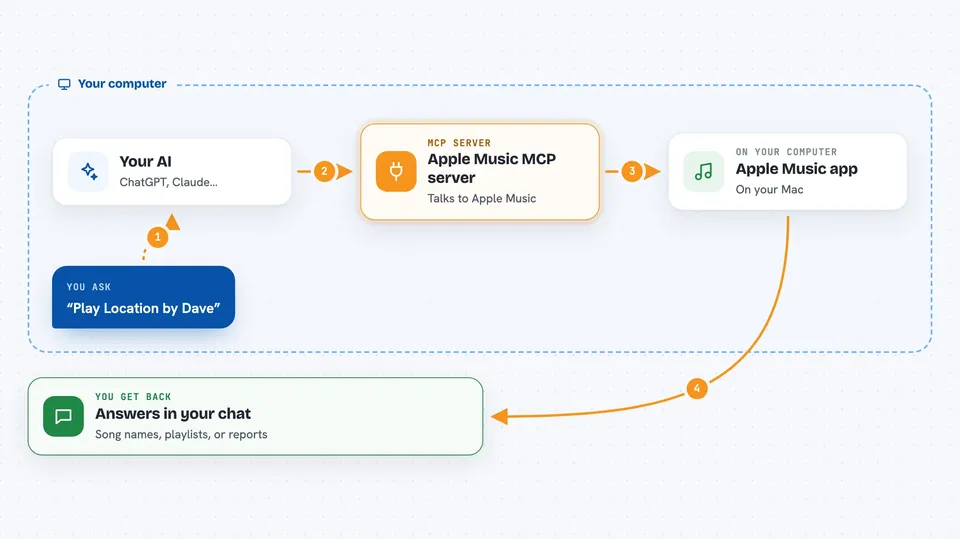
You type a request in plain words, like play a song or import a playlist. Your AI passes that request to this helper program running quietly on your Mac. The helper talks to the Apple Music app and makes the change or looks up the information. Then it sends the result back to your AI, which shows it to you in the chat. It all happens on your own computer, and nothing is sent to the internet.
 Click to zoom
What you can do with it
- Play, pause, skip, and change the volume in Apple Music
- Switch audio output to AirPods, HomePod, or other AirPlay speakers
- Import a public Spotify playlist into your Apple Music library
- Create, sort, merge, and clean up playlists, including finding duplicates
- Show your listening history and a monthly Replay-style report
- Get lyrics for a song or make a share link that works on many music apps
- Set up smart crossfades between songs for a party playlist
Try asking your AI
- “Play Location by Dave”
- “Set volume to 80% and switch EQ to Hip-Hop”
- “Import this Spotify playlist: https://open.spotify.com/playlist/...”
- “Give me my August Replay report”
- “Find and remove duplicate songs in my Favorites playlist”
What it gives back to you
You get answers right in the chat, like the name of the song now playing, a list of your playlists, or a summary of your top artists for the month. For reports, it can show numbers and lists, like hours listened or your most played songs. When you ask it to change something, like adding a song to a playlist, it tells you it is done. It can also export a playlist as a file in a few formats if you want to keep or share it.
Before you start
What you need
- A Mac with the Apple Music app installed
- Python 3.13 or newer
- The uv package manager (the README suggests installing it with brew install uv)
- Permission for your AI app to control Music.app, which macOS will ask for the first time
Good to know
It can change your real Apple Music library, so it can add, edit, or delete playlists and songs, and it can also start playing music out loud on your speakers.
Install it with your AI
Add Apple Music MCP server to your AI, no technical skills needed
You don't install anything by hand. You copy one prompt, paste it into an AI that can work on your computer, and it checks, installs and connects the server for you, asking you when it needs something.
Sign in to get the install prompt
Members get a ready-made prompt that lets the Claude desktop app check Apple Music MCP server, install it and connect it for them, step by step. You don't need any technical skills: you copy, paste and answer a few questions. Your connected AI can also find and install any of the 4,361 MCP servers here for you.
Who it's for
Mac users who love Apple Music and want to control it, fix playlists, or see their listening stats without clicking around.