MCP server · Apple, iOS and Mac
FreezeText MCP server
Lets your AI read the text on your Mac screen and search your past captures.
This is a helper that connects your AI assistant to FreezeText, a free Mac app that freezes your screen and reads the text on it. Once it is set up, you can just ask your AI to grab whatever text is showing and work with it. It is handy for anyone who keeps hitting text on screen that they cannot copy, like in videos, popups or locked PDFs.
What is an MCP server? The 30-second version
On its own, your AI can only chat with you. An MCP server is a small helper program that gives your AI a new skill or a connection to another app. This one connects your AI to FreezeText on your Mac, so the AI can ask the app to read the text on your screen or look through your saved captures. You still do the asking in plain words, and the helper handles the rest.
What this MCP server does
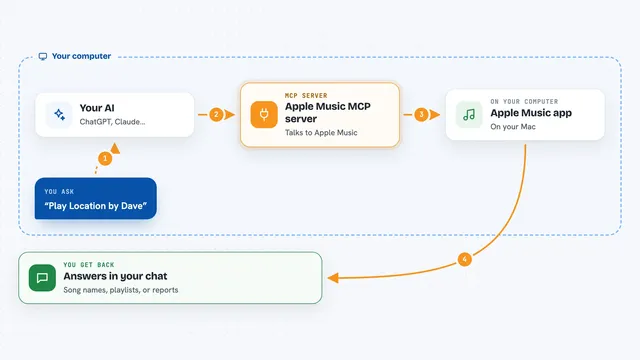
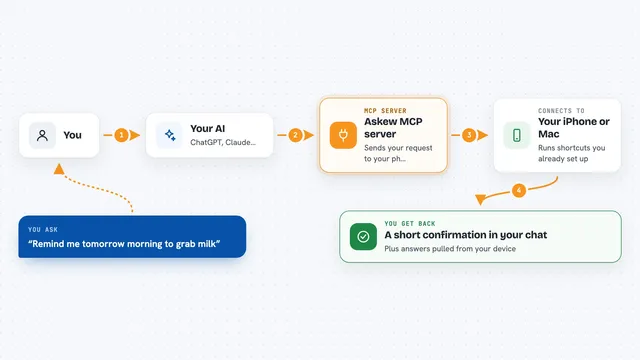
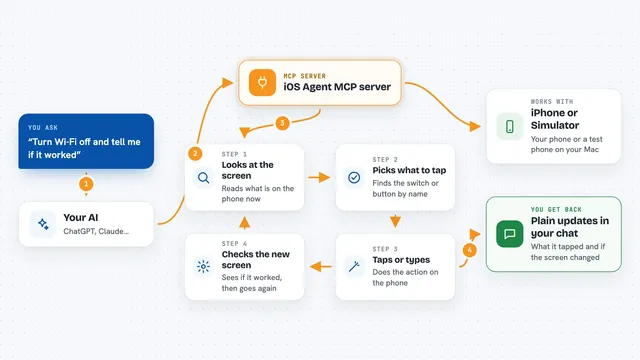
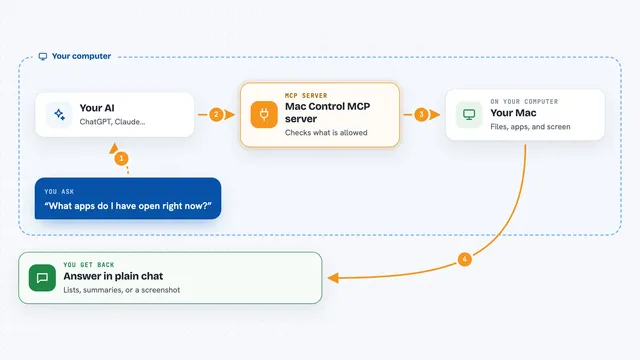
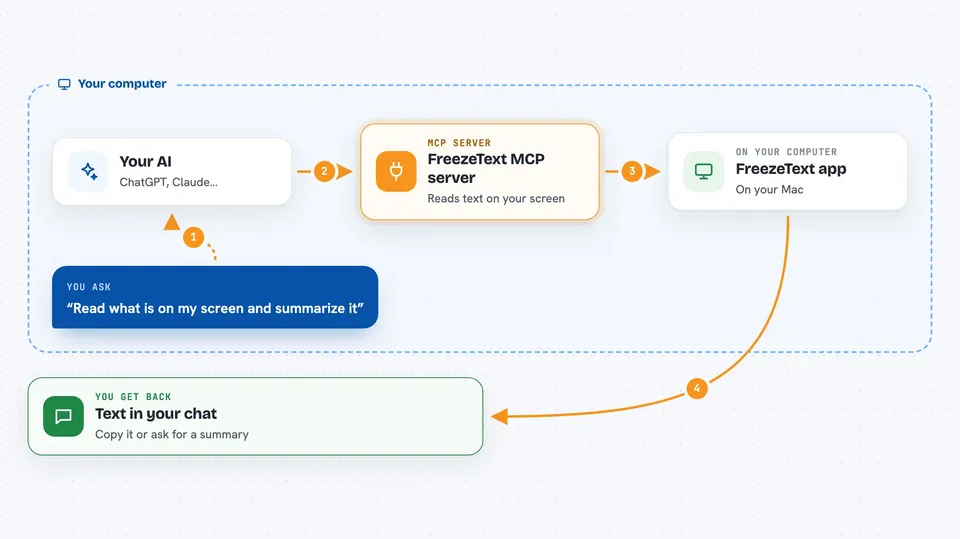
You ask your AI something like "read what is on my screen and summarize it". The AI passes that request to this helper program running on your Mac. The helper then talks to the FreezeText app, which freezes the screen and reads the text using Apple's built-in text recognition. The text comes back to your AI, which shows it to you or does something with it, like pulling out a number or writing a summary. It can also look through the captures you saved earlier in FreezeText.
 Click to zoom
What you can do with it
- Read the text currently visible on your screen
- Read text from a specific area of the screen you point to
- Read text from an image you paste in
- Search your past FreezeText captures for a word or phrase
- List, open or delete entries in your capture history
- Export your capture history as a file
- Check or change which languages the text reader uses
Try asking your AI
- “Read whatever is on my screen right now and summarize it”
- “Run OCR on this screenshot and pull out the invoice number”
- “Search my FreezeText history for anything with a tracking number”
- “What languages is the text reader set to right now”
What it gives back to you
You get the text back inside the chat, usually as a block you can copy. If you asked for a summary or a specific detail, your AI gives you that instead. For history searches you get a list of matching captures with short details. When you change or delete something, you get a short confirmation that it was done.
Before you start
What you need
- A Mac running macOS 14 (Sonoma) or later
- The FreezeText app installed and running, with its HTTP API turned on in Settings
- The FreezeTextMCP helper program, either downloaded or built from source
- The port number for FreezeText's local API, and a token only if you set one in the app
Good to know
It can read whatever is visible on your screen and can delete your saved captures, so be careful with the clear and delete actions.
Install it with your AI
Add FreezeText MCP server to your AI, no technical skills needed
You don't install anything by hand. You copy one prompt, paste it into an AI that can work on your computer, and it checks, installs and connects the server for you, asking you when it needs something.
Sign in to get the install prompt
Members get a ready-made prompt that lets the Claude desktop app check FreezeText MCP server, install it and connect it for them, step by step. You don't need any technical skills: you copy, paste and answer a few questions. Your connected AI can also find and install any of the 4,361 MCP servers here for you.
Who it's for
Mac users who often need to copy text that is stuck on screen, like researchers, support staff, students and anyone working with PDFs or videos.