MCP server · Apple, iOS and Mac
Mac Control MCP server
by dockndevai
Lets your AI see your Mac screen and click, type, and run things on it for you.
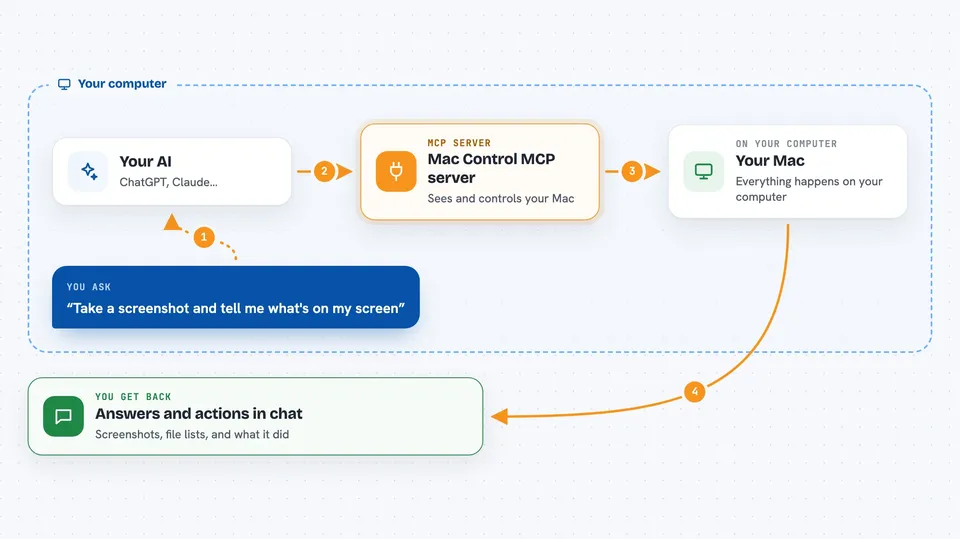
This is a helper that gives your AI hands and eyes on a Mac. It can take screenshots, move the mouse, click, type, drag, scroll, open apps, read and write files, and run commands. It is handy if you want your AI to actually do things on your computer instead of just talking about them.
What is an MCP server? The 30-second version
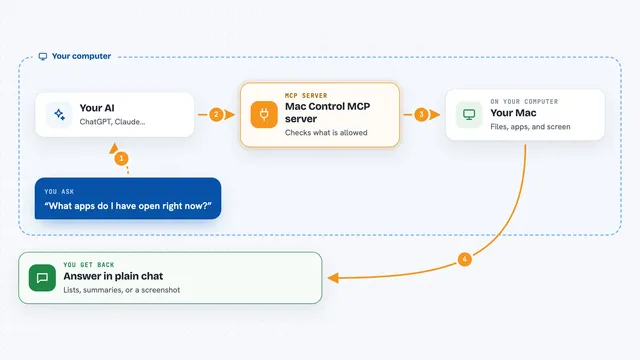
On its own, your AI can only chat. An MCP server is a small helper program that gives your AI a new skill or a connection to something. This helper connects your AI to your Mac itself, so it can look at the screen and act on it when you ask. You stay in charge: the AI only does something when you tell it to.
What this MCP server does
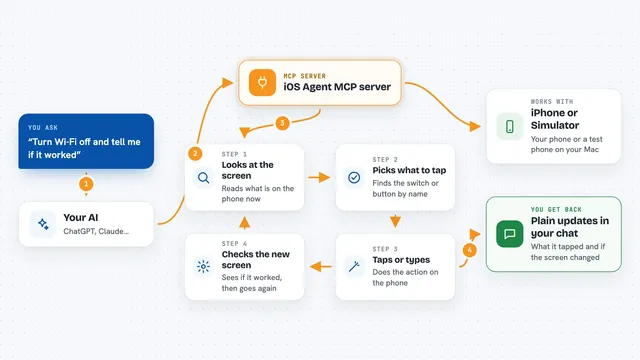
You ask your AI to do something on your Mac, like open an app or fill in a form. The AI uses this helper to take a screenshot and see what is on screen. Then it moves the mouse, clicks, types, or runs a command, just like a person would. It takes another screenshot to check the result, and tells you what happened. It can also read files, list processes, and use AppleScript to drive apps that support it.
 Click to zoom
What you can do with it
- Take a screenshot of your screen or a window
- Move the mouse, click, double-click, right-click, drag, and scroll
- Type text and press key combinations like Command+C
- Open, activate, or quit apps
- Read, write, and delete files (delete goes to Trash)
- Run shell commands and AppleScript
- List running processes and stop one if needed
Try asking your AI
- “Take a screenshot and tell me what is on my screen right now.”
- “Open Safari and go to my company intranet page.”
- “Find the file report.docx in my Documents folder and tell me when it was last changed.”
- “Click the blue Save button in the window that is open.”
What it gives back to you
You get answers in the chat: screenshots, lists of files or windows, text from files, and short summaries of what the AI saw or did. When it changes something, like writing a file or clicking a button, it tells you what it changed. If a command fails, you get the error message in plain words.
Before you start
What you need
- A Mac (this only works on macOS)
- Node.js installed so npx can run the helper
- cliclick installed for mouse control (brew install cliclick)
- macOS permissions for Screen Recording, Accessibility, and Automation, granted the first time each is used
Good to know
This server starts with full control, so it can run commands, delete files, and control your mouse and keyboard; only use it with an AI and content you trust, and set MACCTL_SAFE_MODE=true if you want it to be safer by default.
Install it with your AI
Add Mac Control MCP server to your AI, no technical skills needed
You don't install anything by hand. You copy one prompt, paste it into an AI that can work on your computer, and it checks, installs and connects the server for you, asking you when it needs something.
Sign in to get the install prompt
Members get a ready-made prompt that lets the Claude desktop app check Mac Control MCP server, install it and connect it for them, step by step. You don't need any technical skills: you copy, paste and answer a few questions. Your connected AI can also find and install any of the 4,361 MCP servers here for you.
Who it's for
People who want their AI to actually operate their Mac, like testers, support staff, and anyone doing repetitive clicking or typing.