MCP server · Apple, iOS and Mac
Mac Control MCP server
by dockndevai
Let your AI look at and gently operate your Mac: files, apps, screenshots, clipboard, and more if you allow it.
This is a helper that lets your AI assistant see and do things on your Mac. It starts in a careful, read-only mode, so at first it can only look, not touch. It is handy if you want your AI to check a file, list what is running, or grab a screenshot for you without giving it free rein over your computer.
What is an MCP server? The 30-second version
On its own, your AI can only chat with you. An MCP server is a small helper program that gives your AI a new skill or a connection to something, in this case your Mac. Once this helper is connected, your AI can ask it to look at files, apps, or the screen, and the helper does that work on your machine. You stay in control because the helper only does what you have allowed.
What this MCP server does
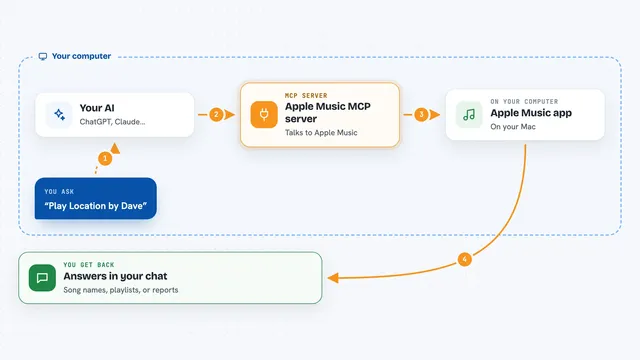
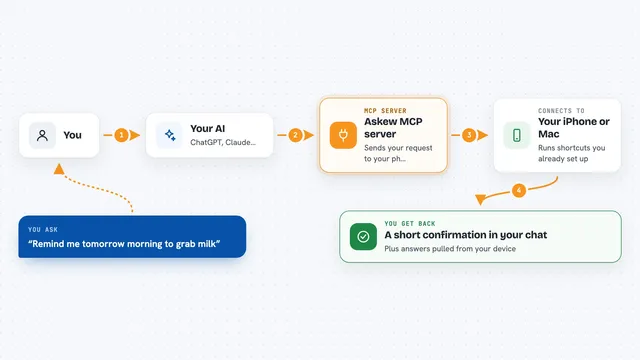
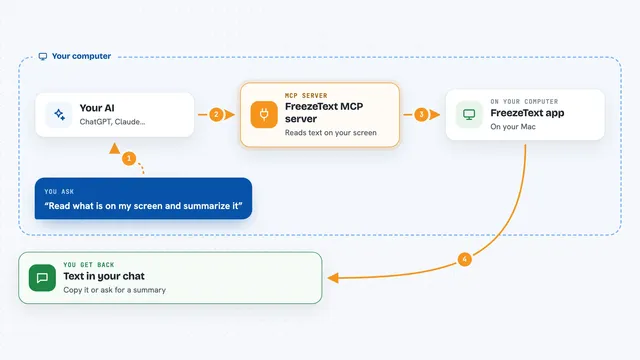
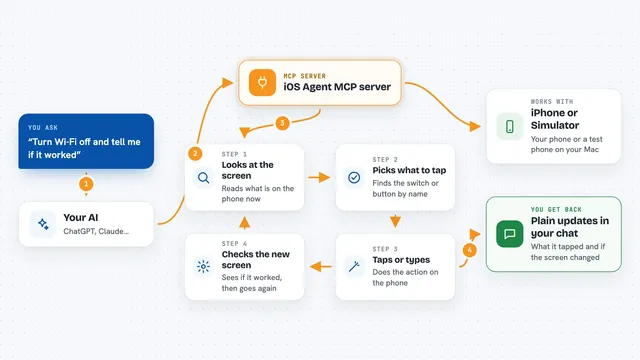
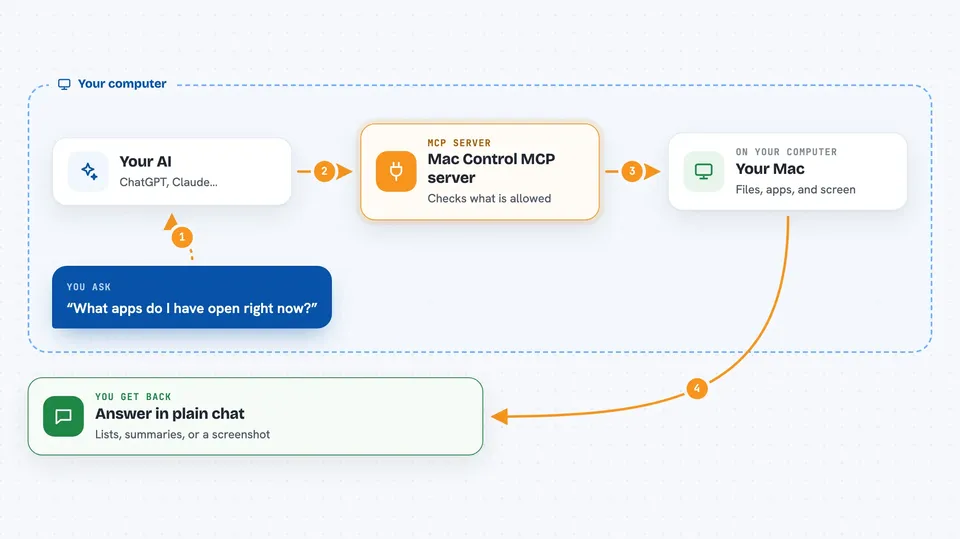
You ask your AI something about your Mac, like what apps are open or what is on your clipboard. Your AI passes that request to this helper program running on your computer. The helper checks what it is allowed to do, then looks at your Mac or makes the change you asked for. It sends the result back to your AI, which explains it to you in the chat. Anything risky, like running a command or deleting a file, needs you to turn it on first and often to approve each time.
 Click to zoom
What you can do with it
- Read files and browse folders on your Mac
- List running apps and processes
- Take a screenshot of your screen
- Read and set your clipboard
- Show a notification or open a file, URL, or app
- Write or overwrite a file when you allow it
- Run commands, AppleScript, or control the mouse and keyboard only if you turn those on
Try asking your AI
- “What apps do I have open right now?”
- “Take a screenshot of my screen and tell me what is on it.”
- “What is currently in my clipboard?”
- “List the files in my Downloads folder.”
What it gives back to you
You get answers in plain chat: lists of files or apps, short summaries of what is running, a screenshot image, or the text from your clipboard. When it writes a file or changes something, it tells you what it did. If something is not allowed, it says so instead of doing it.
Before you start
What you need
- A Mac running macOS
- Node.js version 22 or newer
- The cliclick tool if you want mouse clicking and moving (installed with brew install cliclick)
- Mac permissions like Screen Recording or Accessibility, which macOS will ask you for the first time they are needed
Good to know
If you raise the mode and turn on the extra flags, this helper can run commands, delete files, or control your mouse and keyboard, so only enable those when you really need them and keep an eye on what your AI asks it to do.
Install it with your AI
Add Mac Control MCP server to your AI, no technical skills needed
You don't install anything by hand. You copy one prompt, paste it into an AI that can work on your computer, and it checks, installs and connects the server for you, asking you when it needs something.
Sign in to get the install prompt
Members get a ready-made prompt that lets the Claude desktop app check Mac Control MCP server, install it and connect it for them, step by step. You don't need any technical skills: you copy, paste and answer a few questions. Your connected AI can also find and install any of the 4,361 MCP servers here for you.
Who it's for
Mac users who want their AI to help with everyday computer tasks like finding files, checking what is running, or taking screenshots, without handing over full control.