MCP server · Social media
LinkedIn MCP server
by timkulbaev
Let your AI write, preview, and publish LinkedIn posts, comments, and reactions for you.
This is a small helper that connects your AI assistant to your LinkedIn account, so it can post, comment, and react on your behalf. It is handy if you write on LinkedIn often and want the AI to draft and publish, while you stay in control. Nothing goes live until you say yes.
What is an MCP server? The 30-second version
On its own, your AI can only chat with you. An MCP server is a small helper program that gives your AI a new skill or a connection to an app or service. This one connects your AI to LinkedIn, through a service called Unipile that handles the login part. Once it is set up, you can ask your AI to write a post and it can actually put it on your LinkedIn page.
What this MCP server does
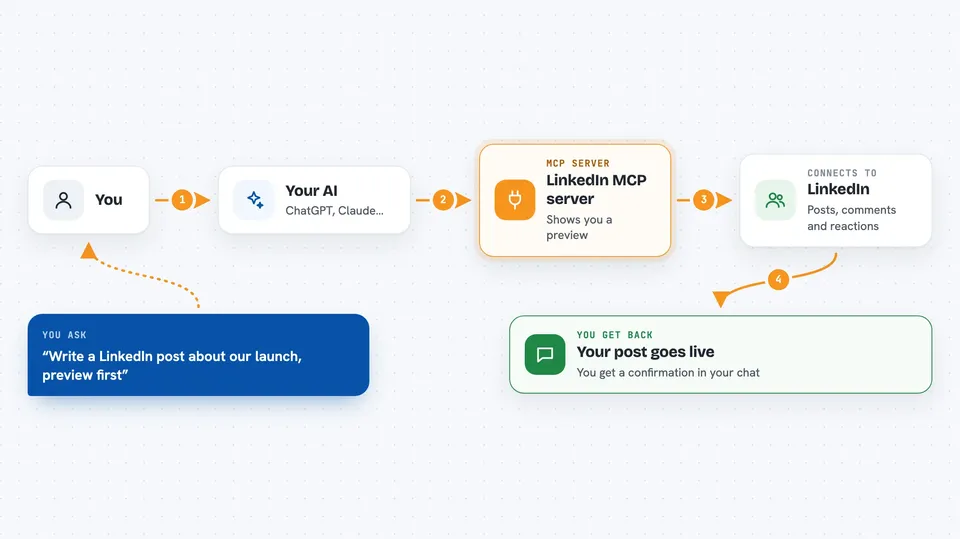
You ask your AI to write a LinkedIn post, comment, or reaction. The AI uses this helper, and the helper talks to Unipile, which passes it on to LinkedIn. By default the helper only shows you a preview first: the final text, the character count, and any warnings. You look it over, say go ahead, and then it publishes for real.
 Click to zoom
What you can do with it
- Write and publish a LinkedIn post with your text
- Preview a post before it goes live
- Add an image or video to a post
- Comment on someone else's LinkedIn post
- React to a post with like, celebrate, support, love, insightful, or funny
- Mention a company in your post so it becomes a clickable @mention
Try asking your AI
- “Write a short LinkedIn post about our new product launch and show me a preview first”
- “Add this image to the post and then publish it”
- “Leave a friendly comment on this LinkedIn post: https://www.linkedin.com/feed/update/...”
- “React with celebrate to this post”
What it gives back to you
For a preview, you get back the final text, how many characters it has, whether any media or mentions worked, and any warnings. For a real post, you get a confirmation with the post ID and the time it went live. For comments and reactions, you get a short confirmation that it was done. Everything shows up right in your chat.
Before you start
What you need
- Node.js 18 or newer installed on your computer
- A Unipile account with your LinkedIn account connected (there is a free tier)
- Your Unipile API key and DSN from the Unipile dashboard
- The Claude desktop app or Claude Code, or another app that works with MCP
Good to know
Once you confirm, it really posts to your LinkedIn account, and reactions happen right away with no preview, so check the text and the target post before you say yes.
Install it with your AI
Add LinkedIn MCP server to your AI, no technical skills needed
You don't install anything by hand. You copy one prompt, paste it into an AI that can work on your computer, and it checks, installs and connects the server for you, asking you when it needs something.
Sign in to get the install prompt
Members get a ready-made prompt that lets the Claude desktop app check LinkedIn MCP server, install it and connect it for them, step by step. You don't need any technical skills: you copy, paste and answer a few questions. Your connected AI can also find and install any of the 4,609 MCP servers here for you.
Who it's for
People who post on LinkedIn regularly, like founders, marketers, recruiters, and consultants, and want their AI to help write and publish.