
MCP server · API
Toolport MCP server
by tsouth89
Set up your MCP servers once and share them across Claude, Cursor, VS Code and other AI apps.
Toolport is a small helper app that lives on your computer and manages all your MCP servers in one place. You set up and sign in to each server once, then point your AI apps at Toolport instead of setting them up again in every app. It is handy if you use more than one AI tool and are tired of repeating the same setup.
What is an MCP server? The 30-second version
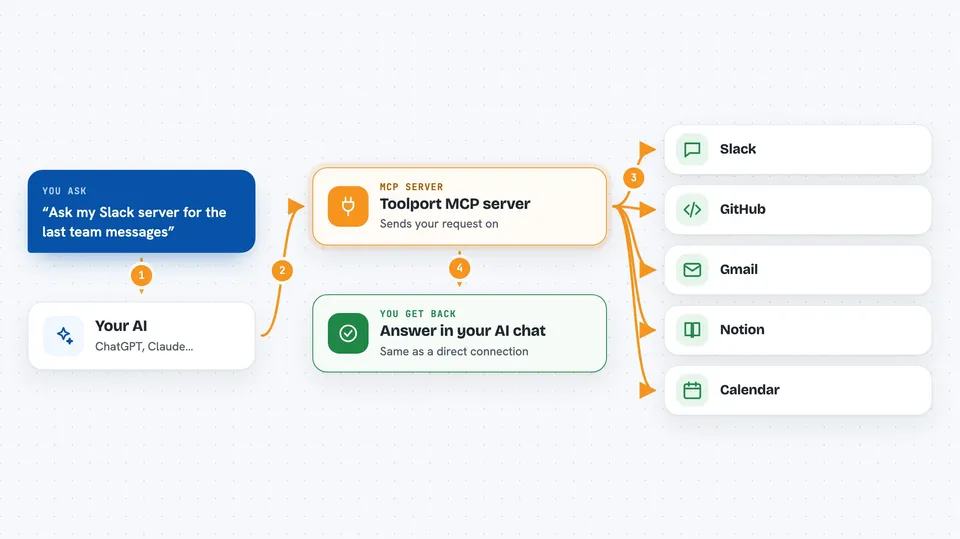
On its own, your AI can only chat with you. An MCP server is a small helper program that gives your AI a new skill or a connection to an app or service. Toolport is a local gateway for MCP: it sits between your AI apps and the servers you use, so you set each server up once and every AI app can reach it. Your sign-in details stay in your computer's keychain instead of being copied into each app's settings.
What this MCP server does
You install Toolport on your computer and add the servers you want, either from its catalog or by pasting a config. You sign in to each server once, and Toolport keeps those credentials in your operating system's keychain. Then you open the Clients section and connect your AI apps, like Claude or Cursor, to Toolport. When you ask your AI for something, it goes through Toolport, which passes the request to the right server and brings the answer back to your chat. You can also turn individual tools off, require approval for risky actions, and see what has been called in one place.
 Click to zoom
What you can do with it
- Set up each MCP server once and use it from every AI client
- Keep your sign-in details in your computer's keychain instead of in each app
- Choose which servers each AI app can see using profiles
- Turn off tools you do not want your AI to use
- Require your approval before an action that changes or deletes something
- Write shared instructions once and apply them to supported clients
- Review recent tool activity in one place
Try asking your AI
- “What MCP servers do I have connected right now?”
- “Turn off the delete tool for my GitHub server.”
- “Ask my Slack server for the last messages in the team channel.”
- “Show me what tools ran in the last hour.”
What it gives back to you
You get answers and results in your normal AI chat, the same way you would if the server were connected directly. Toolport itself shows you lists of your servers, which clients are connected, and recent activity. When an action needs your approval, you see a prompt before it runs. Changes you make, like turning a tool off, show up in the Toolport window.
Before you start
What you need
- A Windows, macOS or Linux computer
- The Toolport app installed from toolport.app/download
- Accounts or sign-in details for the servers you want to connect
- The AI apps you want to link, like Claude, Cursor, Codex or VS Code
Good to know
It can run actions in the servers you connect, including ones that change or delete things, so keep the approval setting on for anything risky.
Install it with your AI
Add Toolport MCP server to your AI, no technical skills needed
You don't install anything by hand. You copy one prompt, paste it into an AI that can work on your computer, and it checks, installs and connects the server for you, asking you when it needs something.
Sign in to get the install prompt
Members get a ready-made prompt that lets the Claude desktop app check Toolport MCP server, install it and connect it for them, step by step. You don't need any technical skills: you copy, paste and answer a few questions. Your connected AI can also find and install any of the 4,609 MCP servers here for you.
Who it's for
People who use more than one AI coding tool and want their MCP servers set up in one place instead of repeating the setup in every app.


