MCP server · Security
OPNsense MCP server
by vespo92
Lets your AI look at and change your OPNsense firewall settings for you, in plain language.
This is a helper program that connects your AI assistant to an OPNsense firewall. Once it is set up, you can ask your AI things like which firewall rules exist or why two networks cannot reach each other, and it will go check for you. It is handy for anyone who runs an OPNsense box at home or at work and would rather describe what they want than click through menus.
What is an MCP server? The 30-second version
On its own, your AI can only chat. An MCP server is a small helper program that gives your AI a new skill or a connection to something else. This one connects your AI to your OPNsense firewall, so it can read your settings and, if you allow it, make changes there when you ask. You stay in charge: the AI only does what you tell it to do.
What this MCP server does
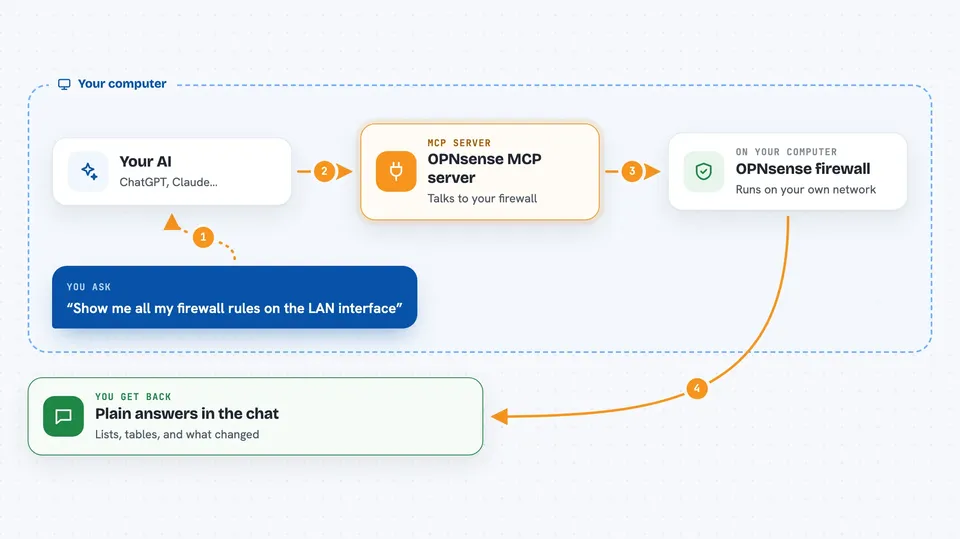
You ask your AI a question about your firewall in normal words. The AI passes that request to this helper program running on your computer. The helper then talks to your OPNsense box, either through its official interface or, for some tasks, over a secure command connection. It brings the answer back and the AI explains it to you in the chat. If you ask for a change, the helper sends that change to the firewall and reports what happened.
 Click to zoom
What you can do with it
- List your firewall rules and explain what each one does
- Create, update, or delete firewall rules
- Check outbound NAT settings and fix common DMZ routing problems
- Look at the ARP table to see which devices are on your network
- Run routing checks between two networks and suggest fixes
- Restart a service or run a command on the firewall
- Make a backup of your firewall configuration
Try asking your AI
- “Show me all my firewall rules on the LAN interface”
- “Why can't devices in my DMZ reach the NAS on my LAN?”
- “Add a rule that lets the DMZ network reach 10.0.0.14 on port 2049 over TCP”
- “List the devices currently in the ARP table and tell me their vendors”
What it gives back to you
You get answers in the chat: lists of rules, tables of devices, or a short explanation of what the firewall is doing. When you ask for a change, it tells you what it changed and whether it worked. Some tasks also return configuration details or a backup file you can save. Everything shows up as normal text in the conversation.
Before you start
What you need
- An OPNsense firewall you can reach from your computer
- An API key and secret from OPNsense (a kind of password for apps; you create them in the OPNsense web interface)
- Node.js 18 or newer installed on your computer
- SSH access to the firewall if you want the NAT and command features (optional)
Good to know
This server can make real changes to your firewall, including deleting rules and restarting services, so use the read-only or dry-run mode first and keep a backup.
Install it with your AI
Add OPNsense MCP server to your AI, no technical skills needed
You don't install anything by hand. You copy one prompt, paste it into an AI that can work on your computer, and it checks, installs and connects the server for you, asking you when it needs something.
Sign in to get the install prompt
Members get a ready-made prompt that lets the Claude desktop app check OPNsense MCP server, install it and connect it for them, step by step. You don't need any technical skills: you copy, paste and answer a few questions. Your connected AI can also find and install any of the 4,609 MCP servers here for you.
Who it's for
Home lab owners, small office admins, and IT people who run an OPNsense firewall and want to manage it by talking instead of clicking.