
MCP server · Developer tools
ROS 2 MCP server
by wise-vision
Lets your AI look at and control a ROS 2 robot: list topics, read sensor data, and send commands.
This is a helper program that connects your AI assistant to ROS 2, the software many robots run on. Once it is set up, you can ask your AI in plain words what your robot is doing or tell it to do something, and it talks to the robot for you. It is made for people working with robots, whether you are a developer, a researcher, or a student.
What is an MCP server? The 30-second version
On its own, your AI can only chat with you. An MCP server is a small helper program that gives your AI a new skill or a connection to another system. This one connects your AI to ROS 2, the robot software. So when you ask about your robot, the AI can actually look things up or send commands through this helper instead of just guessing.
What this MCP server does
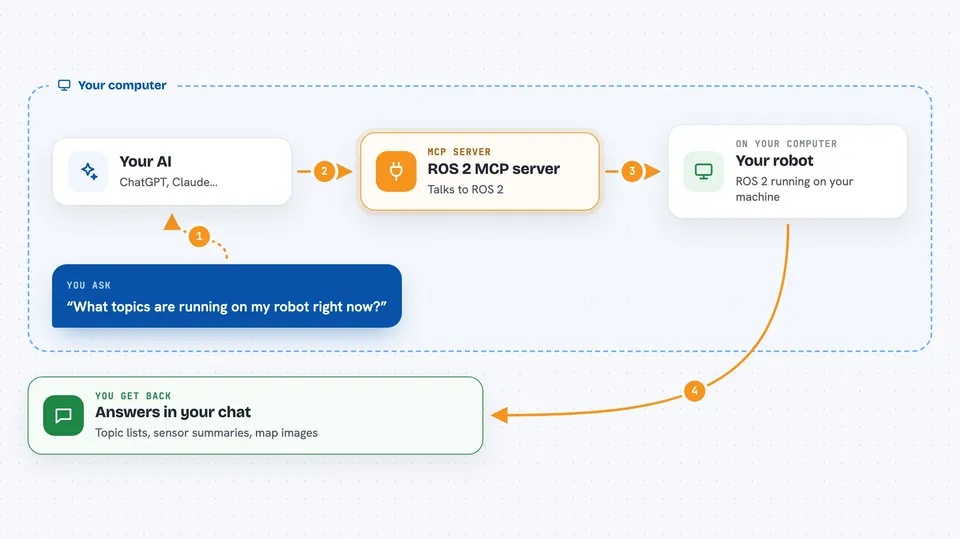
You ask your AI something about your robot, like what topics are running or what a sensor is reading. The AI passes your request to this helper program. The helper talks to ROS 2 on your robot or computer. It collects the answer, like a list of topics or some sensor messages, and hands it back. Your AI then explains it to you in the chat.
 Click to zoom
What you can do with it
- List all the topics, services, and actions running on your robot
- Read messages from a topic for a few seconds and summarize them
- Look up what fields a message type has
- Turn a map or a point cloud into a picture you can look at
- Send a command to a topic, service, or action (if not in read-only mode)
- Watch several topics at once and get images back as PNG files
- Check the health of your robot by seeing if expected topics and services are alive
Try asking your AI
- “What topics are running on my robot right now?”
- “Subscribe to the /scan topic for 5 seconds and tell me what the sensor is reading”
- “Show me the map from the /map topic as an image”
- “Send a goal to the navigation action to move to coordinates 3, 4”
What it gives back to you
You get answers in the chat: lists of topic names and types, summaries of messages collected over a few seconds, field names for a message type, or PNG images of maps and point clouds. If you send a command, you get back a status saying whether it was accepted or what the result was. Everything is shown as text or images right in the conversation.
Before you start
What you need
- A computer or robot running ROS 2 Humble or Jazzy
- Python 3.10 or newer and uv (a tool that runs Python programs)
- Or Docker, if you prefer to run it in a container
- The Claude desktop app or another AI tool that supports MCP
Good to know
If you do not start it in read-only mode, it can send commands that move a real robot, so be careful and test in simulation first.
Install it with your AI
Add ROS 2 MCP server to your AI, no technical skills needed
You don't install anything by hand. You copy one prompt, paste it into an AI that can work on your computer, and it checks, installs and connects the server for you, asking you when it needs something.
Sign in to get the install prompt
Members get a ready-made prompt that lets the Claude desktop app check ROS 2 MCP server, install it and connect it for them, step by step. You don't need any technical skills: you copy, paste and answer a few questions. Your connected AI can also find and install any of the 4,609 MCP servers here for you.
Who it's for
Robotics developers, researchers, and students who work with ROS 2 and want to use AI to explore data, debug, or control their robot more easily.



