MCP server · Social media
X (Twitter) MCP server
by Xquik-dev
Let your AI search X posts, look up profiles, and post or reply for you.
This is a helper that connects your AI assistant to X, the site formerly called Twitter. It lets your AI search posts, look up profiles, and, if you connect your own X account, post, reply, like, and send messages. It is handy for anyone who works with social media, marketing, or research and wants to ask questions in plain words instead of clicking around.
What is an MCP server? The 30-second version
On its own, your AI can only chat with you. An MCP server is a small helper program that gives your AI a new skill or a connection to another service. This one connects your AI to X, so it can look things up or do things there when you ask. You just type what you want, and the AI uses this helper behind the scenes.
What this MCP server does
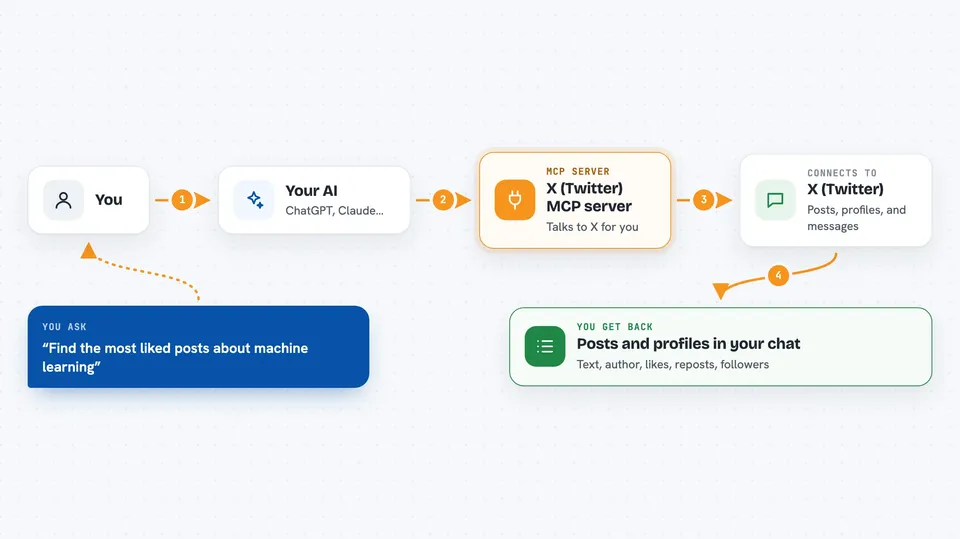
You ask your AI something about X, like finding popular posts on a topic. The AI sends that request through this helper, which talks to the Xquik service. Xquik fetches the posts, profiles, or other data from X and sends it back. Your AI then shows you the results in the chat, as a list or a short summary. If you connect your own X account, it can also post, reply, like, or send messages for you.
 Click to zoom
What you can do with it
- Search X posts by keyword, language, or minimum likes
- Look up a profile and see follower counts and details
- Read the replies, quotes, and reposts on a post
- Post a new tweet or reply to someone
- Like, repost, or follow accounts
- Send a direct message
- Monitor an account or keyword for new activity
Try asking your AI
- “Find the most liked posts about machine learning from this week”
- “Show me the latest posts from this account”
- “What are people replying to this tweet?”
- “Post a tweet saying we just launched our new feature”
What it gives back to you
You get back a list of posts with their text, author, and numbers like likes and reposts. For profiles, you get details like the username, name, and follower count. If you asked it to post or reply, it tells you the action was done. Everything shows up right in your chat as a readable list or summary.
Before you start
What you need
- A Xquik account and an API key from the Xquik dashboard (a kind of password for apps; the site gives you one for free)
- A connected X account if you want to post, reply, like, or send messages
- An AI app that supports MCP servers, like Claude Desktop
Good to know
If you connect your own X account, this helper can post, reply, like, follow, and send messages on your behalf, so check what your AI is about to do before you let it act.
Install it with your AI
Add X (Twitter) MCP server to your AI, no technical skills needed
You don't install anything by hand. You copy one prompt, paste it into an AI that can work on your computer, and it checks, installs and connects the server for you, asking you when it needs something.
Sign in to get the install prompt
Members get a ready-made prompt that lets the Claude desktop app check X (Twitter) MCP server, install it and connect it for them, step by step. You don't need any technical skills: you copy, paste and answer a few questions. Your connected AI can also find and install any of the 4,361 MCP servers here for you.
Who it's for
Social media managers, marketers, researchers, and anyone who wants to work with X data or post to X without leaving their AI chat.