
MCP server · Browser automation
Auth Fetch MCP server
by ymw0407
Let your AI read pages that need a login, like Notion, Google Docs, Jira or Confluence.
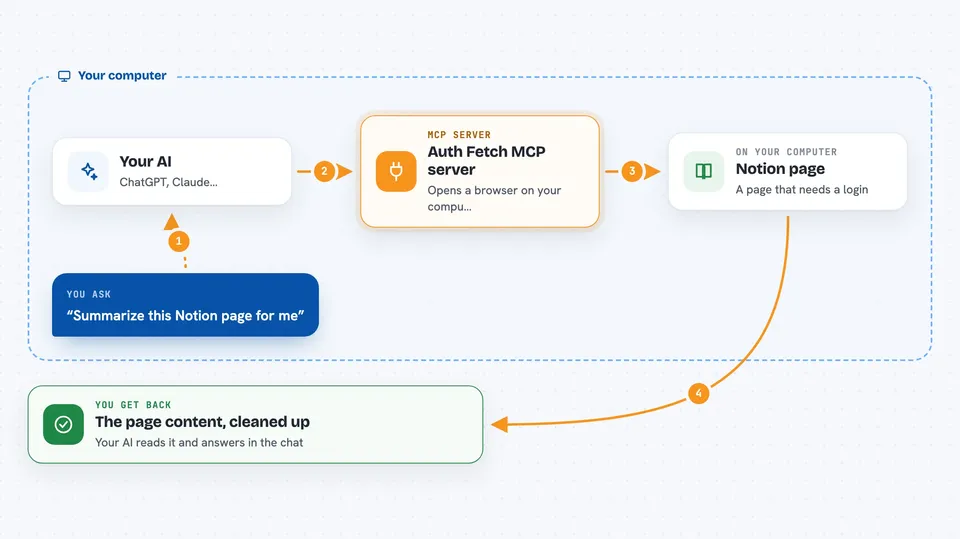
This is a small helper that lets your AI read web pages that normally sit behind a login. You sign in once in a real browser window, and after that your AI can fetch those pages for you. It is handy if you keep your notes, docs or tickets in tools like Notion, Google Docs, Jira or Confluence and want your AI to look things up there.
What is an MCP server? The 30-second version
On its own, your AI can only chat with you and read what you paste in. An MCP server is a small helper program that gives your AI a new skill or a connection to an app. This one connects your AI to login-protected web pages. When you ask it to read a page, it opens a real browser, uses the login you already saved, and brings the page content back to your AI.
What this MCP server does
You paste a link to a page that needs a login, like a Notion page or a Jira ticket. Your AI passes that link to this helper. The helper opens a real browser window and goes to that page. If you are not signed in yet, you sign in like you normally would, then click the Capture button. The helper cleans up the page, closes the browser, and hands the content back to your AI so it can read it or answer your question.
 Click to zoom
What you can do with it
- Read a Notion page, Google Doc, Jira ticket or Confluence page that needs a login
- Summarise a long internal document your AI could not see before
- Download images or files from a logged-in page using your saved session
- List the browser tabs that are currently open
- Close the browser window when you are done
- Reuse your saved login so you only sign in once per service
What it gives back to you
You get the page content back as cleaned-up text and HTML, with menus, footers and scripts stripped out. Your AI then reads that content and answers you in the chat, usually as a summary or a list. If you asked it to download files, you get back the local file paths where they were saved. The captured page itself is not saved to disk, it only passes through to your AI.
Before you start
What you need
- A computer where you can run local apps (this does not work in a web-based chat)
- An MCP-compatible app like Claude Code, Cursor or Windsurf
- Node.js installed (the helper runs through npx)
- A login for the service you want to read, like Notion or Jira
Good to know
It uses your real logins to read pages, so only point it at pages you are allowed to access, and be careful about turning on the private-host options since that opens up your own machine and network to whatever your AI is asked to fetch.
Install it with your AI
Add Auth Fetch MCP server to your AI, no technical skills needed
You don't install anything by hand. You copy one prompt, paste it into an AI that can work on your computer, and it checks, installs and connects the server for you, asking you when it needs something.
Sign in to get the install prompt
Members get a ready-made prompt that lets the Claude desktop app check Auth Fetch MCP server, install it and connect it for them, step by step. You don't need any technical skills: you copy, paste and answer a few questions. Your connected AI can also find and install any of the 4,361 MCP servers here for you.
Who it's for
People who keep notes, docs or tickets in login-protected tools like Notion, Google Docs, Jira or Confluence and want their AI to read those pages.


