MCP server · Security
VMware NSX Security MCP server
by zw008
Let your AI manage NSX firewall rules, security groups, tags, and trace packets for you.

This is a small helper that connects your AI assistant to VMware NSX, the part of your setup that controls who can talk to what inside your network. Once it is connected, you can ask your AI in plain words to look at firewall rules, create security groups, tag virtual machines, or trace where a packet gets blocked. It is handy for network and security admins who work with NSX every day and want to skip a lot of clicking around.
What is an MCP server? The 30-second version
On its own, your AI can only chat. It cannot see your NSX environment or change anything there. An MCP server is a small helper program that gives your AI a new skill, in this case a connection to your VMware NSX Manager. Once it is running, your AI can look things up in NSX and make changes for you when you ask.
What this MCP server does
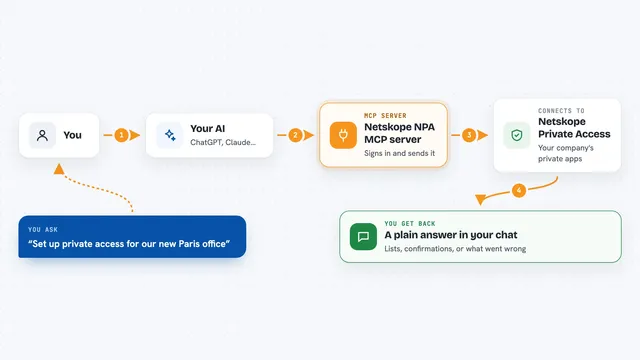
You ask your AI something like "show me the firewall rules for the web app policy". Your AI sends that request to this helper program, which talks to your NSX Manager over its normal connection. The helper gets the answer back, and your AI explains it to you in the chat. For changes, like creating a rule or applying a tag, the helper does the work in NSX and tells you what it did. It also checks before deleting things, so you do not accidentally break a rule that is still in use.
 Click to zoom
What you can do with it
- List, create, update, and delete distributed firewall policies and rules
- Create and manage security groups and VM tags
- Run a Traceflow to see where a packet is dropped and why
- Check IDS/IPS profiles and signature status
- See which VMs are on the firewall exclusion list
- Preview a delete before it happens so you know what would be removed
- Read rule statistics to see what is actually being hit
Try asking your AI
- “Show me all distributed firewall policies and their rules”
- “Create a security group called web-tier that matches VMs tagged tier=web”
- “Trace a TCP packet from 10.0.1.5 to 10.0.2.10 on port 443 and tell me where it is dropped”
- “Which VMs are on the DFW exclusion list right now?”
What it gives back to you
You get back clear answers in the chat: lists of policies, rules, groups, or tags, and short summaries of what each one does. Traceflow results come back as a hop-by-hop story with the reason a packet was dropped and which rule blocked it. When you make a change, the helper tells you what was created, updated, or deleted. Delete requests first show you what would be removed so you can decide.
Before you start
What you need
- A VMware NSX Manager you can reach, with your login details
- Python and the uv tool installed on your computer
- Your NSX password saved in an environment variable (a kind of secret setting the tool reads)
- A config file pointing at your NSX Manager host
Good to know
This tool can create, change, and delete firewall rules and groups in your live NSX environment, so always read the delete preview before confirming.
Install it with your AI
Add VMware NSX Security MCP server to your AI, no technical skills needed
You don't install anything by hand. You copy one prompt, paste it into an AI that can work on your computer, and it checks, installs and connects the server for you, asking you when it needs something.
Sign in to get the install prompt
Members get a ready-made prompt that lets the Claude desktop app check VMware NSX Security MCP server, install it and connect it for them, step by step. You don't need any technical skills: you copy, paste and answer a few questions. Your connected AI can also find and install any of the 4,609 MCP servers here for you.
Who it's for
Network and security admins who already work with VMware NSX and want to manage firewall rules and groups by asking their AI instead of clicking through the NSX interface.