MCP server · Security
pfSense MCP server
Lets your AI check and manage your pfSense firewall: rules, DHCP, DNS, gateways and services.
This is a helper that connects your AI assistant to a pfSense firewall, the box that controls your office or home network. Once it is set up, you can ask your AI plain questions about the firewall and it will look things up or make changes for you. It is handy for anyone who runs a pfSense router but does not want to click through the web interface for every small task.
What is an MCP server? The 30-second version
On its own, your AI can only chat. An MCP server is a small helper program that gives your AI a new skill or a connection to an app or service. This one connects your AI to your pfSense firewall, so the AI can look things up or make changes there when you ask. You install it once, point it at your firewall, and then just talk to your AI like usual.
What this MCP server does
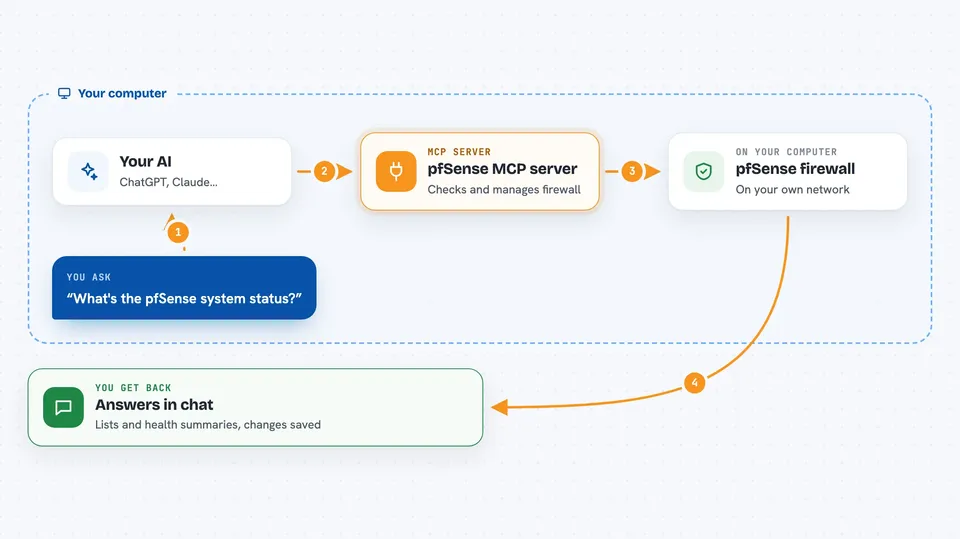
You ask your AI a question or give it a task, like listing firewall rules or adding a DNS entry. The AI passes that request to this helper program. The helper then talks to your pfSense firewall through a small web service called pfrest that you install on the firewall. The firewall answers, and the helper sends the answer back to your AI, which explains it to you in plain words. If you asked for a change, the change is usually saved but not switched on until you confirm it.
 Click to zoom
What you can do with it
- Check the firewall's version, CPU, memory, uptime and temperature
- List firewall rules and aliases, and add or delete rules
- See active DHCP leases and add or remove IP reservations
- Add or remove DNS host overrides
- See which devices are connected to the network
- Check gateway health and latency
- Restart a pfSense service
- Review recent firewall log entries
Try asking your AI
- “What's the pfSense system status?”
- “Show me all firewall rules on the LAN interface”
- “List active DHCP leases”
- “Add a DNS entry for nas.home.lan pointing to 10.10.10.50”
- “Show gateway health and latency”
What it gives back to you
You get answers in the chat: lists of rules, leases, devices or DNS entries, and short summaries of system health like CPU, memory and uptime. When you make a change, the AI tells you it was saved and reminds you that it is not active yet. To switch it on, you confirm with a second request, and the AI reports back that the change was applied.
Before you start
What you need
- A pfSense firewall running version 2.7.x or 2.8.x
- The pfrest package installed on your pfSense (this gives the firewall a small web service the helper can talk to)
- A pfSense user account with API access (usually admin)
- Python 3.11 or newer on the computer where you run the helper
Good to know
Changes to firewall rules, DHCP or DNS are saved but not switched on until you confirm them, and deleting rules, mappings or restarting services asks for a second confirmation before it happens.
Install it with your AI
Add pfSense MCP server to your AI, no technical skills needed
You don't install anything by hand. You copy one prompt, paste it into an AI that can work on your computer, and it checks, installs and connects the server for you, asking you when it needs something.
Sign in to get the install prompt
Members get a ready-made prompt that lets the Claude desktop app check pfSense MCP server, install it and connect it for them, step by step. You don't need any technical skills: you copy, paste and answer a few questions. Your connected AI can also find and install any of the 4,361 MCP servers here for you.
Who it's for
Anyone who looks after a pfSense firewall, like a small office IT person, a home lab enthusiast, or a network admin who wants to ask questions in plain language instead of clicking through menus.