AI agent for data analysts
Dataset Cleaning and Quality Agent
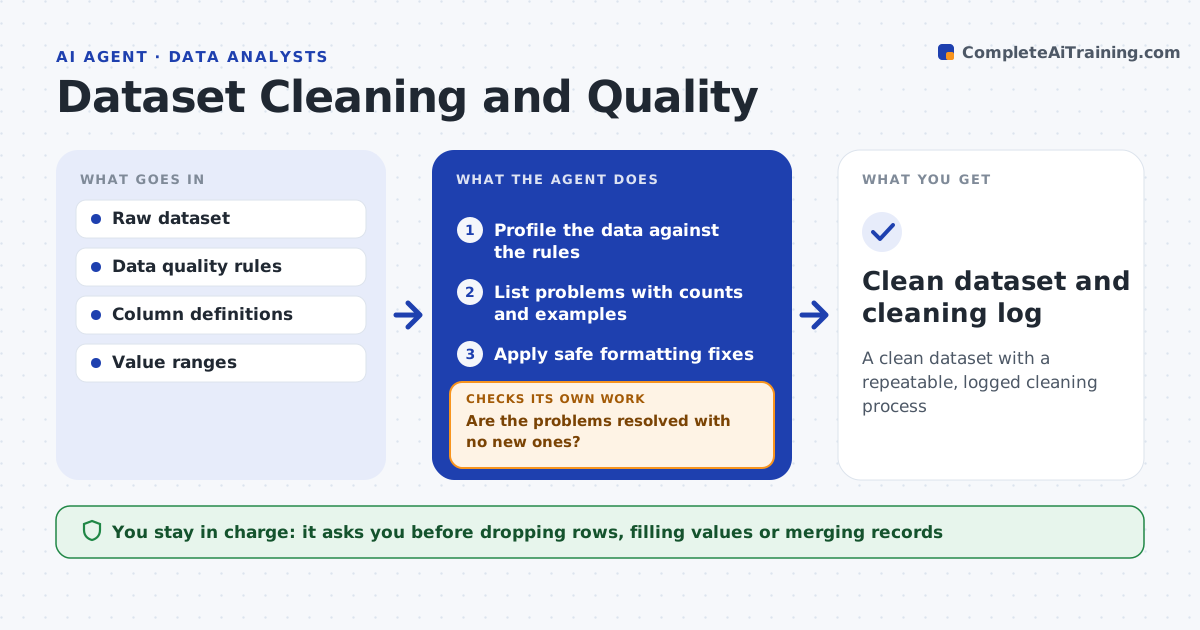
A clean dataset with a repeatable, logged cleaning process
What it does
Most analysis time goes to cleaning messy data by hand, and errors slip into results. Before any analysis this agent profiles a new dataset against your rules and lists each problem with counts and examples: missing values, duplicates, wrong types and impossible numbers. It applies safe fixes on its own, such as trimming spaces or standardizing dates. For risky changes, like dropping rows or filling missing values, it proposes the change, shows how many records it affects and waits. After cleaning it reruns every check to confirm the problems are gone and no new ones appeared. It writes a cleaning log so the work can be repeated next month. You approve the risky fixes. Edge case: a real outlier, like a genuine large order, is kept and noted, not removed.
How it works
Follow the arrows from top to bottom. The orange dashed arrow is the loop: when a check fails, the agent goes back and tries again.
Read the steps as a list
- New dataset arrives
- Profile the data against the rules
- List problems with counts and examples
- Apply safe formatting fixes
- Analyst approves risky fixes like drops or fillsThe agent waits here for your OK.
- Apply approved fixes and rerun the checks
- Are the problems resolved with no new ones?If not: review the remaining issues and adjust the fixes. Back to step 6.
- Clean dataset and cleaning log
How it decides
It applies only safe formatting fixes automatically and holds any change that drops or alters record values for approval.
- Auto-fix only formatting, never values
- Keep real outliers and note them
- Flag columns over the missing-value limit
Make it yours
Every agent is a starting point. You choose these settings for your own situation.
- Quality rules and value ranges
- Missing-value limit per column
- Which fixes are auto versus approved
- Log format
What keeps you in control
It always asks you first
- Dropping rows, filling values or merging records
Hard limits
- Never deletes the source data
- No value changes without approval
It stops when
- Done: data clean and logged
- Stop: column definitions are missing
Set it up
We guide you through the set-up, step by step
Members get the full set-up guide for this agent. No technical skills needed: you copy, paste and upload.
- One set of instructions to paste into your AI, with the clicks for ChatGPT, Claude, Microsoft 365 Copilot, Gemini and Grok
- The agent then walks you through connecting your own data, one source at a time
- A downloadable copy with the flow chart, the rules and the full guide