AI agent for website developers
Localization String Overflow Agent
A UI where every translated string fits its container in every supported language and screen size
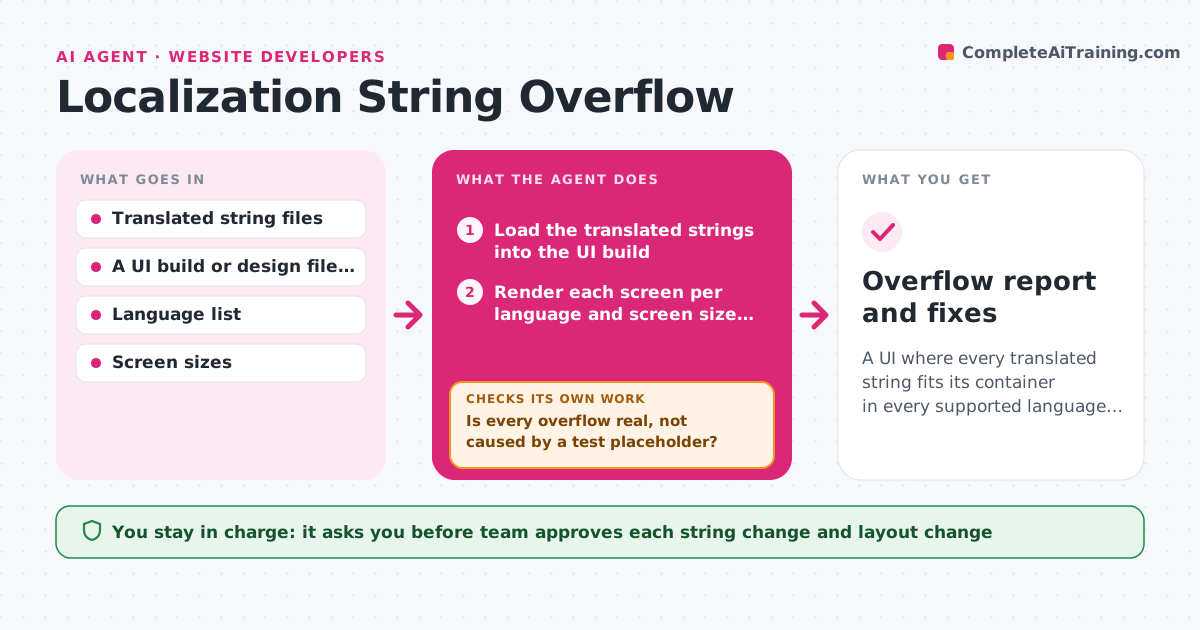
What it does
The English button says 'Save' and fits. The German says 'Speichern und fortfahren' and spills over the edge of the dialog. Teams discover this after the build ships. This agent loads the translated strings into the UI build and measures the rendered text against each container, checking for overflow, truncation and overlap, in every language. It flags the offenders with the language, screen, container size and how much the text exceeds it. It suggests shorter wording or a layout change, such as allowing two lines or a smaller font within limits. After each fix it reruns the check. It also confirms that right-to-left languages are mirrored correctly. The team approves the string changes. Edge case: a string that fits in a desktop build but overflows on a small phone screen is flagged for the small size only.
How it works
Follow the arrows from top to bottom. The orange dashed arrow is the loop: when a check fails, the agent goes back and tries again.
Read the steps as a list
- Translations arrive
- Load the translated strings into the UI build
- Render each screen per language and screen size and measure the text
- List strings that overflow, truncate or overlap other elements
- Is every overflow real, not caused by a test placeholder?If not: Replace the placeholder with the real text and measure again. Back to step 3.
- Suggest shorter wording or a layout change for each
- Team approves the string or layout changesThe agent waits here for your OK.
- Rebuild or reload with the approved changes
- Do all changed screens now pass at every size?If not: Measure the failures again and propose the next option. Back to step 3.
- Overflow report and fixes
How it decides
It renders each string in its container and flags overflow when the text is wider or taller than the container by more than 2 pixels. It prefers shorter wording before changing layout.
- Flag text wider or taller than its container by more than 2 pixels
- Offer shorter wording before layout changes
- Allow two lines for buttons only if the design permits it
- Check both the smallest and the largest supported screen
Make it yours
Every agent is a starting point. You choose these settings for your own situation.
- Languages and screen sizes to test
- Overflow tolerance in pixels (default 2)
- Where the UI build comes from
- Whether two lines are allowed
- Who approves string changes
What keeps you in control
It always asks you first
- Team approves each string change and layout change
Hard limits
- Never overwrite translations without approval
- Never change the source language strings
It stops when
- Done: All strings fit in all languages and sizes
- Stop: A string cannot fit without breaking the design, so the agent asks for a design decision
Set it up
We guide you through the set-up, step by step
Members get the full set-up guide for this agent. No technical skills needed: you copy, paste and upload.
- One set of instructions to paste into your AI, with the clicks for ChatGPT, Claude, Microsoft 365 Copilot, Gemini and Grok
- The agent then walks you through connecting your own data, one source at a time
- A downloadable copy with the flow chart, the rules and the full guide