AI tool
AI Mode in Chrome
AI Mode in Chrome keeps search results and web pages side-by-side on desktop, so your research stays connected. Add open tabs, images or PDFs as context for AI answers grounded in those pages.
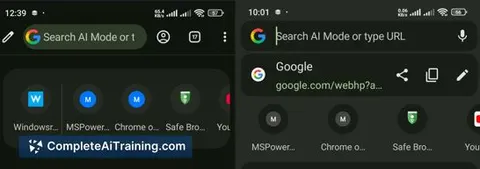
About AI Mode in Chrome
AI Mode in Chrome is a built-in Chrome desktop feature that displays search results and open web pages side-by-side, letting you ask follow-up questions with the page content visible. It accepts multiple inputs such as open tabs, images, and PDFs to provide context-aware responses.
Review

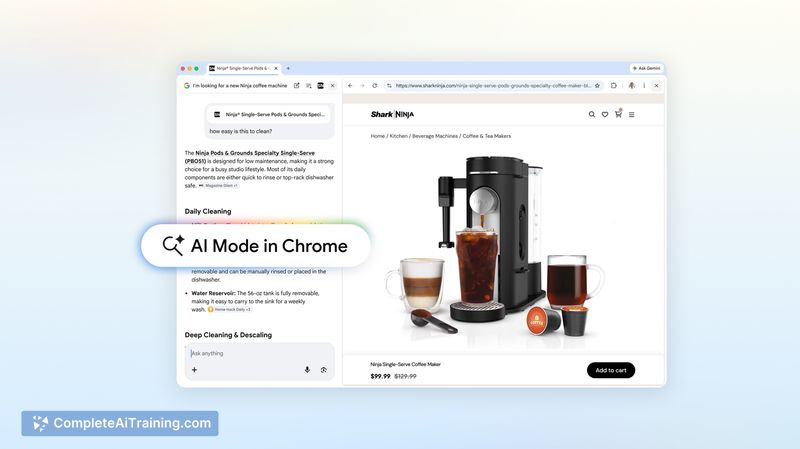

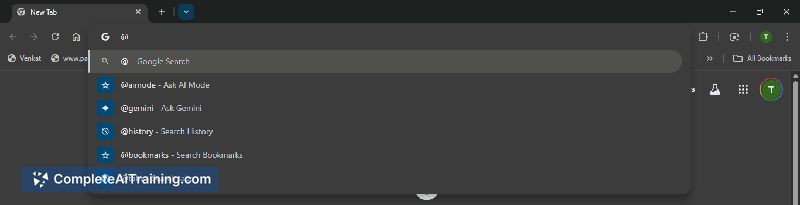

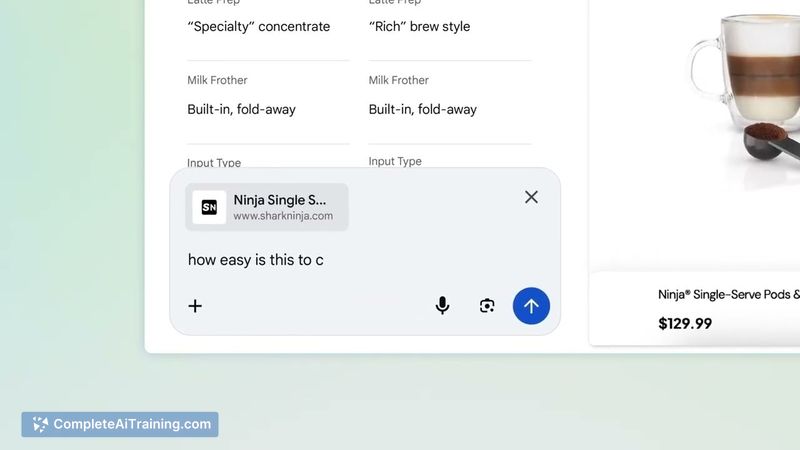
This feature aims to reduce tab switching by keeping search and browsing content in a single view, which can help keep research and web-based tasks more connected. As a recently launched addition to Chrome desktop, it feels like an experimental research workspace layered on top of the browser's usual search experience.
Key Features
- Side-by-side search and web page view on Chrome desktop to keep results and pages visible together.
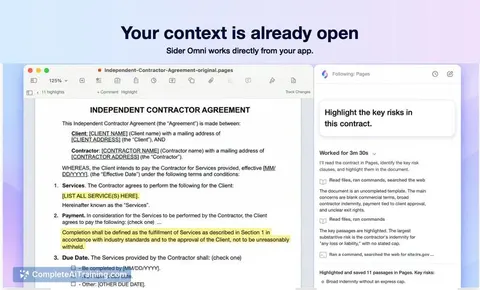
- Ability to add multiple open tabs, images, and PDFs as inputs so the assistant can use them as context.
- Integration with Canvas and in-interface image creation tools for quick visuals without leaving the panel.
- Context-aware follow-up questions that reference the visible pages and uploaded files.
Pricing and Value
The feature is available with free options as part of Chrome desktop at launch. For most everyday users who perform web research or need to synthesize information from several pages or documents, the built-in approach can save time compared with manual tab juggling. The value will be higher for users who frequently compare sources or work with PDFs and images in-browser; however, any advanced or enterprise-level needs may still require dedicated research tools or paid AI services.
Pros
- Keeps search results and visited pages visible together, reducing the need to flip between tabs.
- Supports multiple inputs (tabs, images, PDFs), making it useful for cross-referencing and quick summaries.
- Built into the browser on desktop, so setup is minimal for Chrome users.
- Includes simple creative tools like Canvas and image creation in the same interface.
Cons
- Available only on Chrome desktop for launch and limited to certain regions initially, which restricts access.
- AI responses depend on the quality and accuracy of the source pages; verification is still necessary.
- May increase memory and CPU use during heavy multi-tab sessions, affecting lower-end machines.
Overall, AI Mode in Chrome is best suited for students, researchers, and professionals who frequently pull information from multiple web pages, PDFs, or images and prefer to keep those resources visible while querying an assistant. If you rely on mobile workflows or require enterprise data controls, you may want to wait for broader availability and additional privacy or admin options before adopting it as a primary tool.
Jobs AI Mode in Chrome suits
We checked AI Mode in Chrome against 500+ jobs; these get the most out of it.
Alternatives to AI Mode in Chrome
Other tools that do the same main job. Our AI compared AI Mode in Chrome with similar tools and kept the ones you could use instead.