MCP server · No-code
Google Tag Manager MCP server
by A1-x-Tech
Let your AI look at your Google Tag Manager containers, prepare changes, and publish them when you say so.
This is a helper that connects your AI assistant to Google Tag Manager. It lets your AI look inside your containers, line up changes in a workspace, and publish them when you are ready. It is handy if you manage tags and tracking for a website and want to skip a lot of clicking around.
What is an MCP server? The 30-second version
On its own, your AI can only chat with you. An MCP server is a small helper program that gives your AI one new skill, here a connection to Google Tag Manager. Once it is connected, your AI can ask Google Tag Manager for information or make changes there when you ask it to. You stay in charge; the AI just does the clicking for you.
What this MCP server does
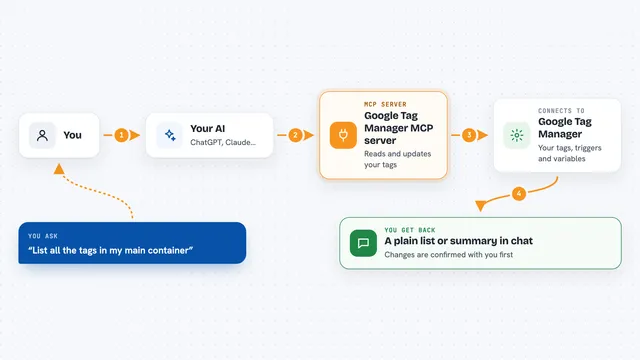
You ask your AI something about your Google Tag Manager setup, like what is inside a container. The AI passes your request to this helper. The helper talks to Google Tag Manager on your behalf. Then it brings the answer back into your chat, or makes the change you asked for. When you are happy with the changes, it can publish them for you.
What you can do with it
- List your Google Tag Manager containers and see what is in them
- Inspect tags, triggers, and variables in a container
- Prepare changes in a workspace before anything goes live
- Review what a workspace change would do
- Publish a workspace when you decide it is ready
- Check the current state of a container before you touch it
Try asking your AI
- “Show me all my Google Tag Manager containers”
- “What tags are in my main container right now?”
- “Prepare a workspace change to update the tag for our new signup page”
- “Publish the workspace changes we just reviewed”
What it gives back to you
You get answers in the chat, usually as a list or a short summary. For example, a list of containers, or a rundown of the tags and triggers inside one. If it makes a change, it tells you what it changed. If it publishes, it confirms that the workspace went live.
Before you start
What you need
- A Google account with access to Google Tag Manager
- Permission to view and change the containers you want to work with
- A way to sign in to Google from the tool (usually set up once when you connect it)
Good to know
It can change and publish things in your Google Tag Manager account, so review changes before you let it publish.
Install it with your AI
Add Google Tag Manager MCP server to your AI, no technical skills needed
You don't install anything by hand. You copy one prompt, paste it into an AI that can work on your computer, and it checks, installs and connects the server for you, asking you when it needs something.
Sign in to get the install prompt
Members get a ready-made prompt that lets the Claude desktop app check Google Tag Manager MCP server, install it and connect it for them, step by step. You don't need any technical skills: you copy, paste and answer a few questions. Your connected AI can also find and install any of the 4,361 MCP servers here for you.
Who it's for
Marketing and analytics people who manage Google Tag Manager and want to do everyday checks and changes without clicking through the whole interface.