MCP server · No-code
Google Tag Manager MCP server
by stape-io
Lets your AI look at and change your Google Tag Manager tags, triggers and variables for you.
This is a helper that connects your AI assistant to Google Tag Manager, the tool many teams use to manage tracking tags on their website. Once connected, you can ask your AI in plain words what tags exist, what a trigger does, or to make a small change, instead of clicking through the GTM screens yourself. It is handy for marketers, analysts and anyone who works with GTM but does not want to memorize where everything lives.
What is an MCP server? The 30-second version
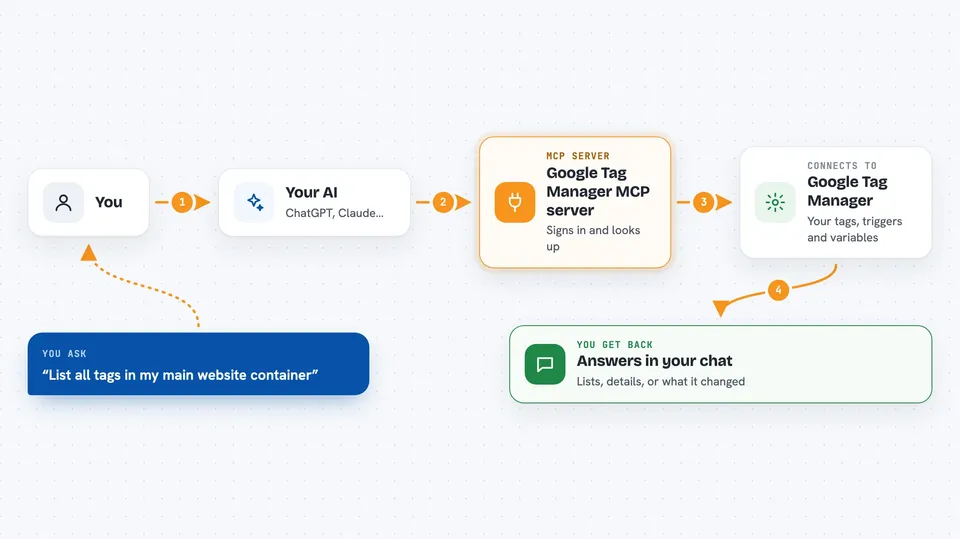
On its own, your AI can only chat with you. An MCP server is a small helper program that gives your AI a new skill or a connection to an app, and here that app is Google Tag Manager. When you ask something like "list my tags", your AI passes the request to this helper, the helper talks to Google Tag Manager on your behalf, and the answer comes back into your chat. You do not need to understand how it works inside; you just add it once and then talk to your AI as usual.
What this MCP server does
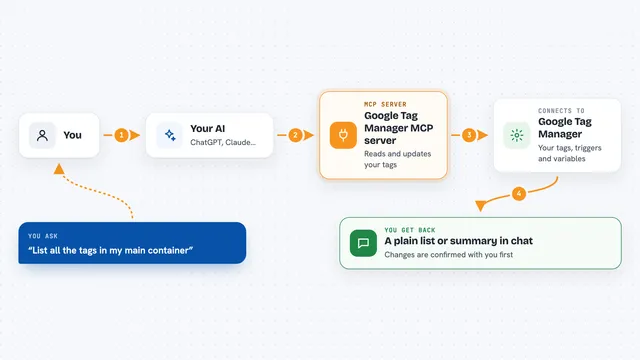
You ask your AI a question about your Google Tag Manager account, for example which tags are in a certain container. Your AI sends that request to this MCP server. The server signs in to Google Tag Manager using your Google account (or credentials you provide) and looks up the answer. It sends the result back to your AI, which explains it to you in the chat. If you ask it to change something, like pausing a tag, it can do that too, and it tells you what it changed.
 Click to zoom
What you can do with it
- List the tags, triggers and variables in a container
- Show the details of one specific tag or trigger
- Create a new tag, trigger or variable
- Update an existing tag, trigger or variable
- Delete a tag, trigger or variable you no longer need
- Look at your GTM accounts and containers
- Check what changed in a workspace
Try asking your AI
- “List all tags in my main website container”
- “What does the trigger called Form Submit do?”
- “Create a new tag that fires on page view for my blog”
- “Pause the tag called Old Facebook Pixel”
What it gives back to you
You get answers in your normal chat window. Lists come back as bullet points or tables, for example the names and types of your tags. Details come back as short explanations, like what a trigger listens for. When the AI makes a change, it tells you what it did so you can confirm it looks right.
Before you start
What you need
- A Google account with access to the Google Tag Manager container you want to use
- For the hosted version: nothing to install, you just sign in with Google in your browser
- For the local version: a Google service account key, refresh token or access token, and Node.js installed on your computer
Good to know
It can create, change and delete things in your Google Tag Manager account, so double-check any change it makes before you publish it.
Install it with your AI
Add Google Tag Manager MCP server to your AI, no technical skills needed
You don't install anything by hand. You copy one prompt, paste it into an AI that can work on your computer, and it checks, installs and connects the server for you, asking you when it needs something.
Sign in to get the install prompt
Members get a ready-made prompt that lets the Claude desktop app check Google Tag Manager MCP server, install it and connect it for them, step by step. You don't need any technical skills: you copy, paste and answer a few questions. Your connected AI can also find and install any of the 4,361 MCP servers here for you.
Who it's for
Marketers, analysts and web teams who already use Google Tag Manager and want to ask their AI about tags and triggers instead of clicking around.