MCP server · Developer tools
Adios MCP server
by adiosdotdev
Lets your AI manage your Adios workspaces, previews, builds, logs and deployments for you.

Adios is a platform where you build and run apps, and this is a helper that connects your AI assistant to it. Once it is connected, you can ask your AI in plain words to check a build, look at logs, or start a preview, and it does the clicking for you. It is handy if you already use Adios and want to spend less time in the dashboard.
What is an MCP server? The 30-second version
On its own, your AI can only chat. An MCP server is a small helper program that gives your AI a new skill or a connection to an app or service. This one connects your AI to Adios, so it can look things up and do things there when you ask. You stay in the chat, and the helper talks to Adios behind the scenes.
What this MCP server does
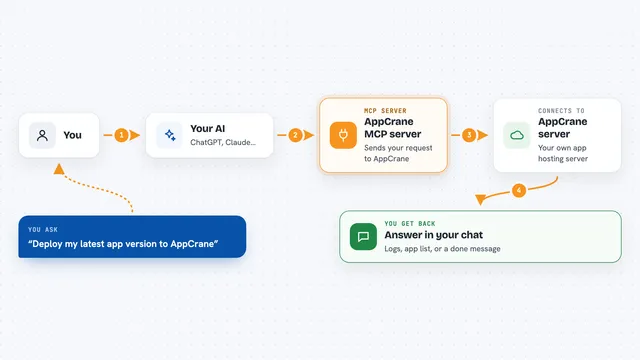
You ask your AI something about your Adios projects, like whether the last build passed. Your AI sends that request to the Adios helper, which talks to your Adios account. Adios sends back the answer, such as a build result, a list of workspaces, or some log lines. Your AI then explains it to you in the chat, in normal words. For bigger actions like deploying, it asks for your approval first.
 Click to zoom
What you can do with it
- List your Adios workspaces and see what is in them
- Check the status of builds and previews
- Read and summarize logs to find what went wrong
- Start a preview so you can look at your app
- Deploy your project to production after you approve it
- Update source files in a workspace
- Stop a running workload when you no longer need it
Try asking your AI
- “What Adios workspaces do I have?”
- “Did my last build pass? If not, what failed?”
- “Show me the recent logs and tell me why the app crashed”
- “Start a preview of my project so I can check it”
- “Deploy the latest version to production”
What it gives back to you
You get answers in the chat, not files to download. That might be a list of workspaces, a short summary of a build result, or a few lines from the logs with an explanation. When it changes something, like starting a preview or deploying, it tells you what it did. Anything risky waits for your yes before it happens.
Before you start
What you need
- An Adios account
- An MCP client that supports remote connections, such as Codex, Claude Code, Gemini CLI, Kimi Code, GitHub Copilot or ChatGPT
- Node.js 20.18.1 or later if you use the npm option
Good to know
It can change real things in your Adios account, like deploying to production, stopping running workloads, pushing to Git or deleting files, so read what it plans to do before you approve it.
Install it with your AI
Add Adios MCP server to your AI, no technical skills needed
You don't install anything by hand. You copy one prompt, paste it into an AI that can work on your computer, and it checks, installs and connects the server for you, asking you when it needs something.
Sign in to get the install prompt
Members get a ready-made prompt that lets the Claude desktop app check Adios MCP server, install it and connect it for them, step by step. You don't need any technical skills: you copy, paste and answer a few questions. Your connected AI can also find and install any of the 4,361 MCP servers here for you.
Who it's for
People who already use Adios to build and run apps and want to check builds, logs and deployments from their AI chat instead of the dashboard.