MCP server · Coding
TSGram MCP server
by areweai
Chat with your AI from Telegram and let it read, search, and edit files in your local project.
TSGram MCP connects your AI coding assistant to Telegram, so you can ask questions about your project and get answers right in a chat on your phone. It runs on your own computer, in a small local setup, and only your Telegram account can use it. It is handy if you want to look at your code or fix small things while you are away from your desk.
What is an MCP server? The 30-second version
On its own, your AI can only chat with you in the window you already have open. An MCP server is a small helper program that gives your AI a new skill or a connection to another app. This one is a helper that links your AI to Telegram and to the files in your project folder on your computer. So when you send a message in Telegram, the helper passes it to your AI, and your AI can look at your files and reply back to you in the chat.
What this MCP server does
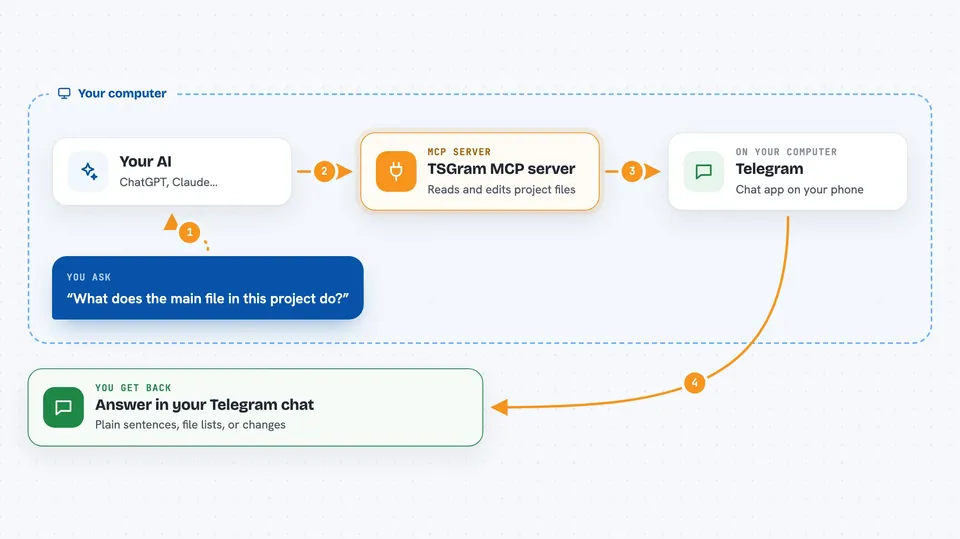
You send a message to your Telegram bot, like a question about your code. The bot hands that message to the TSGram helper running on your computer. The helper gives your AI access to your project files so it can read them and work out an answer. Your AI writes the reply, and the helper sends it back to you in Telegram. If you turn on edit mode, your AI can also change files in your project for you.
 Click to zoom
What you can do with it
- Ask questions about your code from your phone
- List files in a folder in your project
- View the contents of a file
- Get AI answers about how your code works
- Turn on edit mode and let the AI change files
- Pause and resume the bot with stop and start
- Watch bot activity in a local web dashboard
Try asking your AI
- “What does the main file in this project do?”
- “List the files in the src folder”
- “Show me the contents of package.json”
- “Find where the login function is defined”
What it gives back to you
You get replies in your Telegram chat, written in normal sentences. When you ask for files, you get a list of names or the text inside a file. When you ask a question, you get an explanation or a summary. If edit mode is on, the bot tells you which files it changed.
Before you start
What you need
- Docker Desktop installed on your computer
- Node.js 20 or newer
- Telegram on your phone
- Claude Desktop or Claude Code, plus an OpenRouter or OpenAI API key (a kind of password for AI apps; you create it on their site, often with a small spending limit)
Good to know
Edit mode can change files in your project, so only turn it on when you mean to, and the README warns not to use this for anything highly sensitive since third party servers are part of the message path.
Install it with your AI
Add TSGram MCP server to your AI, no technical skills needed
You don't install anything by hand. You copy one prompt, paste it into an AI that can work on your computer, and it checks, installs and connects the server for you, asking you when it needs something.
Sign in to get the install prompt
Members get a ready-made prompt that lets the Claude desktop app check TSGram MCP server, install it and connect it for them, step by step. You don't need any technical skills: you copy, paste and answer a few questions. Your connected AI can also find and install any of the 4,361 MCP servers here for you.
Who it's for
Developers and anyone who works on a coding project and wants to check or tweak it from their phone.